Setting up automatic user creation
Automatic user creation allows users to be automatically provisioned in SaaS Alerts when they sign in using KaseyaOne (Unified Login). This removes the need to manually create user accounts and helps ensure access is granted consistently.
Prerequisites
Before enabling automatic user creation, ensure the following:
-
You are logged in as a SaaS Alerts Administrator
-
Unified Login with KaseyaOne is enabled
-
Users who require access already exist in KaseyaOne
For detailed information on Unified Login with KaseyaOne, see the related documentation.
Enabling automatic user provisioning for SaaS Alerts
-
In the side navigation menu, go to Settings > Users.
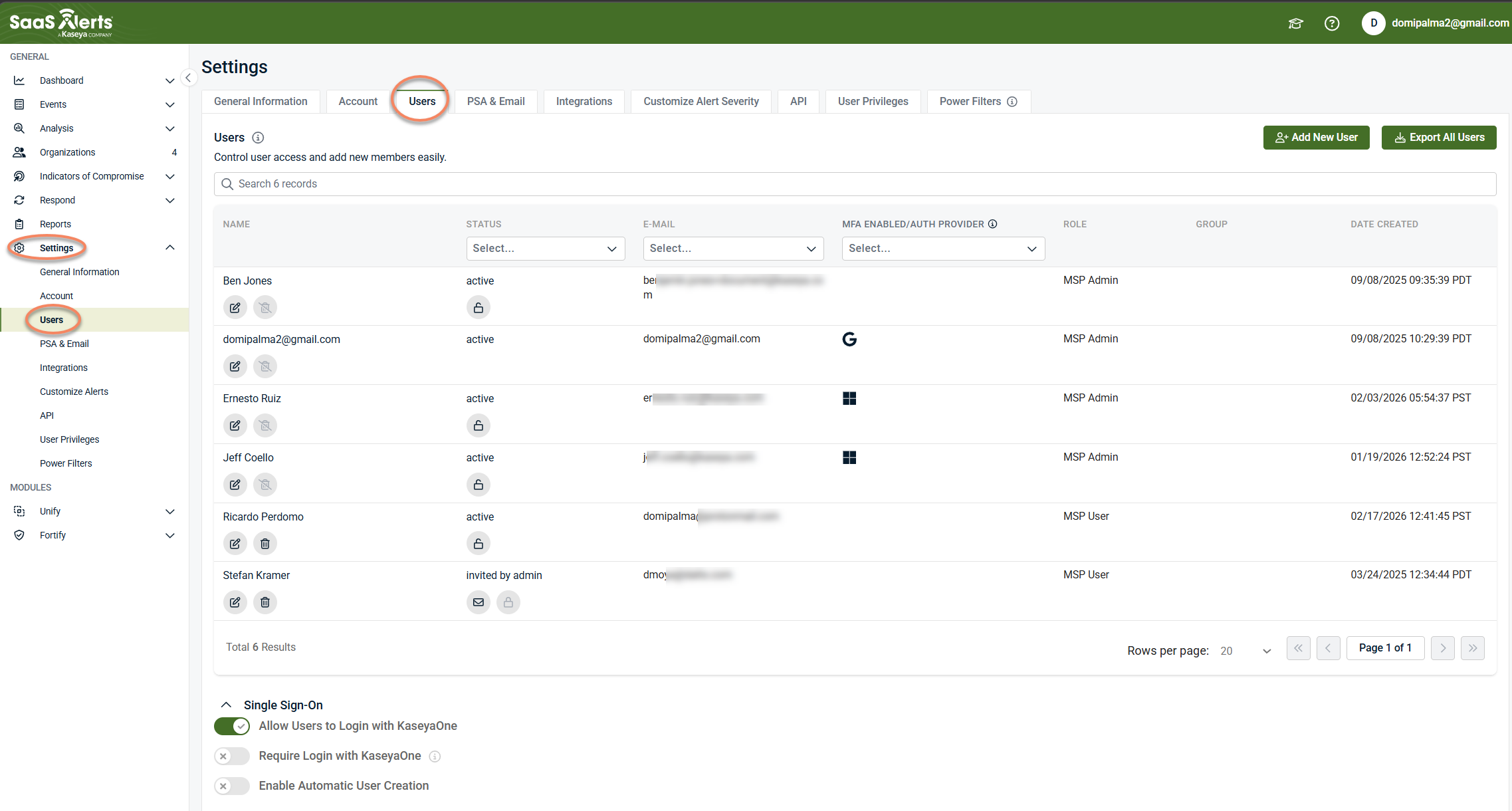
-
In the Single Sign-On section, ensure the Allow Users to Log in with KaseyaOne toggle is enabled.
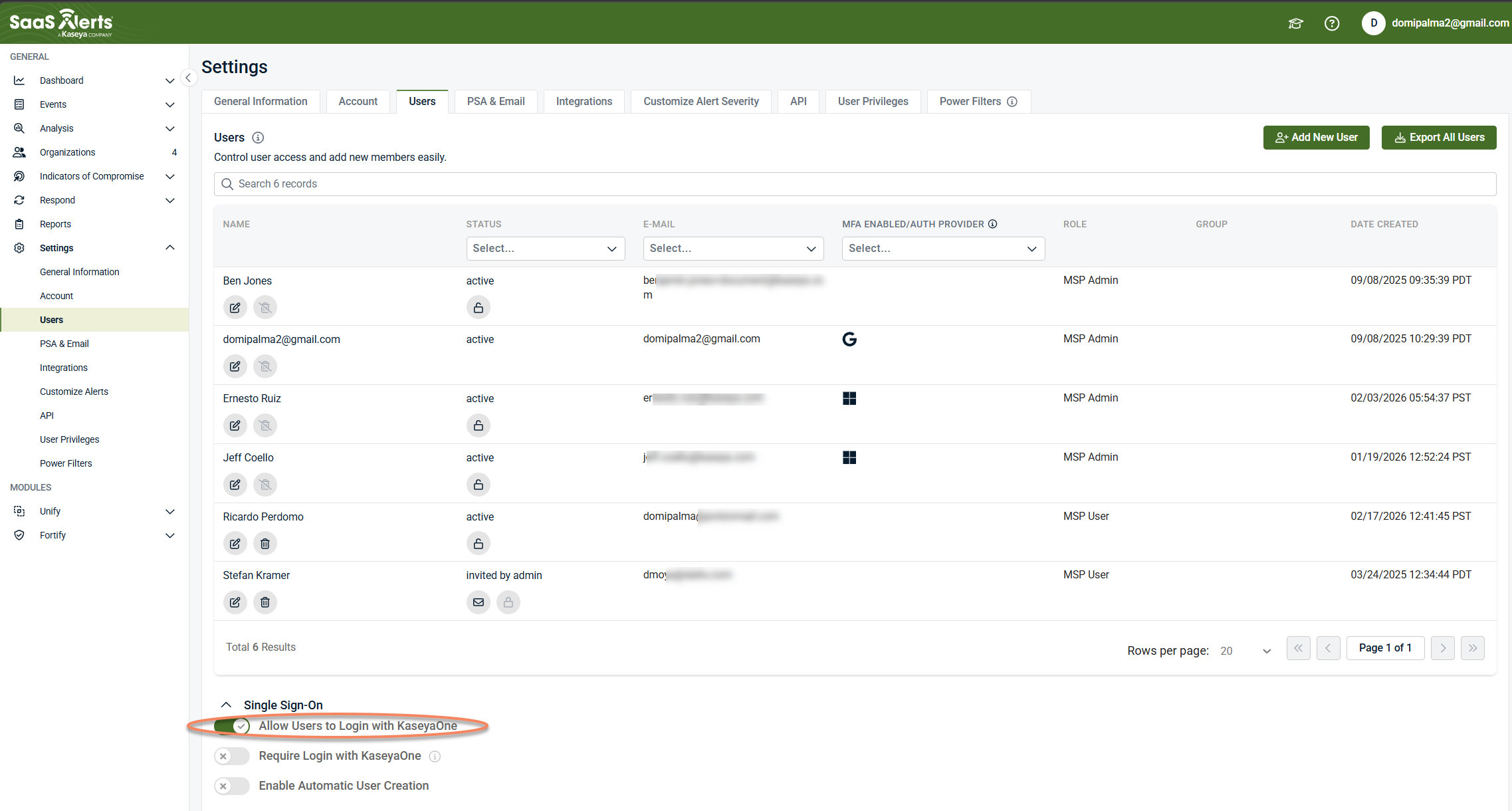
-
Activate the Enable Automatic User Creation toggle.
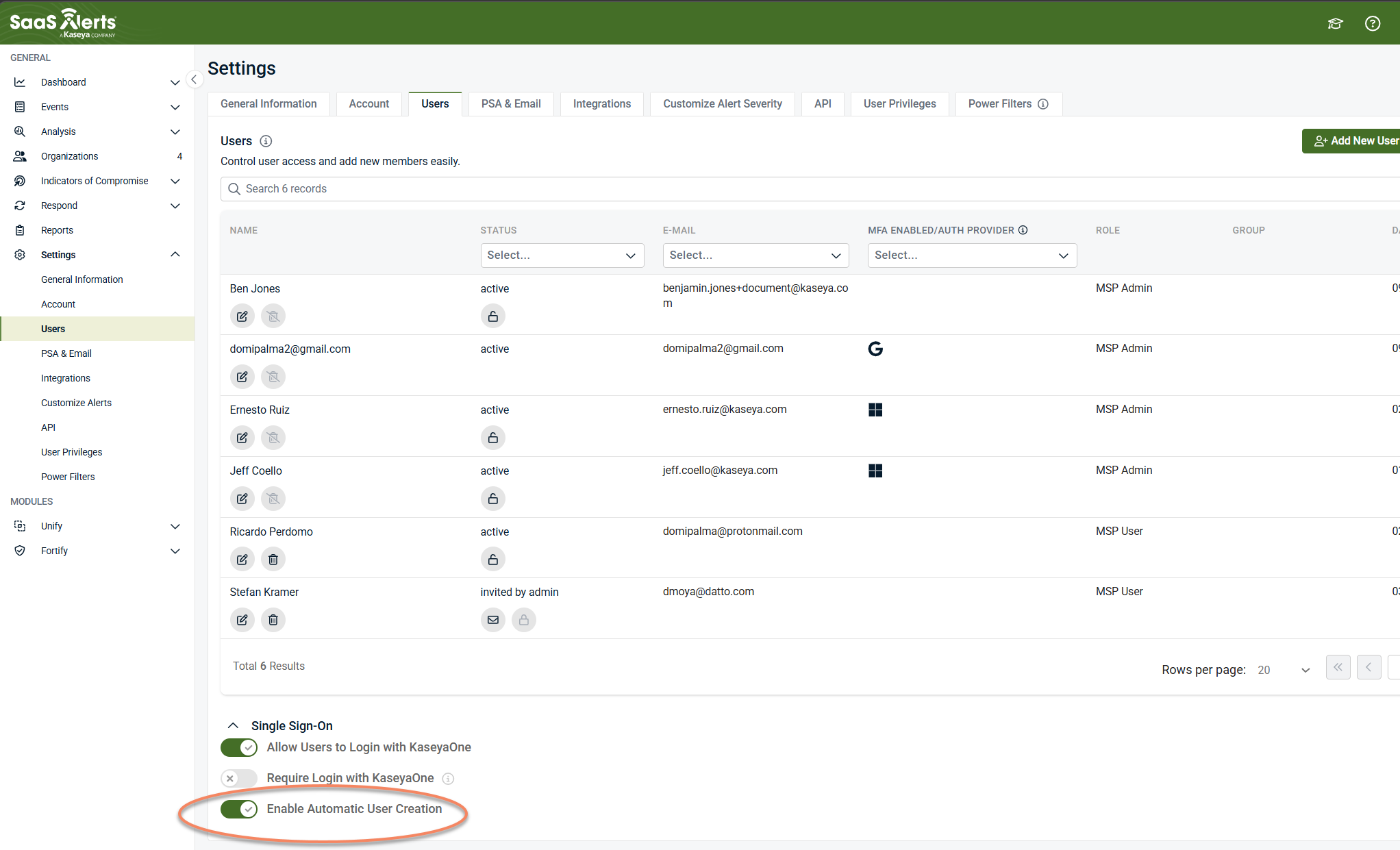
Once enabled, SaaS Alerts allows users to be created automatically through KaseyaOne authentication.
Automatic user creation behavior
When Automatic user creation is enabled:
-
User creation is tied to authentication through KaseyaOne
-
User accounts are created automatically without requiring manual user creation
-
Automatically created users appear in Settings > Users
NOTE Automatic user creation affects user account creation only. It does not change existing user settings or permissions.
User permissions and access
Automatic user creation controls user provisioning, not access levels.
-
User permissions and roles should be reviewed after the user account is created
-
Administrators remain responsible for assigning appropriate access
-
Automatic user creation does not replace user management or access reviews
NOTE Periodically review newly created users to ensure they have the correct access for their role.
Disabling automatic user creation
If you no longer want users to be created automatically:
1. Go to Settings > Users
2. In the Single Sign‑On section, disable the Enable Automatic User Creation toggle.
Disabling this setting does not affect existing users.
Troubleshooting
User not created automatically
-
Confirm the user logged in using KaseyaOne
-
Verify Allow Users to Login with KaseyaOne is enabled
-
Ensure Enable Automatic User Creation is turned on
-
Confirm the user exists in KaseyaOne
User can log in but does not appear in Users
-
Refresh the Users page
-
Verify you are viewing all users
-
Confirm the login was successful (not cached or expired)
Summary
Automatic user creation simplifies user onboarding by allowing SaaS Alerts to create user accounts through KaseyaOne authentication. While this feature reduces administrative effort, administrators should continue to review user access and permissions to ensure appropriate controls remain in place.


