Integration: SaaS Alerts and Zoom
 Security and navigation
SaaS Alerts
NAVIGATION Organizations > [Organization] > Edit > New Application
PERMISSIONS MSP Admin
Zoom
NAVIGATION Admin > Advanced > App Marketplace > Develop > Build App
PERMISSIONS Zoom Admin or account owner
The SaaS Alerts and Zoom integration monitors Zoom user activity, providing security alerts for sign-in and sign-out events to enhance compliance and oversight. SaaS Alerts connects to Zoom using a Server-to-Server OAuth app, which you create and configure in the Zoom App Marketplace.
Prerequisites
-
A Zoom account with Admin or account owner access.
How to...
Create a Server-to-Server OAuth app in Zoom
To create the OAuth app required for the integration, complete the following steps:
-
Log in to Zoom as an Admin or account owner.
-
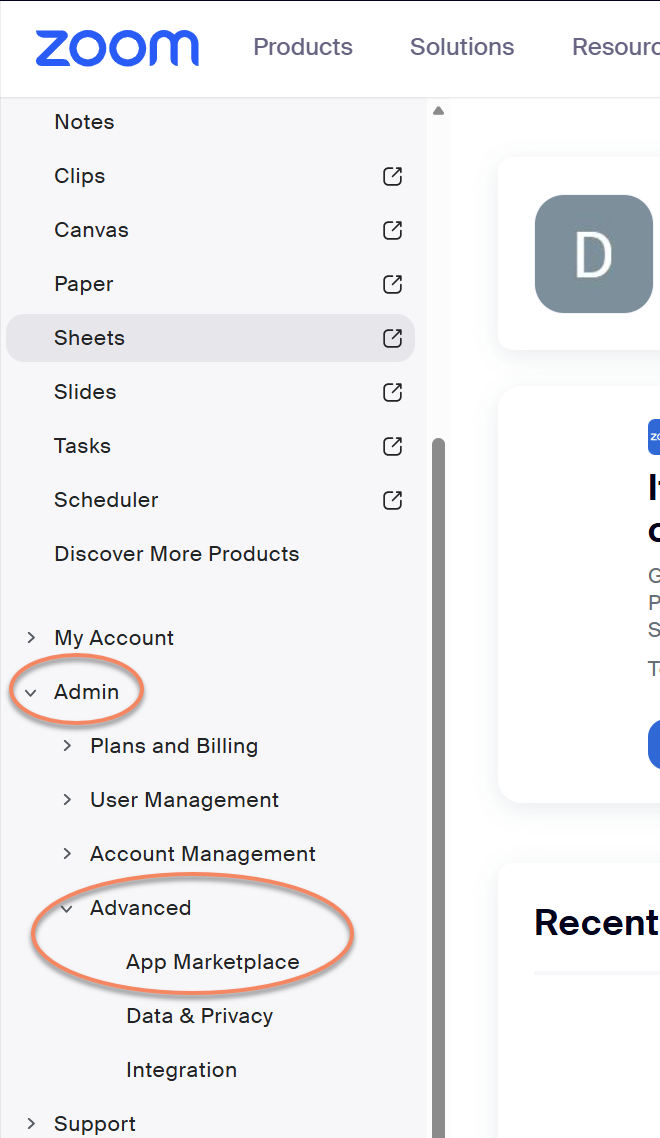
Navigate to Admin > Advanced > App Marketplace.
-
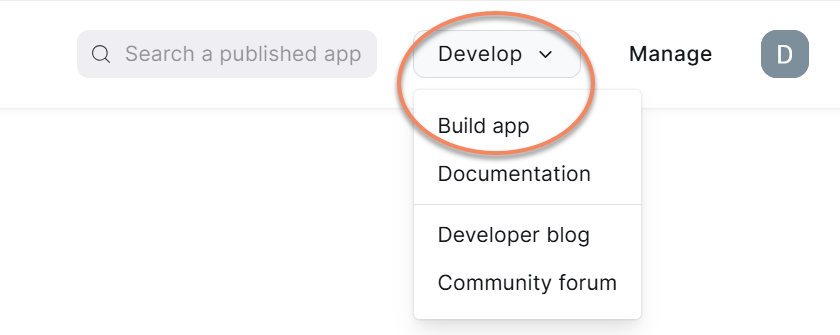
In the upper-right corner, select Develop > Build App.
-
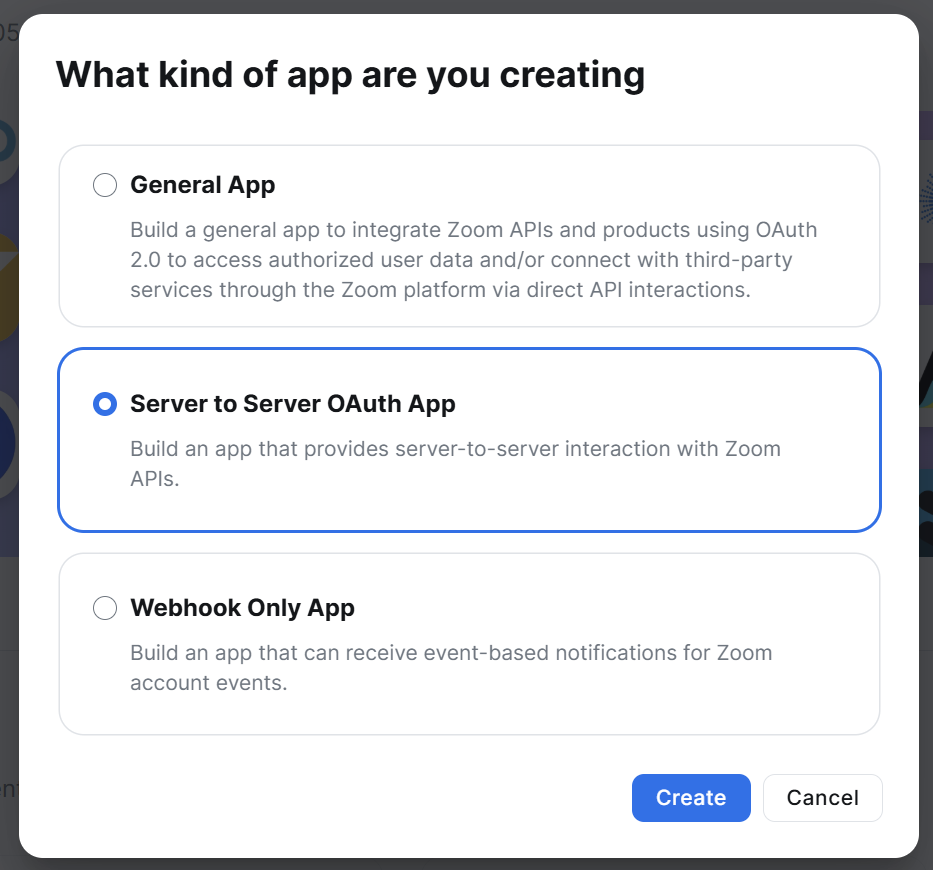
Select Server to Server OAuth App and click Create.
-
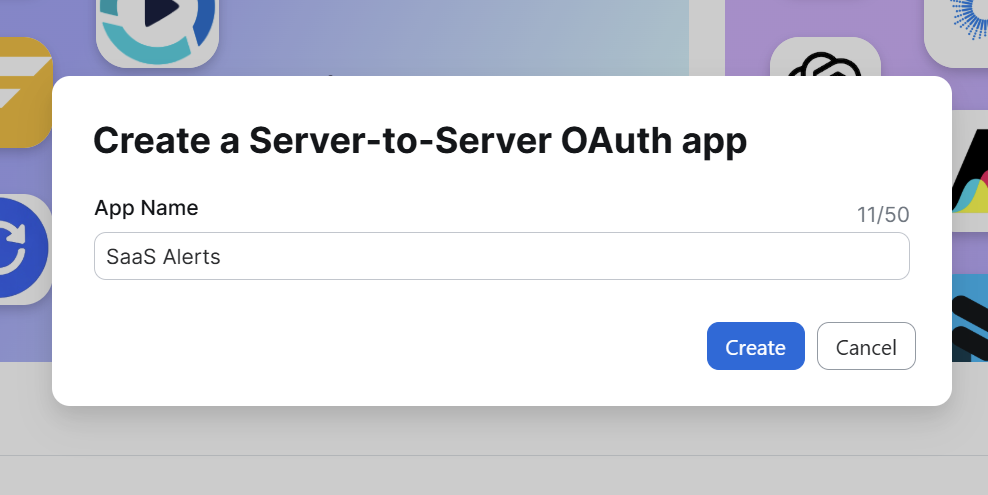
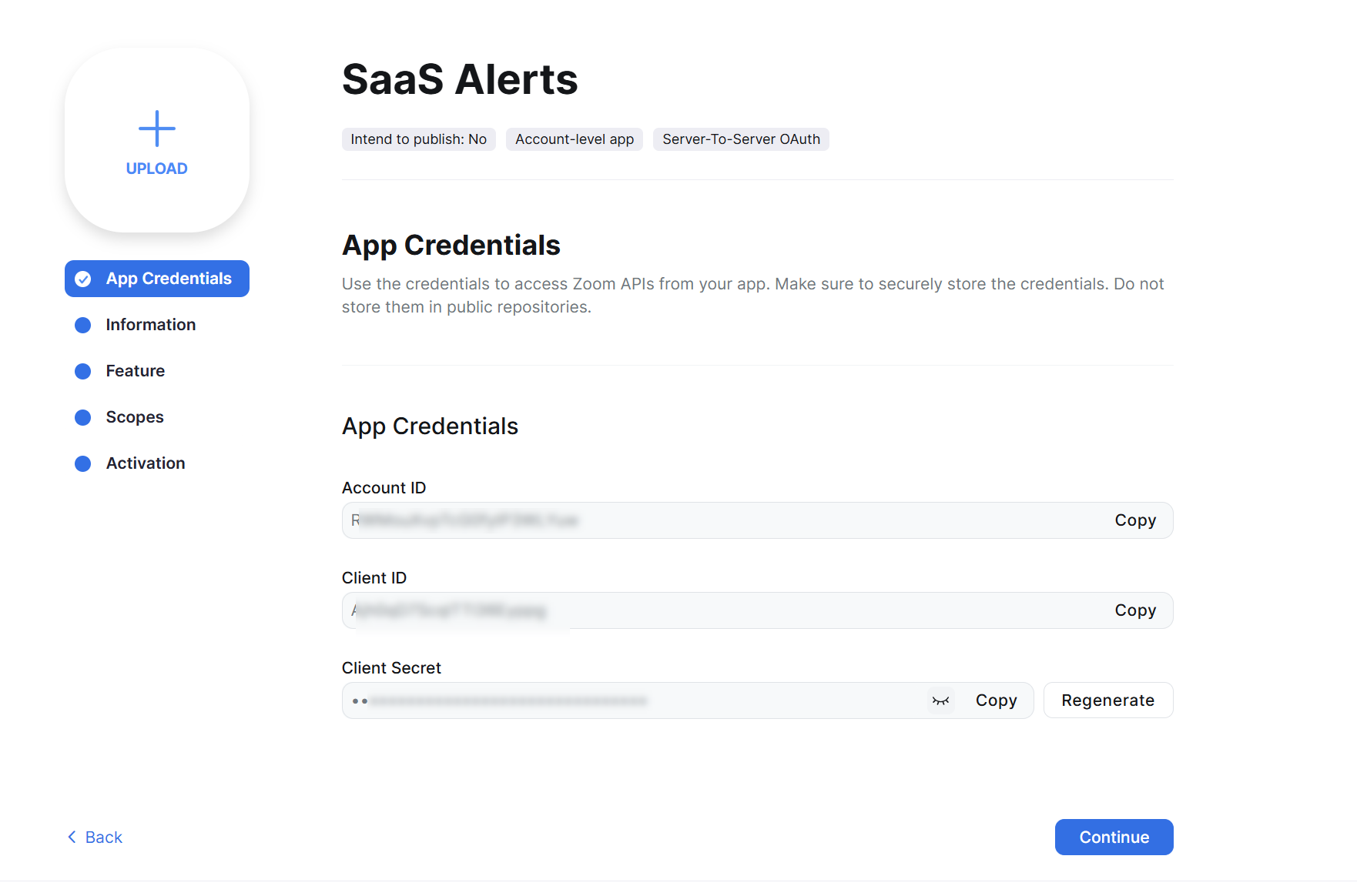
Name the app and click Create. Note the credentials; you will need them when connecting SaaS Alerts.
-
Click Continue.
-
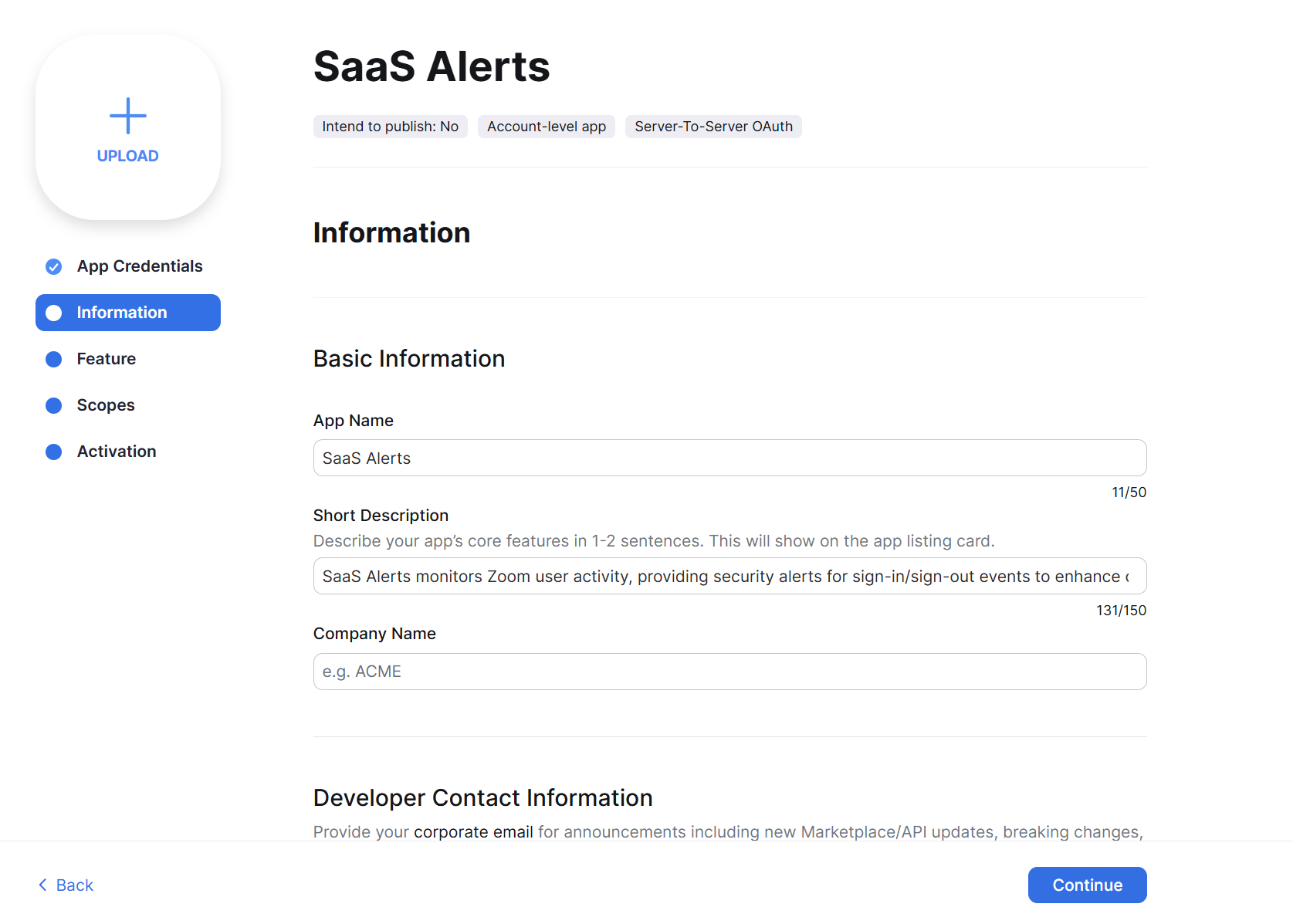
Fill out the basic information:
-
App Name: SaaS Alerts (or any name to identify the app)
-
Short description: "SaaS Alerts monitors Zoom user activity, providing security alerts for sign-in/sign-out events to enhance compliance and oversight."
-
-
Add your name and email address, then click Continue.
-
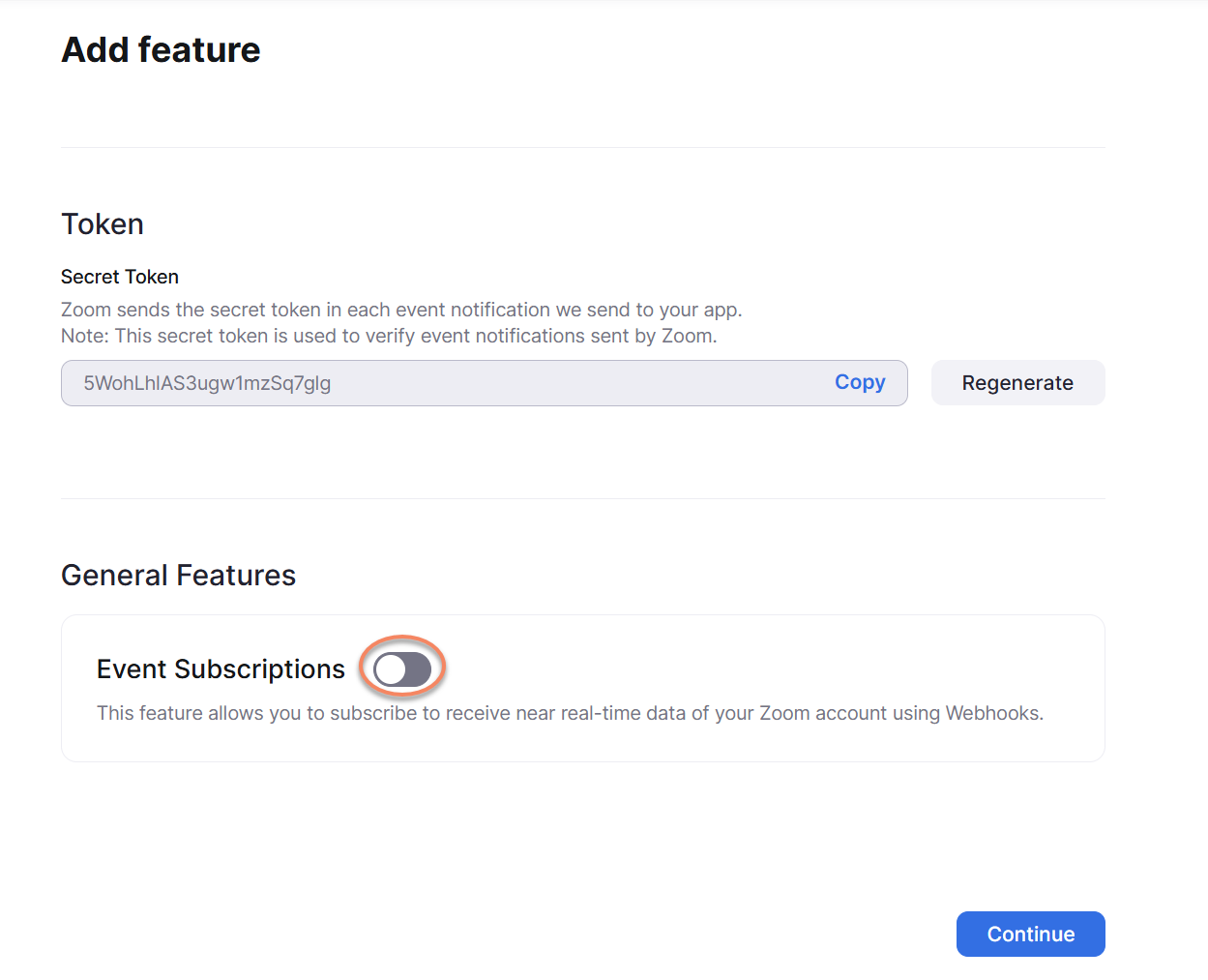
Under General Features, ensure that Event Subscription is disabled, then click Continue.
-
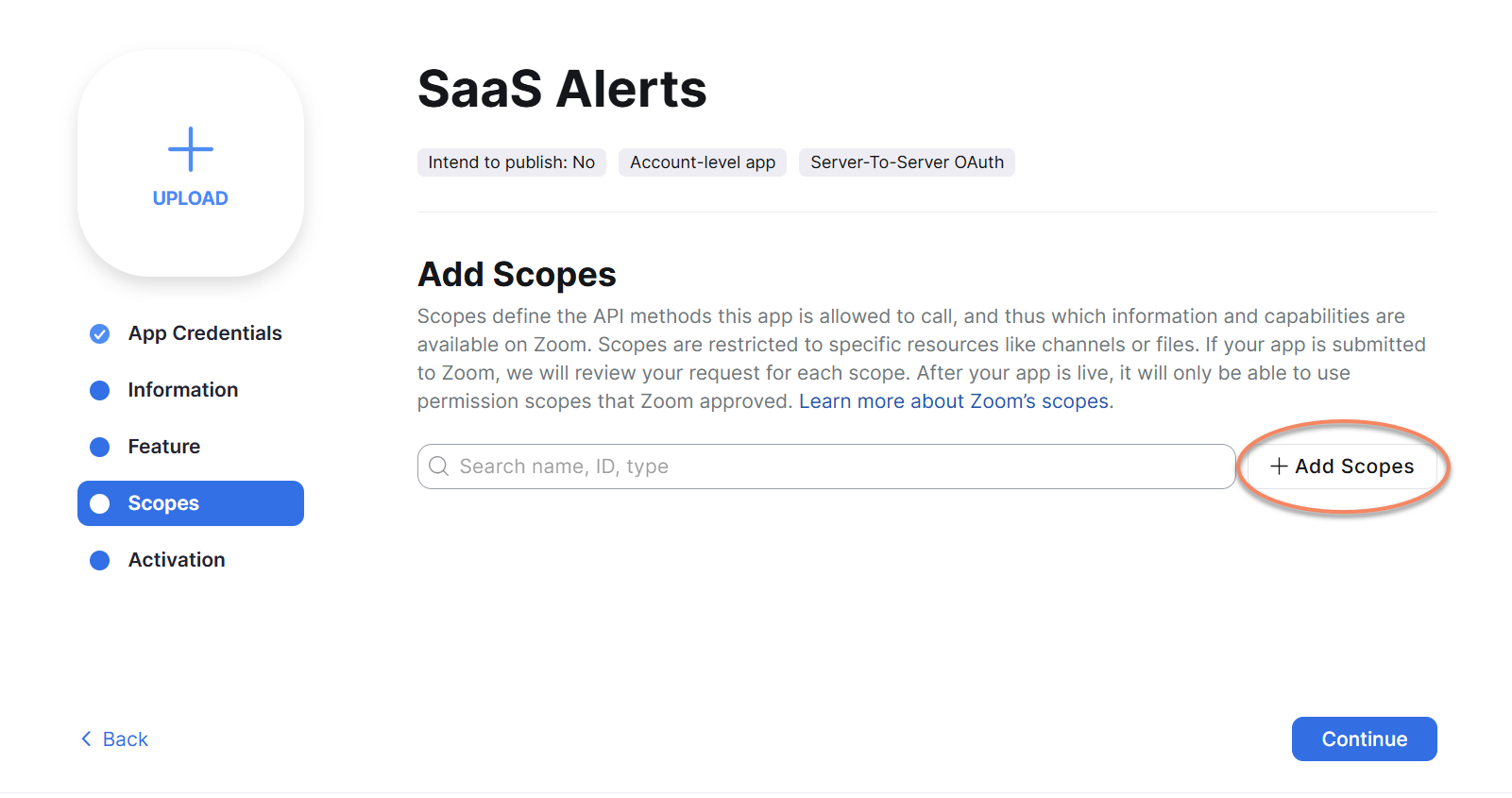
Under Scopes, click + Add Scopes.
-
In the Add Scopes dialog, use the Search scope field to find each permission.
-
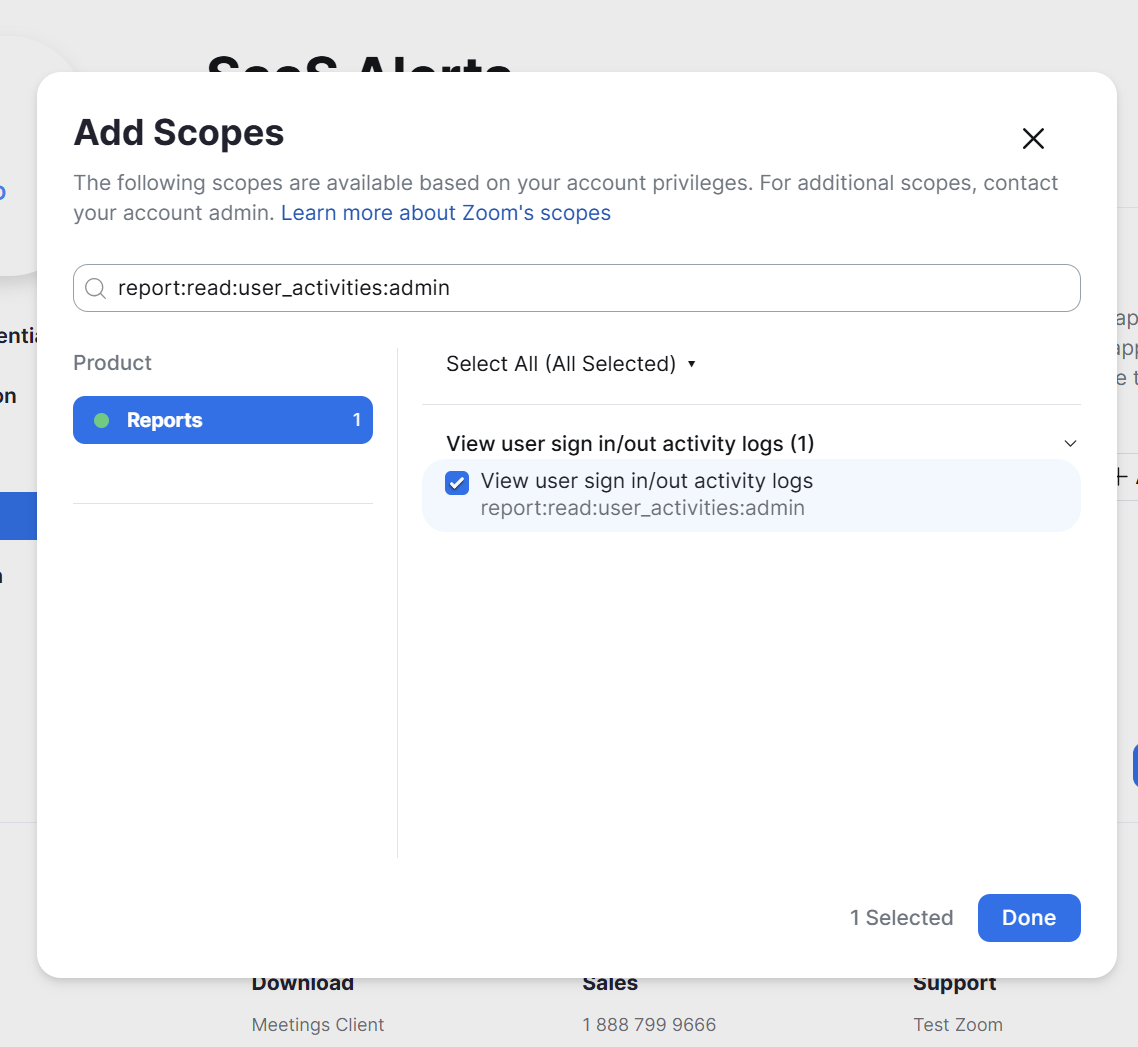
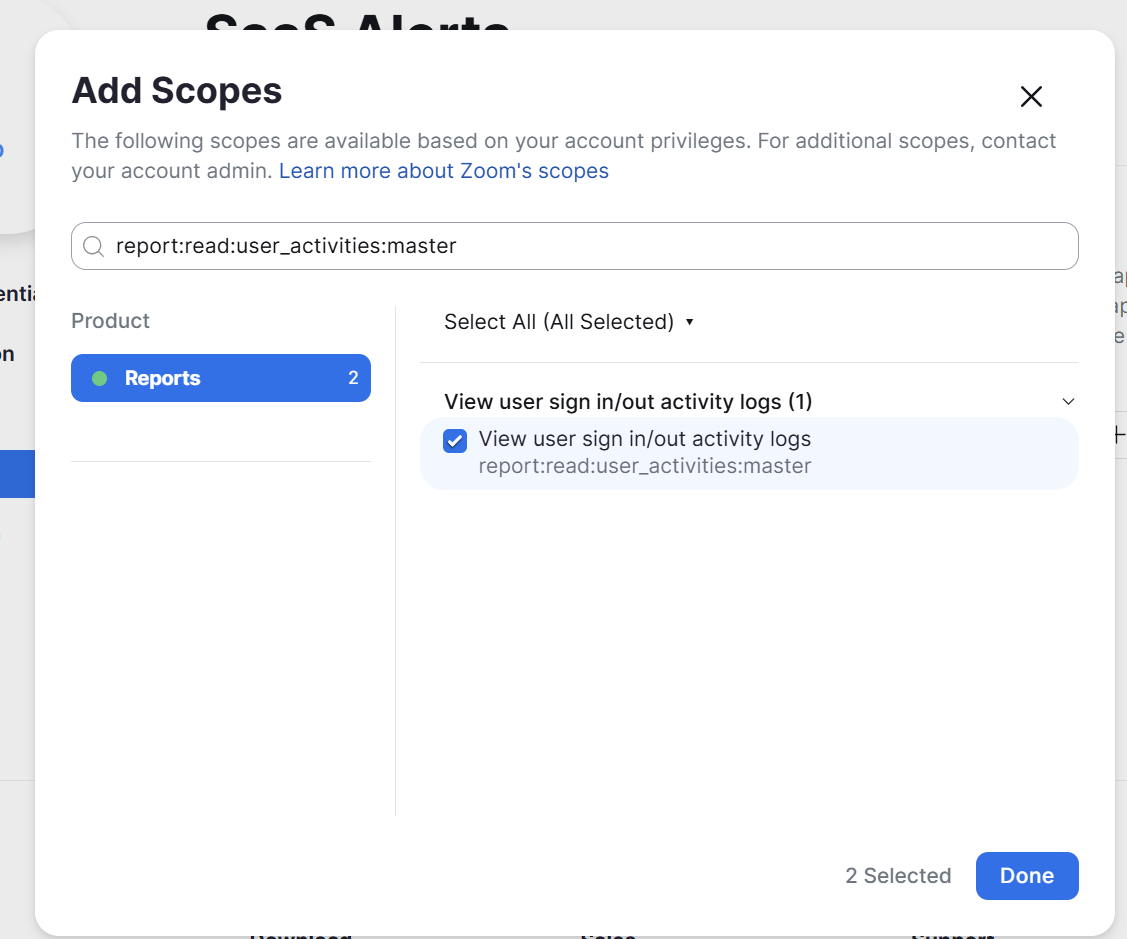
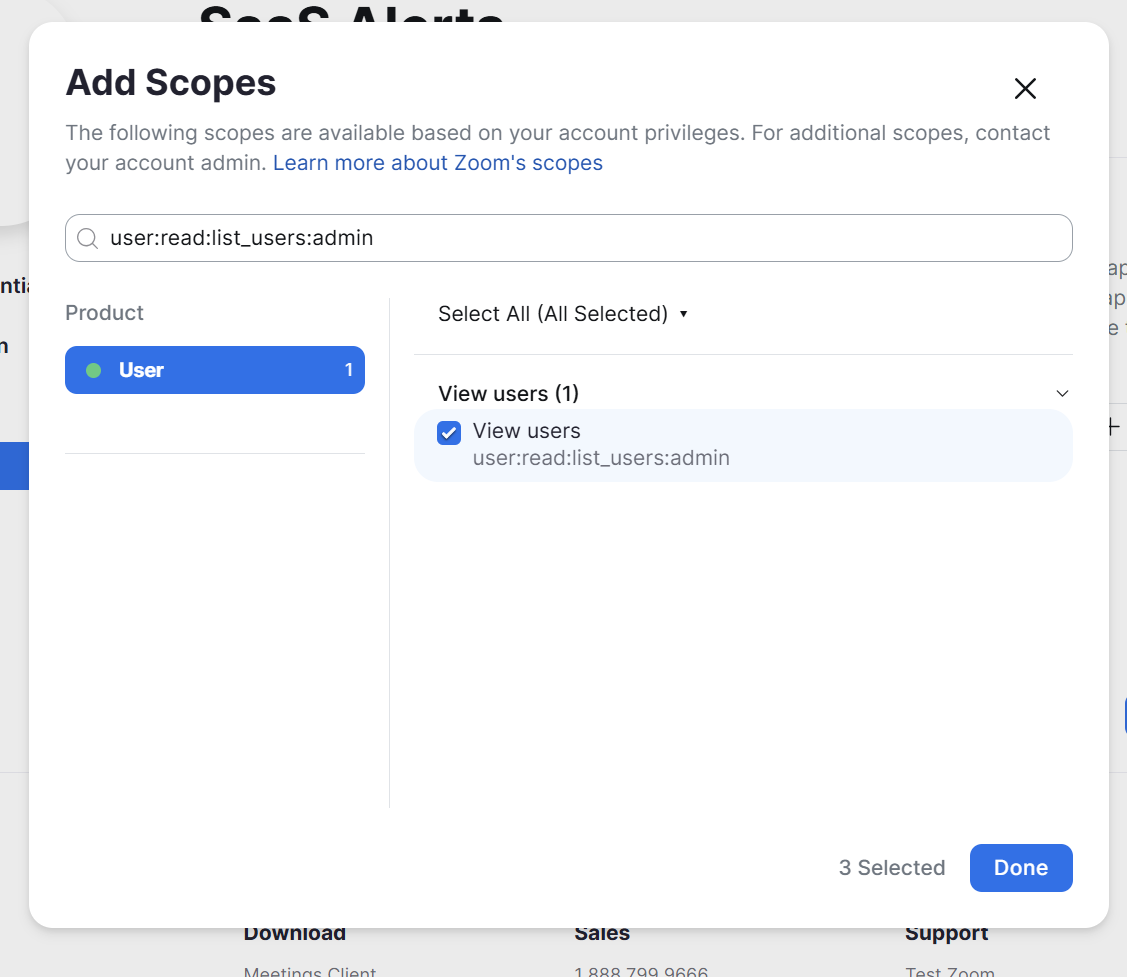
Search for and select the following scopes:
-
report:read:user_activities:admin
-
report:read:user_activities:master
-
user:read:list_users:admin
-
13. Confirm that each scope is selected.
14. Click Done.
15. For Scope description, enter: "This data is securely stored in a SOC 2 and ISO 27001-compliant database, ensuring encryption and strict access controls. Learn more at saasalerts.com/security."
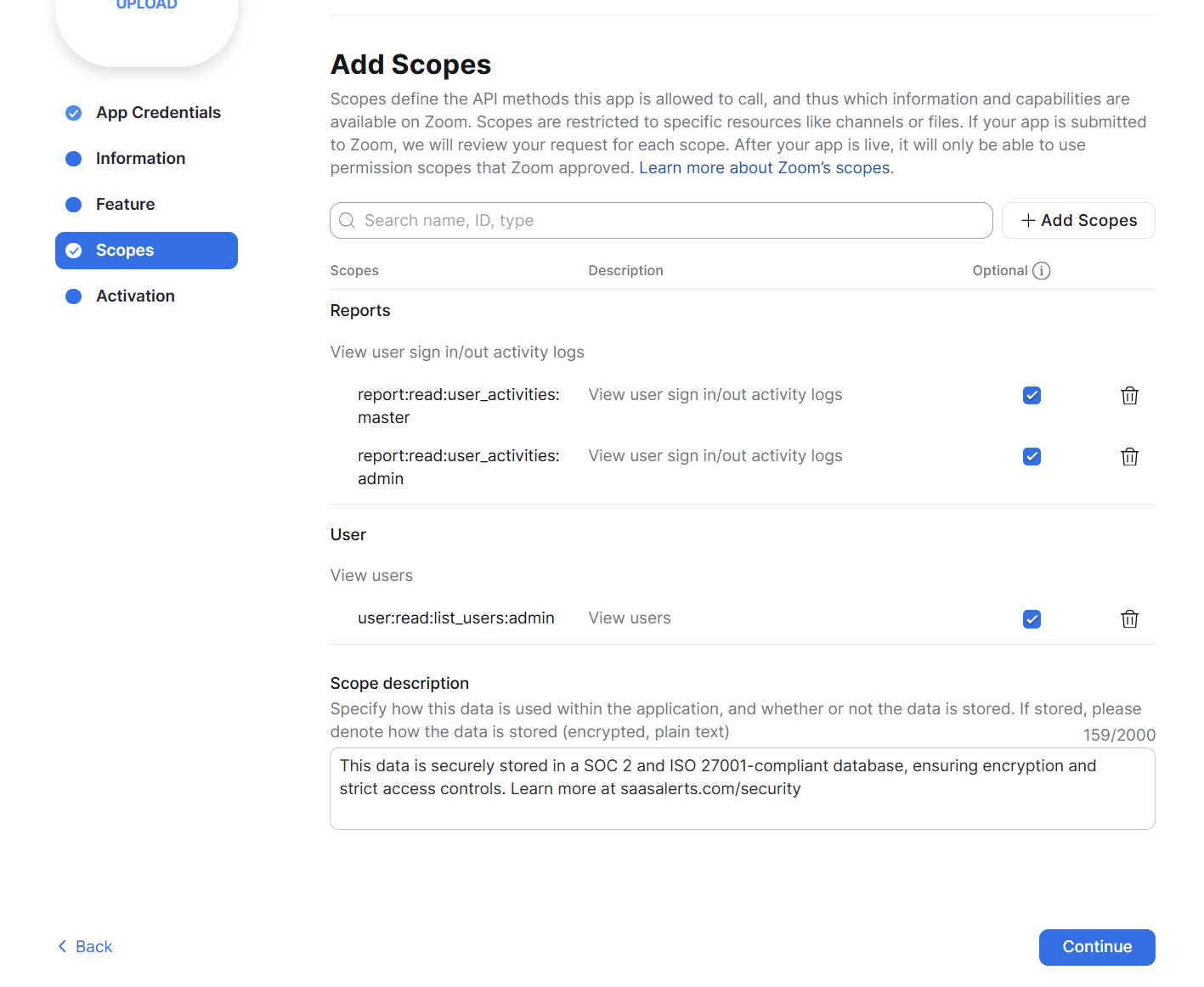
12. Click Continue, then activate the app.
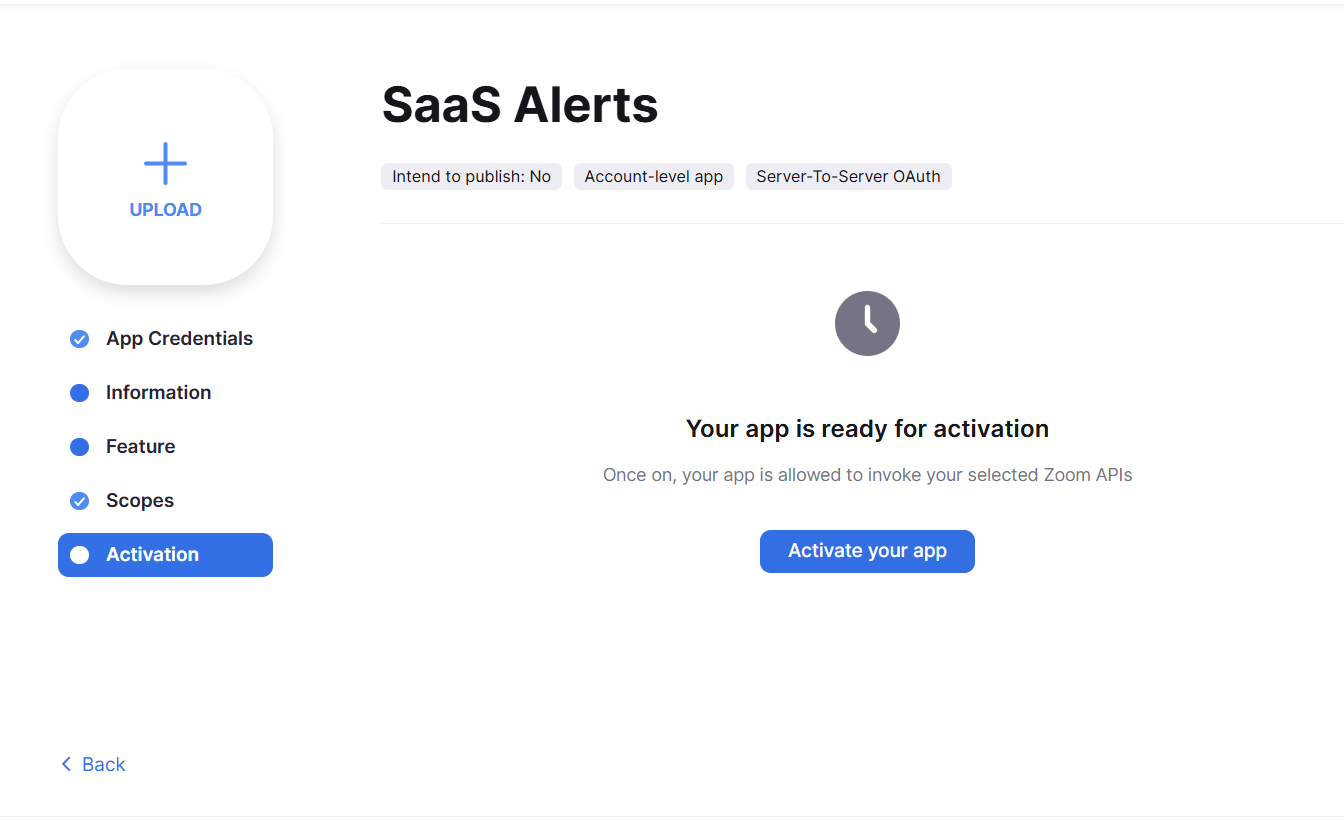
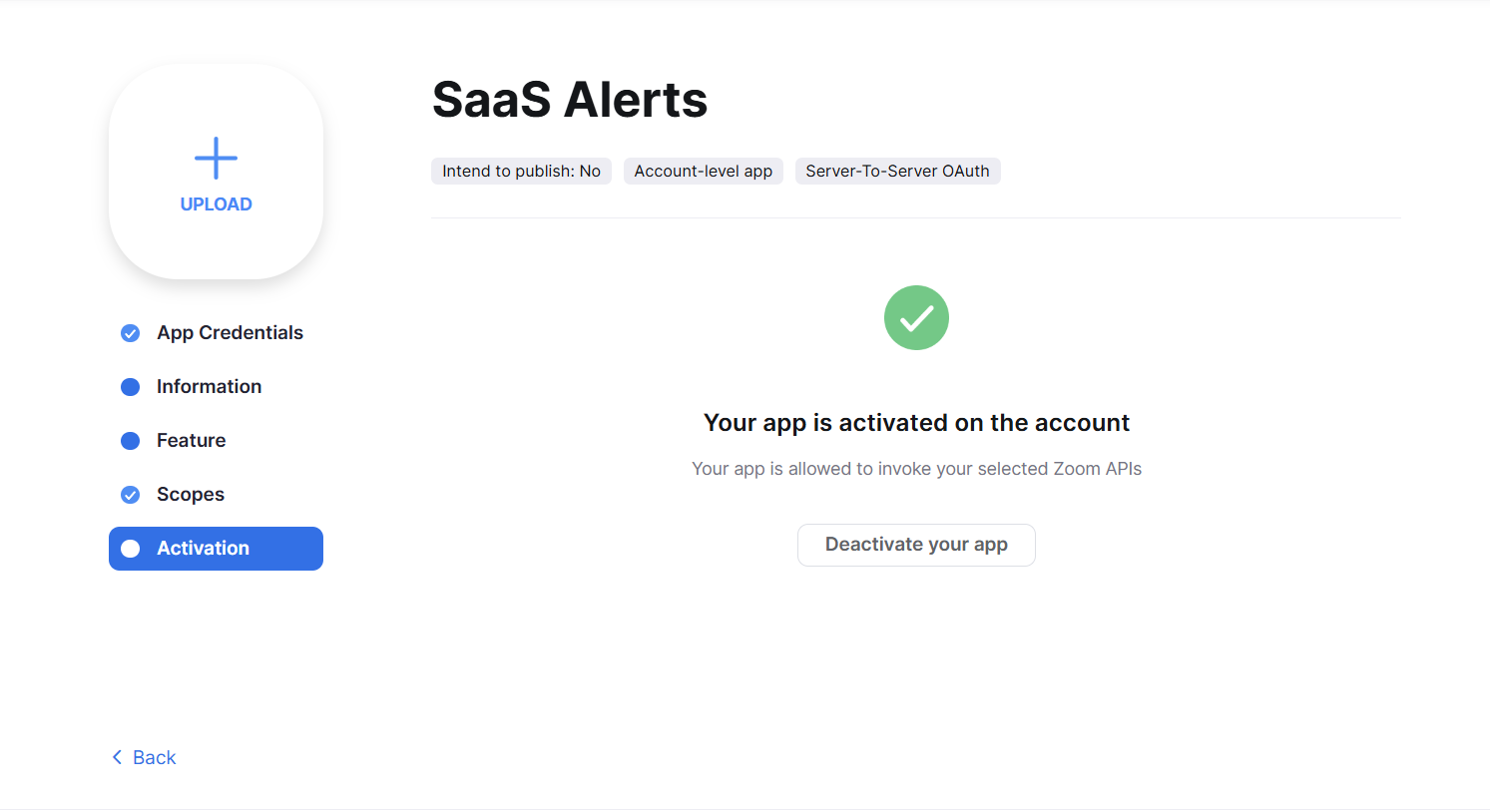
The OAuth app is now created in Zoom and ready to use when connecting SaaS Alerts.
Connect SaaS Alerts to Zoom
To connect SaaS Alerts to Zoom, complete the following steps:
-
In SaaS Alerts, navigate to Organizations and select the organization you want to connect.
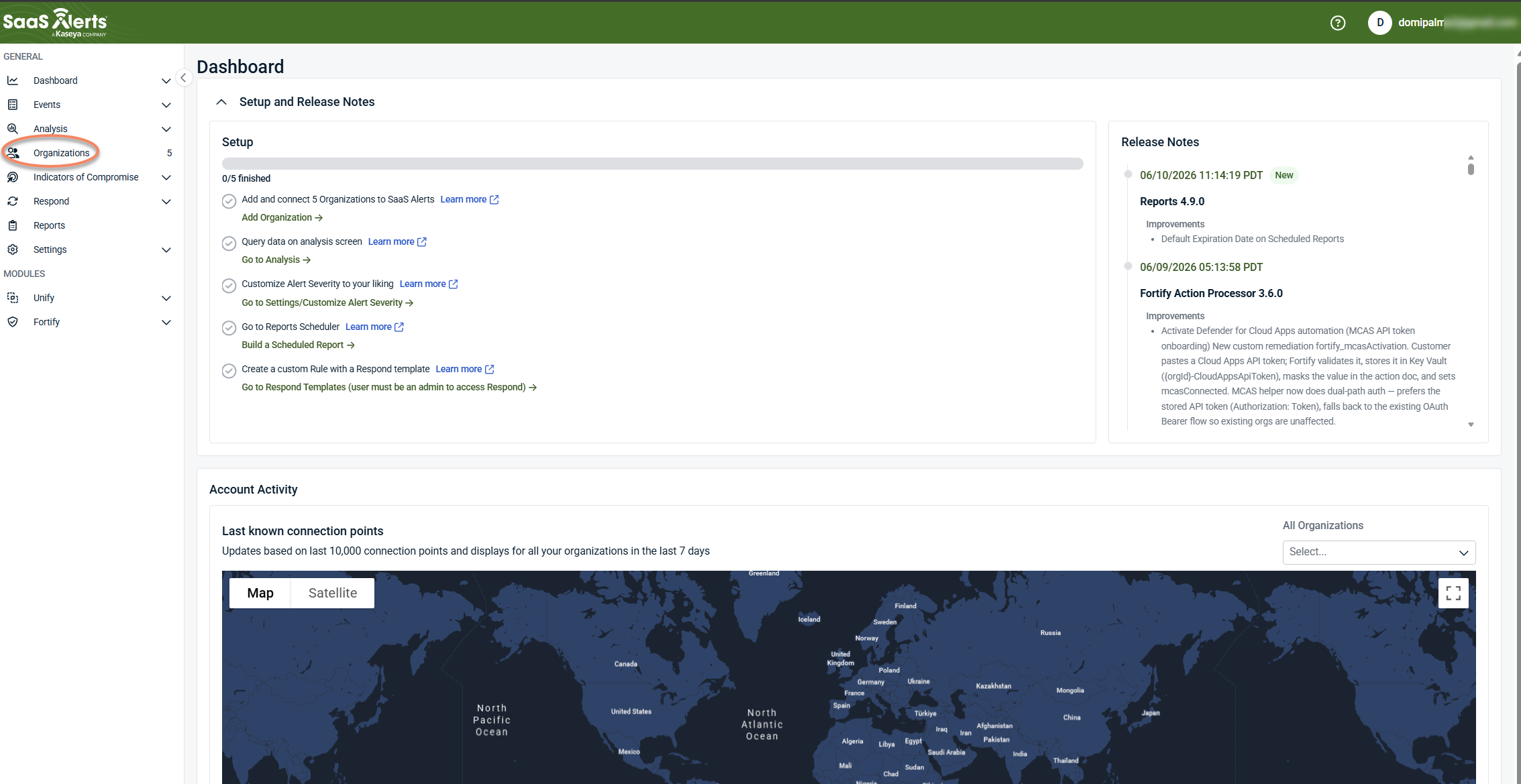
-
Click the edit icon.
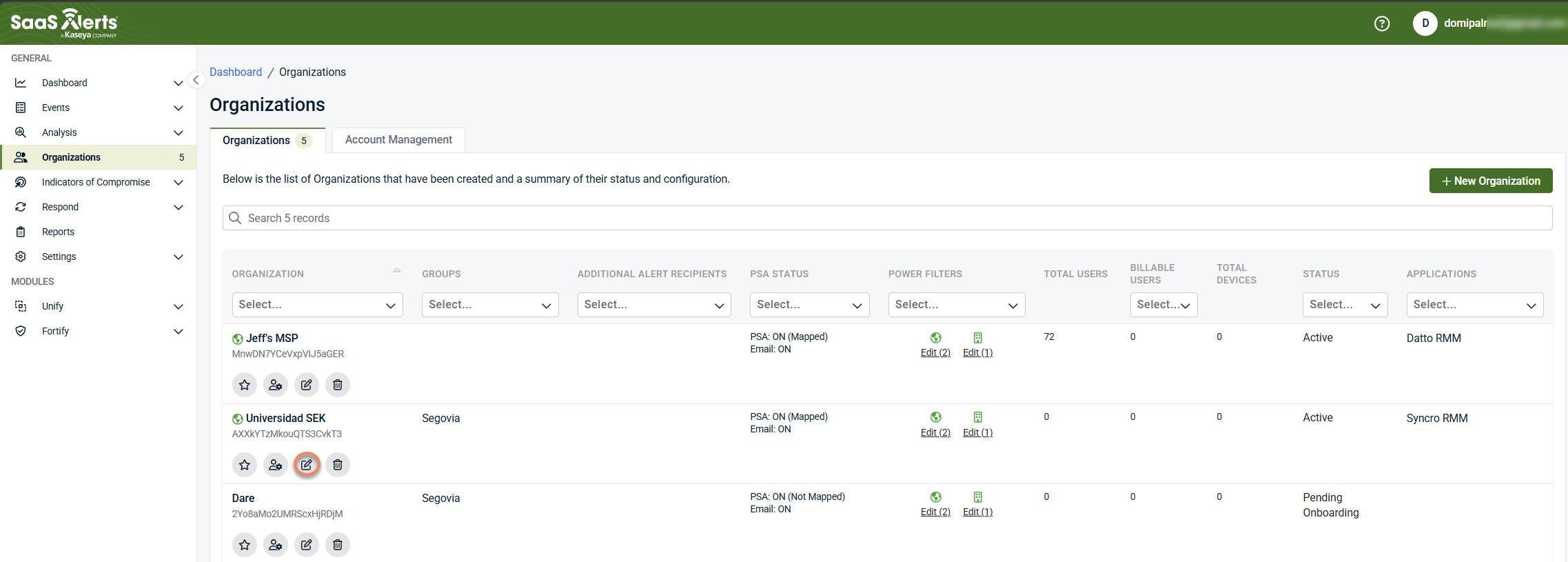
-
Click + New Application.

-
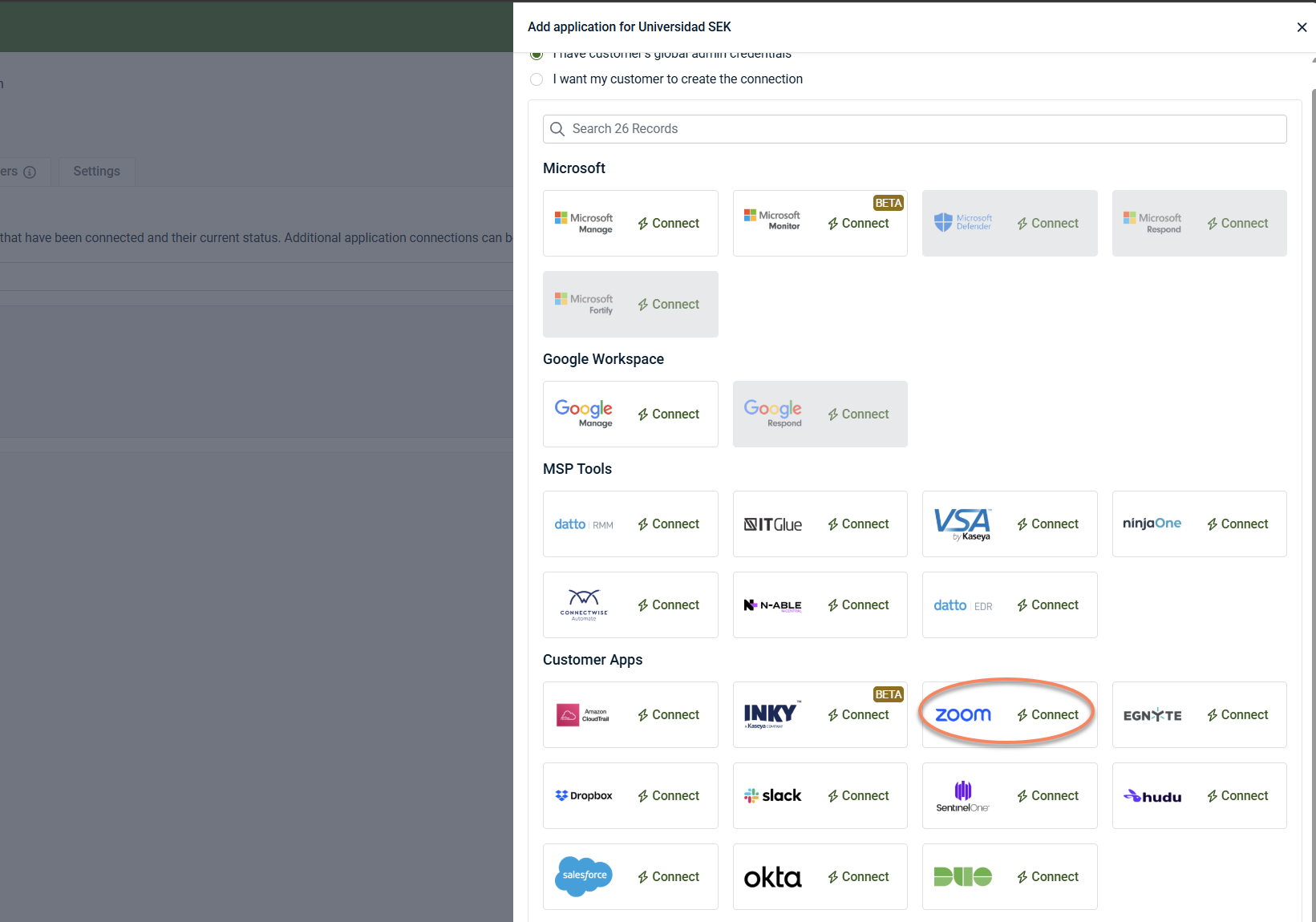
Select Zoom under Customer Apps.
-
Enter the credentials from the Zoom OAuth app you created, then click Finish.
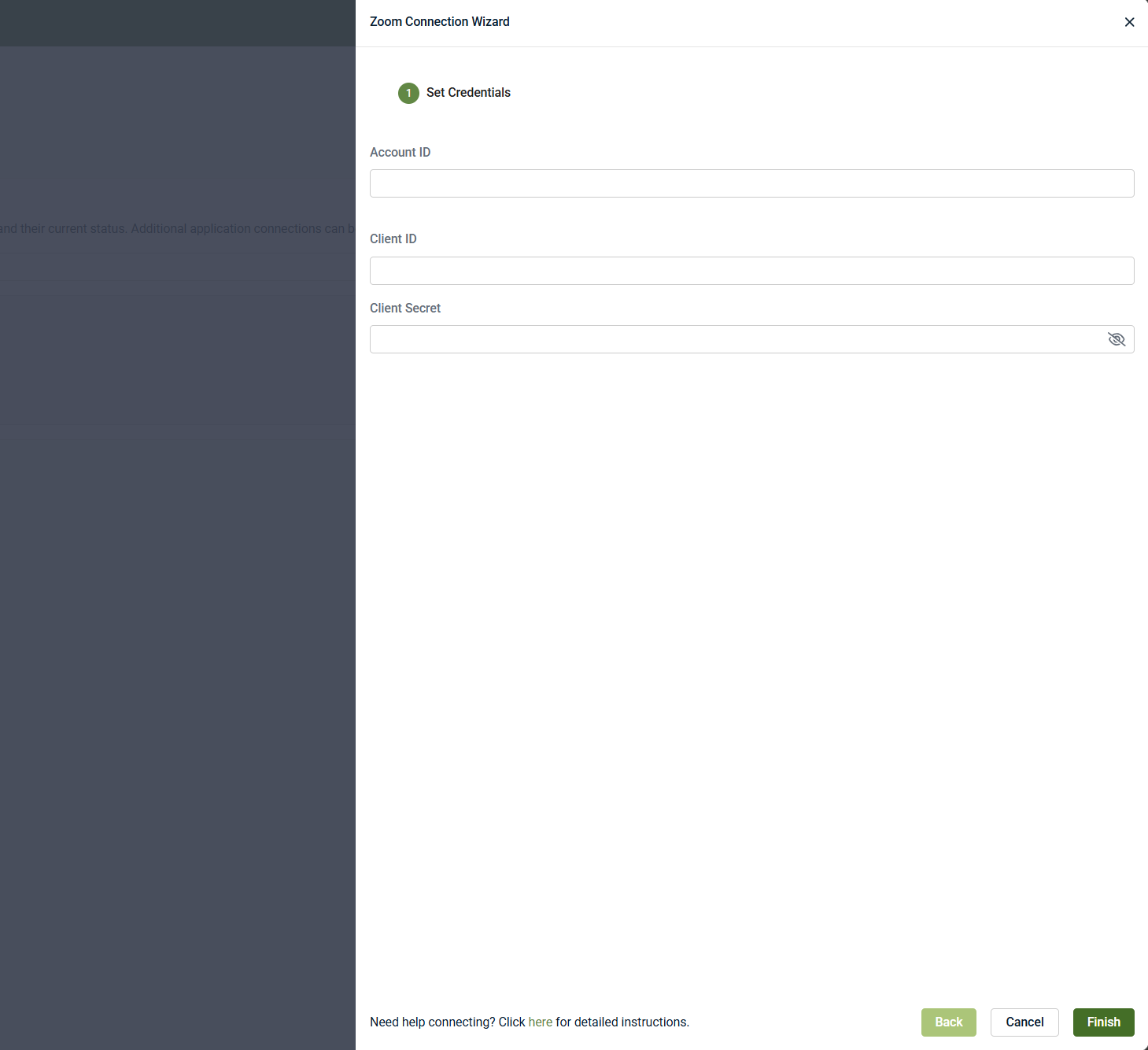
SaaS Alerts is now connected to Zoom and will begin monitoring user sign-in and sign-out activity for the selected organization.
Disable the integration
To disable the Zoom integration in SaaS Alerts, complete the following steps:
-
In SaaS Alerts, navigate to Organizations and select the organization connected to Zoom.
-
Click the edit icon.
-
Click the Zoom application tile.
-
Click Disconnect Application.
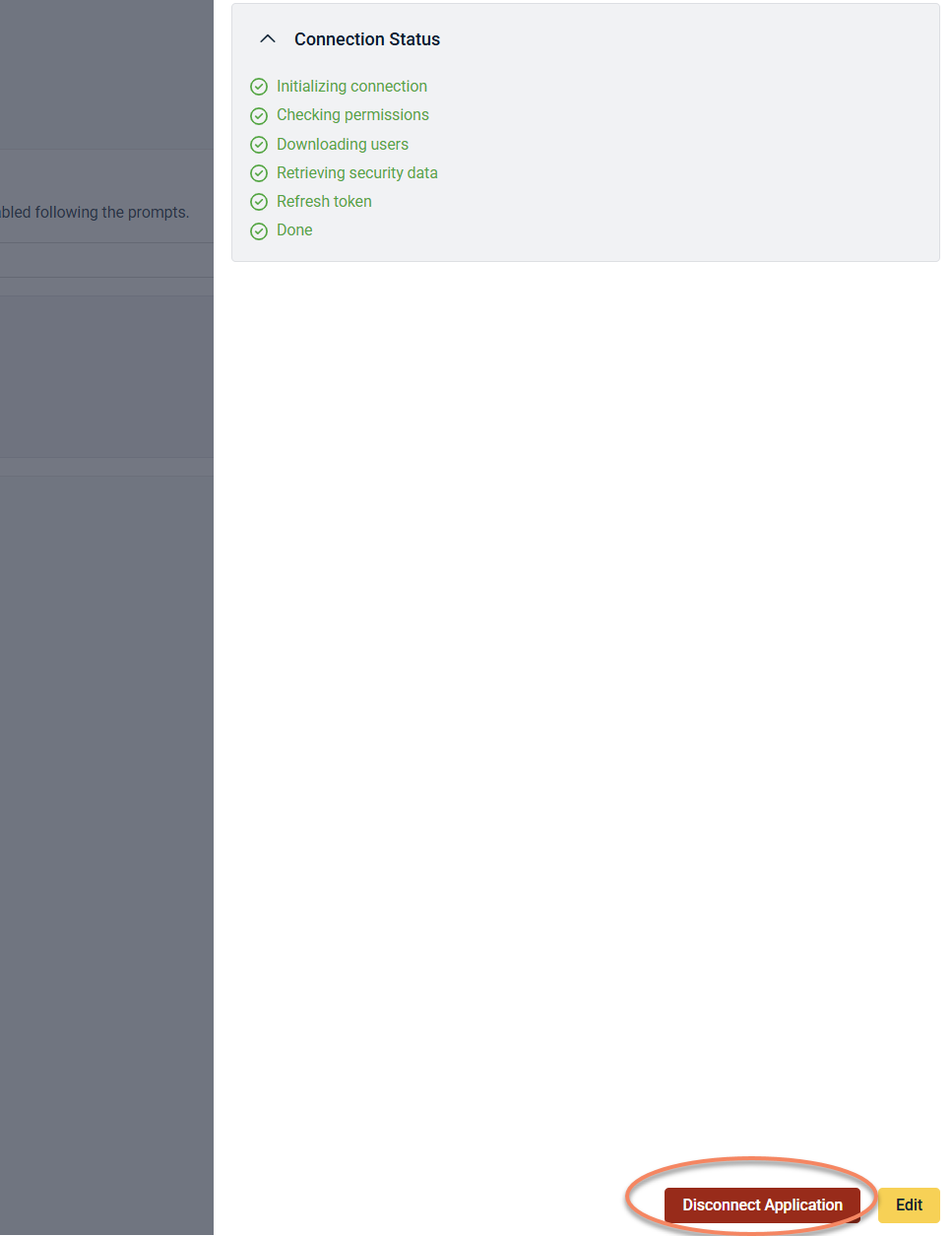
SaaS Alerts will no longer monitor Zoom activity for the selected organization.
FAQ
Why does the Zoom app require these specific scopes?
The three scopes allow SaaS Alerts to retrieve user activity reports and user lists from Zoom. report:read:user_activities:master and report:read:user_activities:admin provide access to sign-in and sign-out activity logs. user:read:list_users:admin allows SaaS Alerts to enumerate users in the account. No write permissions are requested.
What does SaaS Alerts monitor in Zoom?
SaaS Alerts monitors Zoom user sign-in and sign-out events. These events are surfaced as security alerts in SaaS Alerts to support compliance and oversight of user activity across the organization.
Why does SaaS Alerts use a Server-to-Server OAuth app instead of a standard OAuth app?
Server-to-Server OAuth apps allow SaaS Alerts to authenticate directly with Zoom without requiring a user to authorize the connection through a browser. This is the appropriate method for service-to-service integrations where ongoing automated access is required.


