Integration: SaaS Alerts and Salesforce
 Security and navigation
SaaS Alerts
NAVIGATION Organizations > Edit Organization (pencil icon) > + New Application > Salesforce
PERMISSIONS Permission to manage organizations and applications in SaaS Alerts. Organization configured in SaaS Alerts.
Salesforce
NAVIGATION Setup > Domain Management > My Domain
PERMISSIONS Salesforce System Administrator account and Salesforce tenant with a supported licensing tier
The SaaS Alerts and Salesforce integration imports Salesforce user activity and security events into SaaS Alerts, enabling the platform to monitor user behavior, authentication activity, and security-related events across the Salesforce environment.
Prerequisites
This integration requires:
-
A Salesforce tenant
-
The Salesforce service domain
-
A Salesforce System Administrator account
-
Permission to authorize third-party applications in Salesforce
Salesforce environments may use one of the following security licensing tiers:
-
Basic Security
-
Salesforce Event Monitoring
-
Salesforce Shield
For details on the telemetry and functionality available with each licensing tier, see Salesforce license types and SaaS Alerts functionality
How to...
Locate the Salesforce service domain
Before configuring the integration, identify the Salesforce service domain:
-
Log in to Salesforce.
-
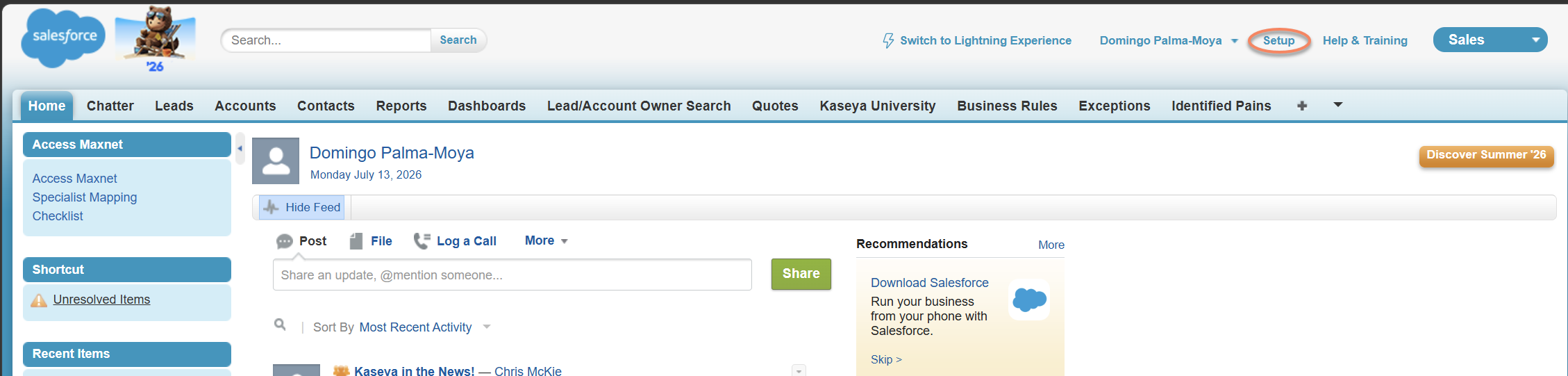
Click Setup.
-
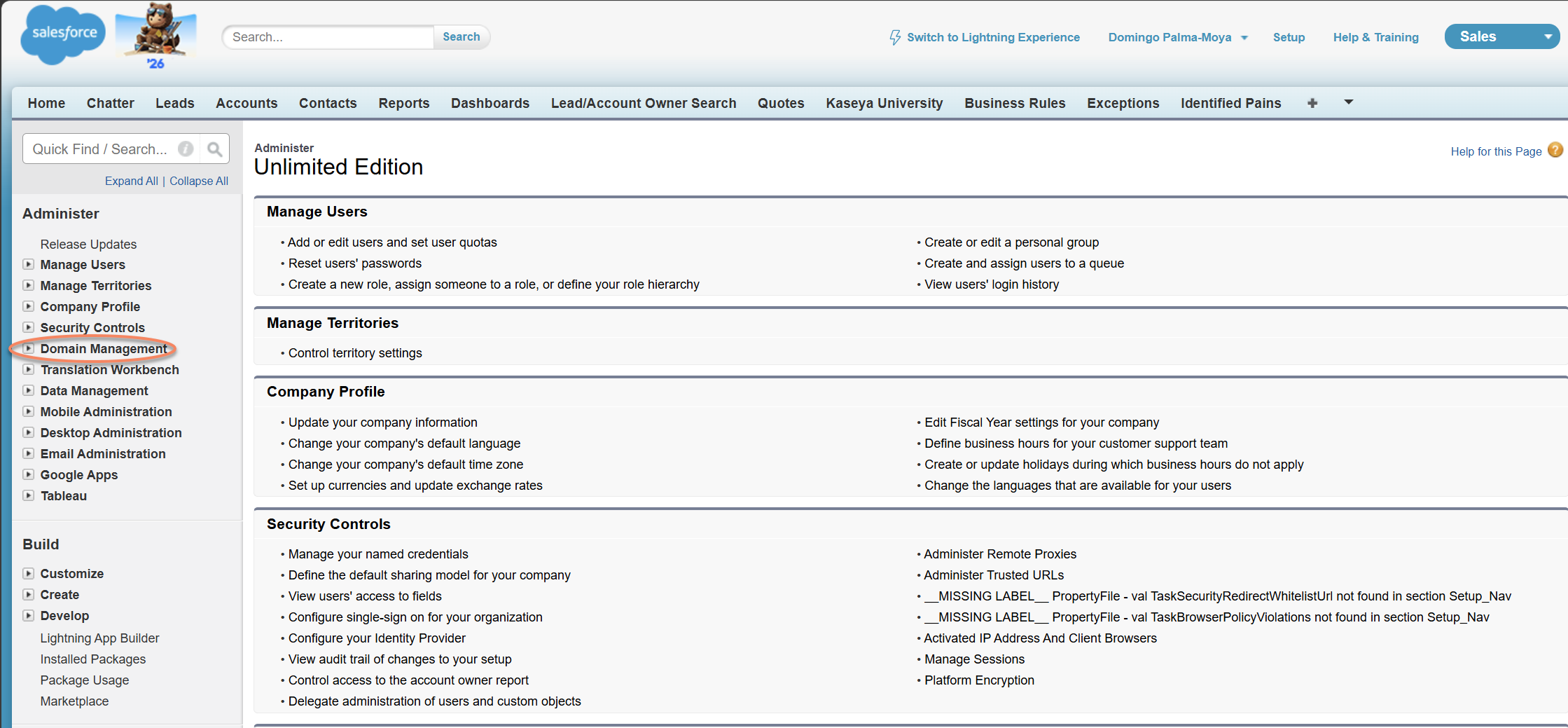
From the side navigation menu, expand Domain Management.
-
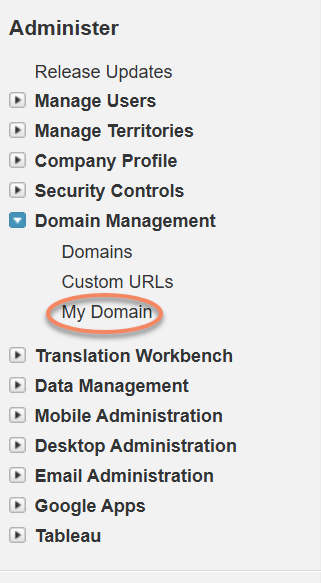
Click My Domain.
-
Copy only the domain value.
EXAMPLE mydomain.mysalesforce.com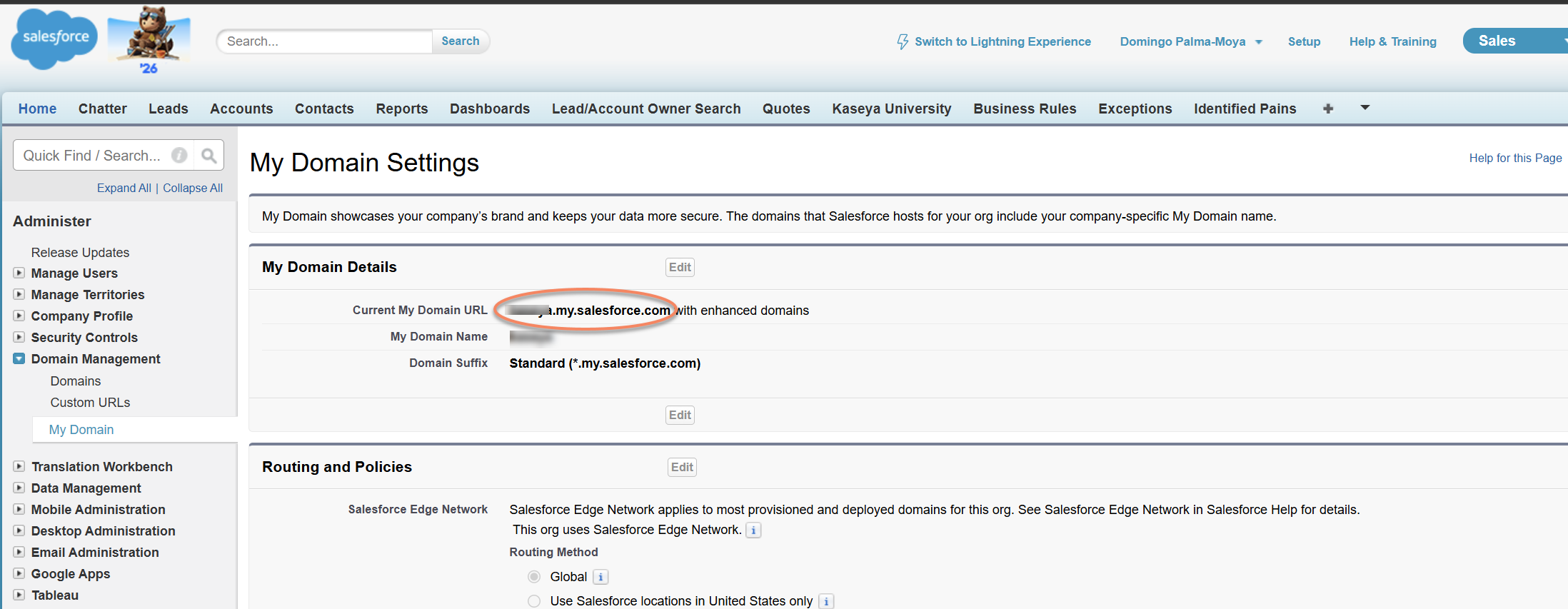
EXAMPLE Incorrect domain entry that includes URL prefix: www.mydomain.my.salesforce.com or https://mydomain.my.salesforce.com Domains entered in this format will not work.
NOTE Domains containing lightning may not connect successfully. Use the standard my.salesforce.com domain whenever available.
Connect Salesforce to SaaS AlertsSteps in Saas Alerts
-
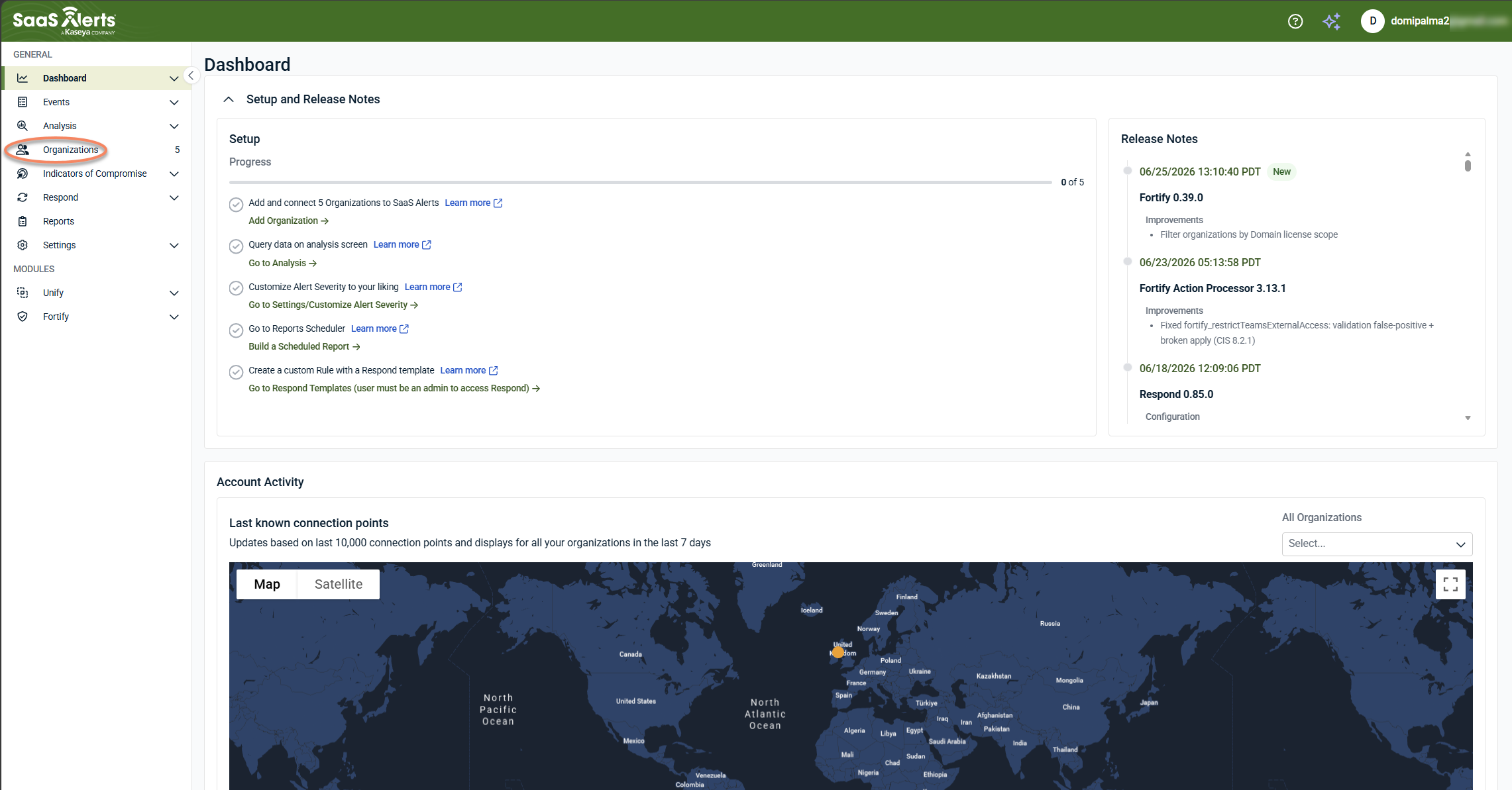
In SaaS Alerts, navigate to Organizations.
-
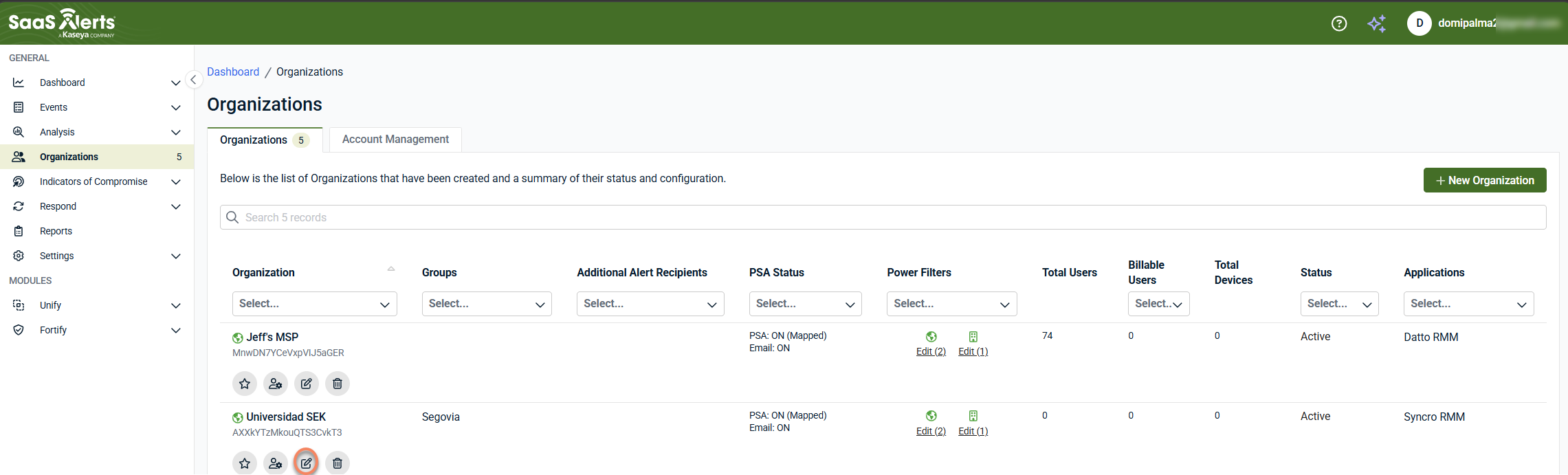
Click Edit Organization (pencil icon).
-
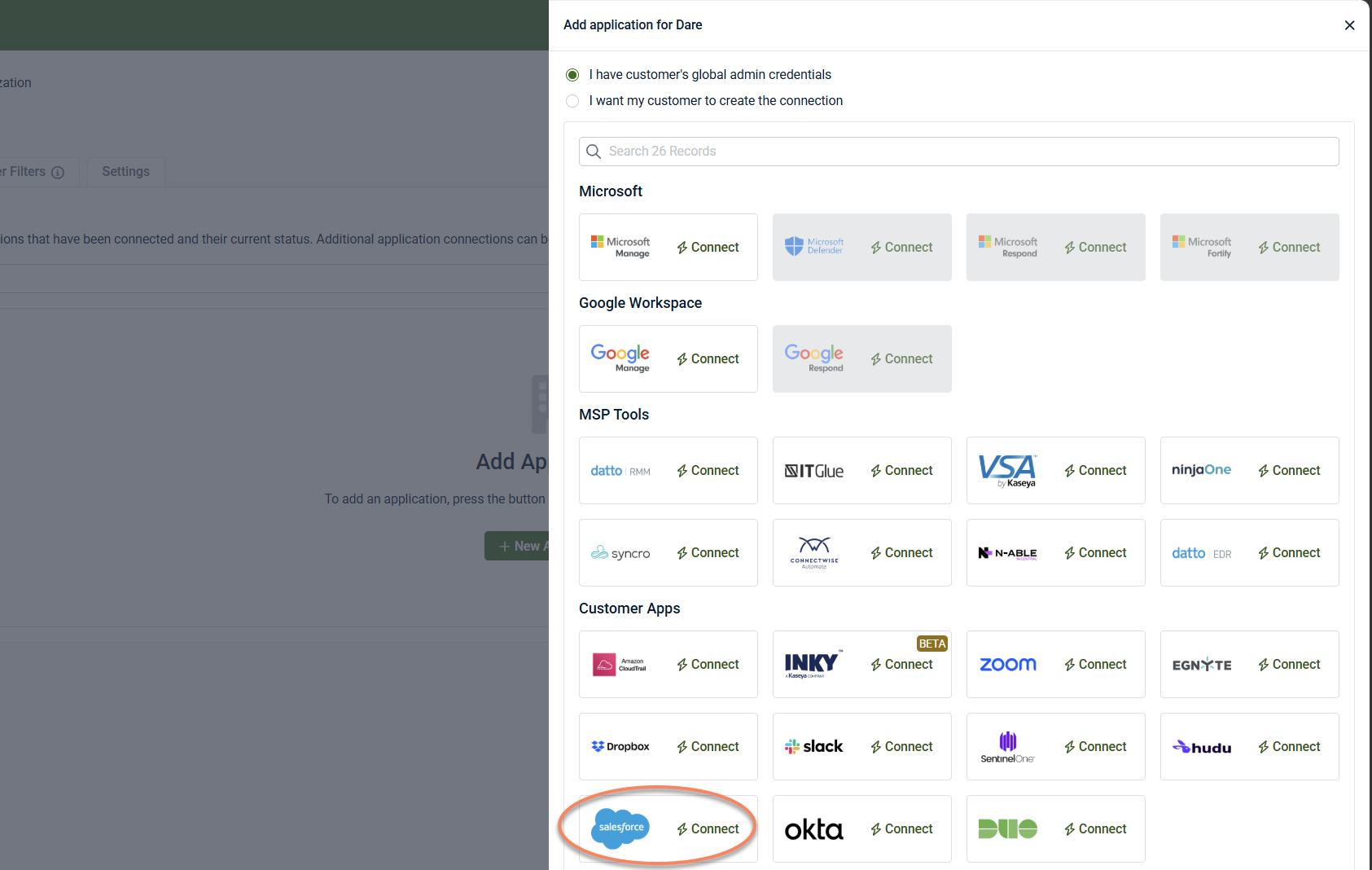
Click +New Application.

-
Select Salesforce.
-
Enter the Salesforce service domain you copied in Locate the Salesforce service domain.
-
Click Connect.
Steps in Salesforce
-
When redirected to Salesforce, sign in using a Salesforce System Administrator account.
-
Complete any required multi-factor authentication or identity verification steps.
-
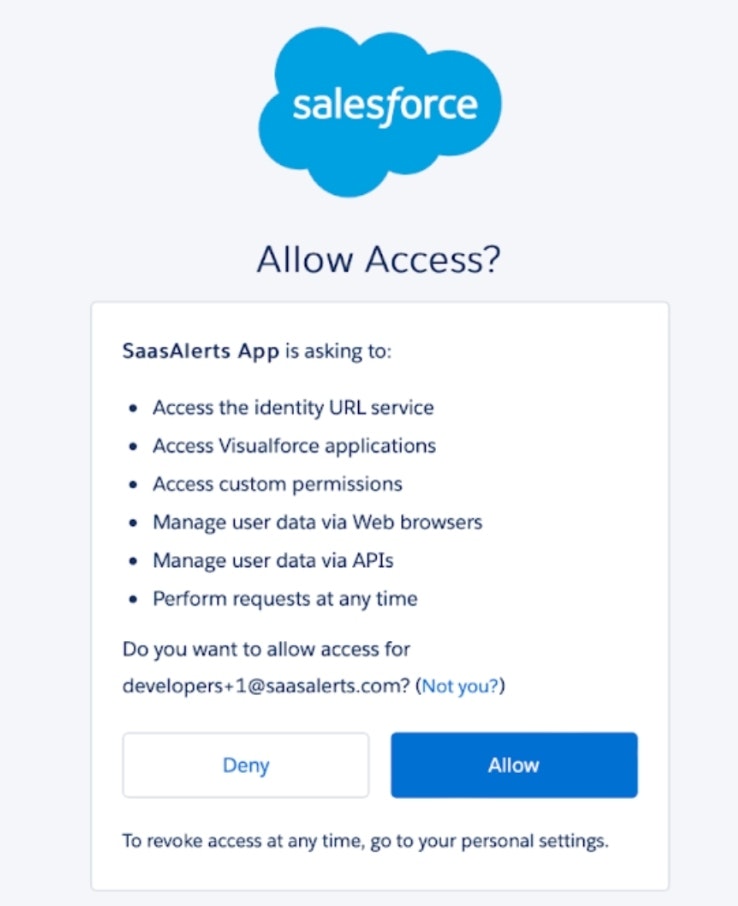
Review the requested permissions and click Allow.
Results
-
Salesforce appears as an application associated with the organization.
-
Salesforce user accounts are imported into SaaS Alerts.
-
Salesforce user activity and security events become available for monitoring and alerting.
NOTE SaaS Alerts imports Salesforce user accounts. It does not import Salesforce business objects, records, or organizational data.
Disconnect Salesforce from SaaS Alerts
To disconnect the integration:
-
Navigate to the organization in SaaS Alerts.
-
Open the Salesforce application configuration.
-
Select Disconnect or remove the application.
-
Confirm the action.
Results
-
Salesforce activity is no longer imported into SaaS Alerts.
-
Existing Salesforce users, permissions, and tenant configurations remain unchanged.
-
The integration can be reconnected later if needed.
FAQ
Why does Salesforce report so many new device events?
Salesforce reports login events and new device events from different endpoints. Beyond the user ID, the events do not contain enough information to always correlate them. Salesforce also evaluates browser cookie information when determining whether a login originates from a previously seen device. If that cookie changes, Salesforce may generate a new device event even when the user is signing in from the same physical device.
This behavior is determined by Salesforce and is not a SaaS Alerts interpretation of the data. For more information, see Salesforce documentation regarding Client Browser behavior.
Are Salesforce organizations imported into SaaS Alerts?
No. SaaS Alerts imports Salesforce user accounts and security-related activity. It does not import Salesforce organizations, business records, opportunities, contacts, or other CRM data.


