Microsoft Manage
SaaS Alerts requires specific read and write permissions to effectively manage its connection with Microsoft. This allows SaaS Alerts to request permission for any updates or changes to API permissions. You can choose to configure permission upgrades to occur automatically or manually during the initial connection through Microsoft Manage.
To connect to Microsoft and enable SaaS Alerts to upgrade permissions, follow these steps:
1. Navigate to Organizations in the side navigation menu.
2. Select the organization you wish to connect, then click the edit icon to access the Applications tab.
3. Click + New Application.
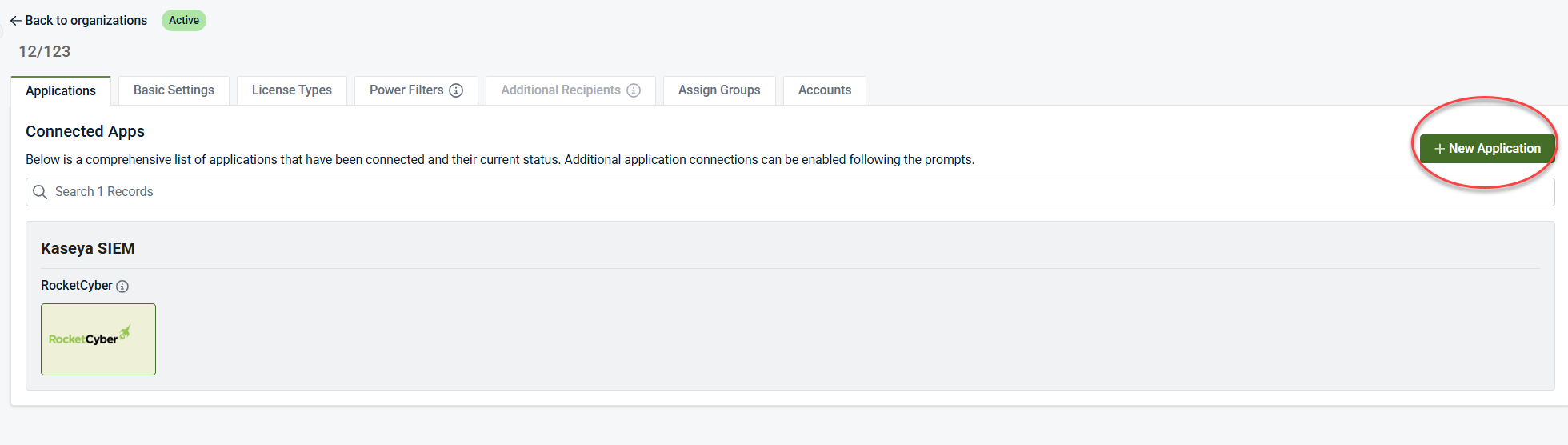
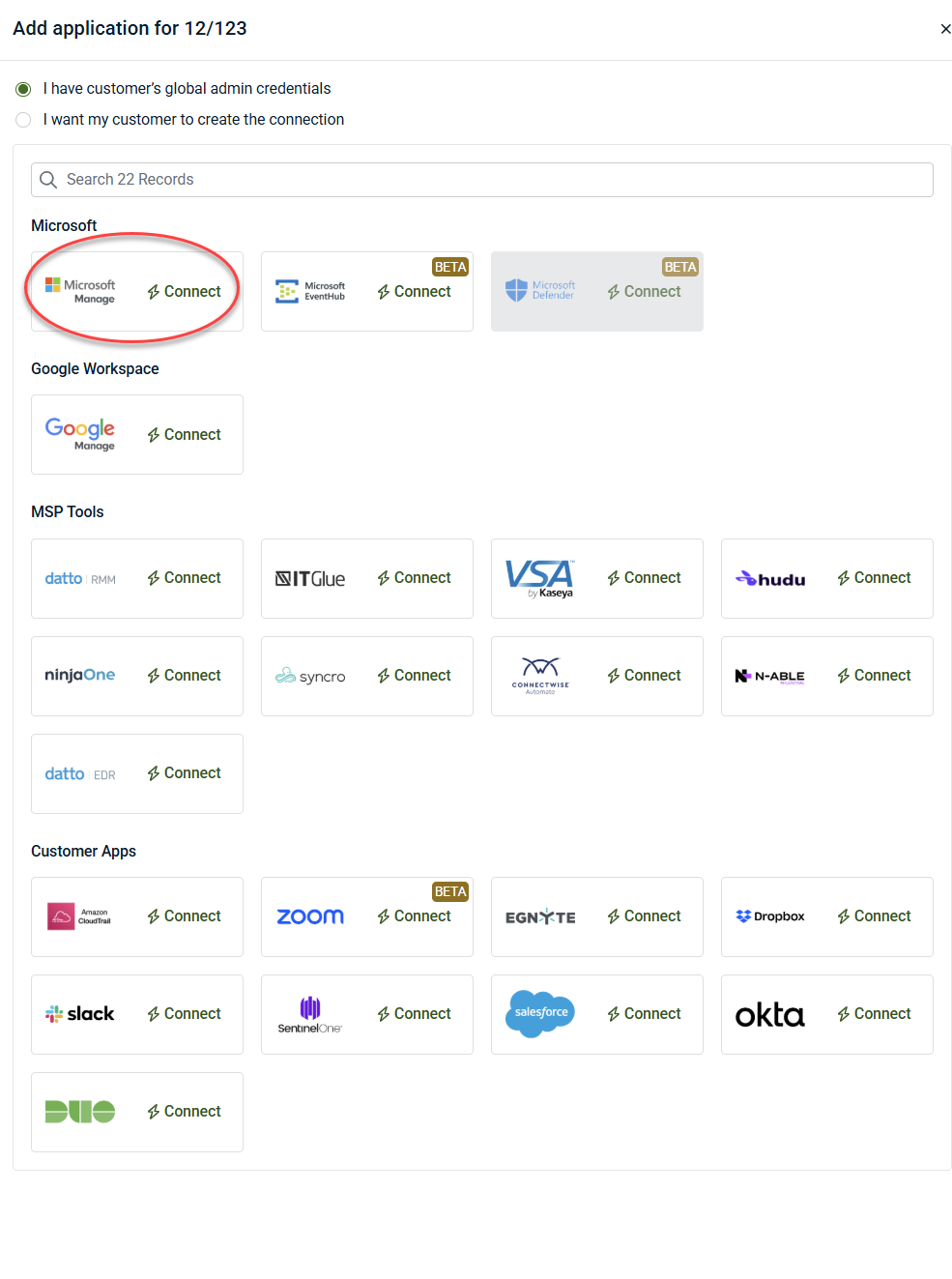
4. Select Microsoft Manage to establish the connection.
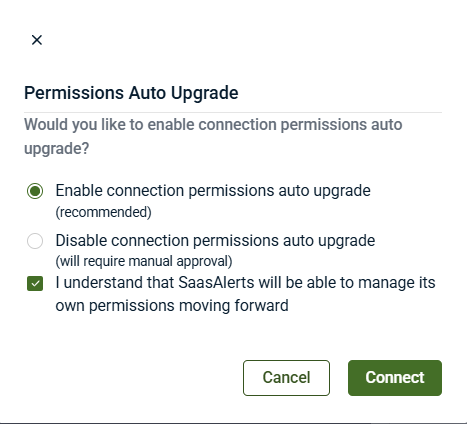
After establishing the initial connection, you can modify the permission upgrade settings. You have two options:
-
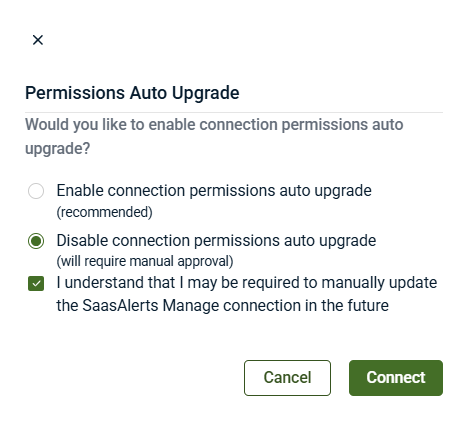
Enable connection permissions auto upgrade (recommended):
-
This option automatically upgrades any necessary permissions from Microsoft for SaaS Alerts.
-
Select the checkbox that states, I understand that SaaS Alerts will be able to manage its own permissions moving forward
-
Then, click Connect.
-
-
Disable connection permissions auto upgrade (requires manual approval):
-
This option will not automatically upgrade necessary permissions for SaaS Alerts; any upgrades will require manual approval.
-
Select the checkbox that states, I understand that I may be required to manually update the SaaSAlerts Manage connection in the future.
-
Then, click Connect.
-
After the initial connection has been made, follow these steps to change the current upgrade options:
1. Navigate to Organizations, select the desired organization, and then click the edit icon to access the Applications tab.
2. Click Microsoft Manage.
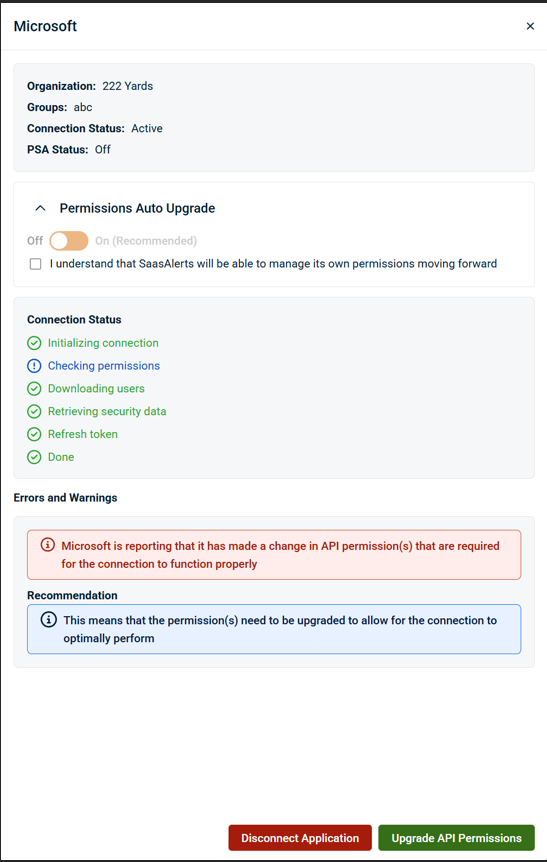
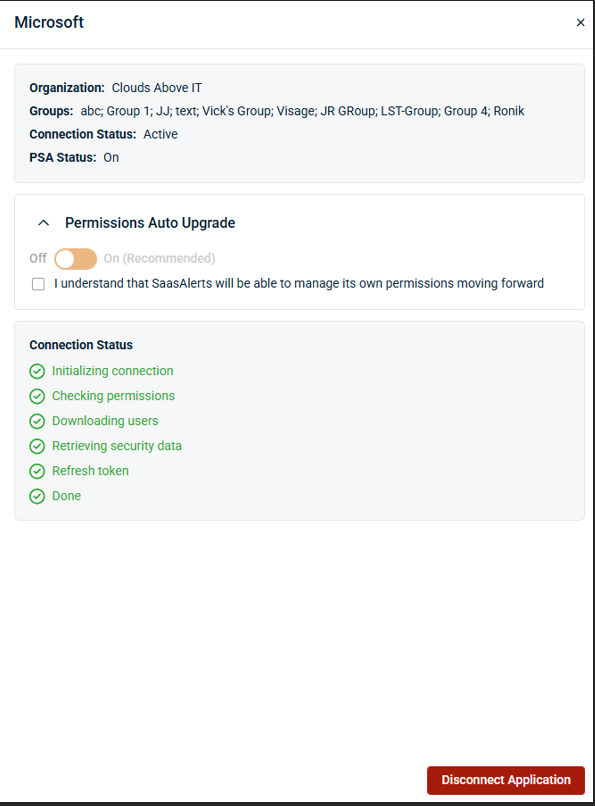
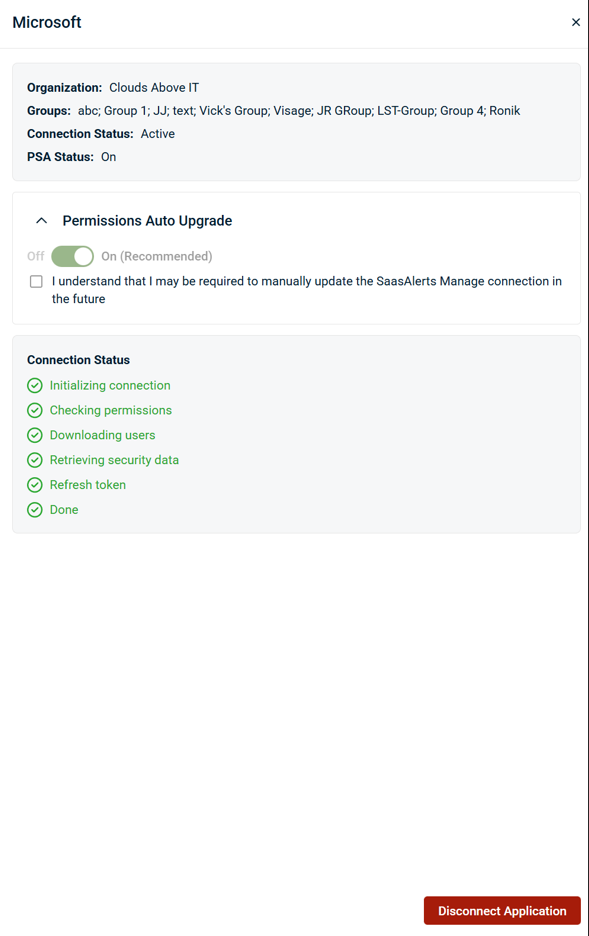
3. Expand the Permissions Auto Upgrade section:
-
To enable Auto Upgrade, select the checkbox to acknowledge, I understand that SaaS Alerts will be able to manage its own permissions moving forward, and turn on the Permissions Auto Upgrade toggle.
-
To disable Auto Upgrade, select the checkbox to acknowledge your decision and turn off the Permissions Auto Upgrade toggle.
If the feature is set to Off, any necessary upgrades will be reflected under applications. Click Microsoft Manage to view and manage these upgrades.
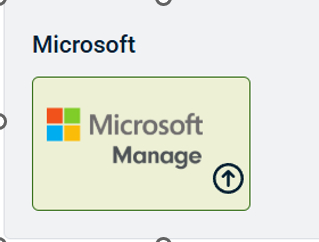
Then, click Upgrade API Permissions.