IT Glue Integration
If you are currently using the IP Access Control restrictions in IT Glue, include the following IP addresses:
- 35.192.223.4
- 35.224.156.102
Complete the following steps to integrate IT Glue with SaaS Alerts:
- In the side navigation menu in SaaS Alerts, click Organizations.
- Click the Edit Organizationpencil icon
 for your customer.
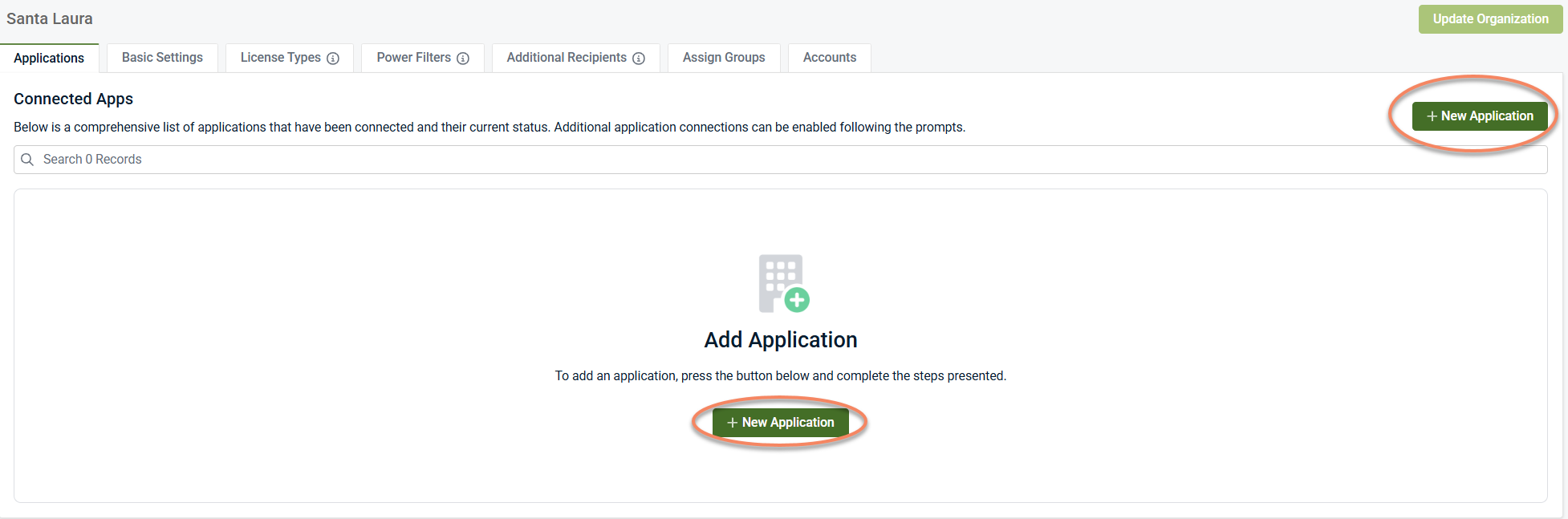
 - Click + New Application to add the IT Glue app.
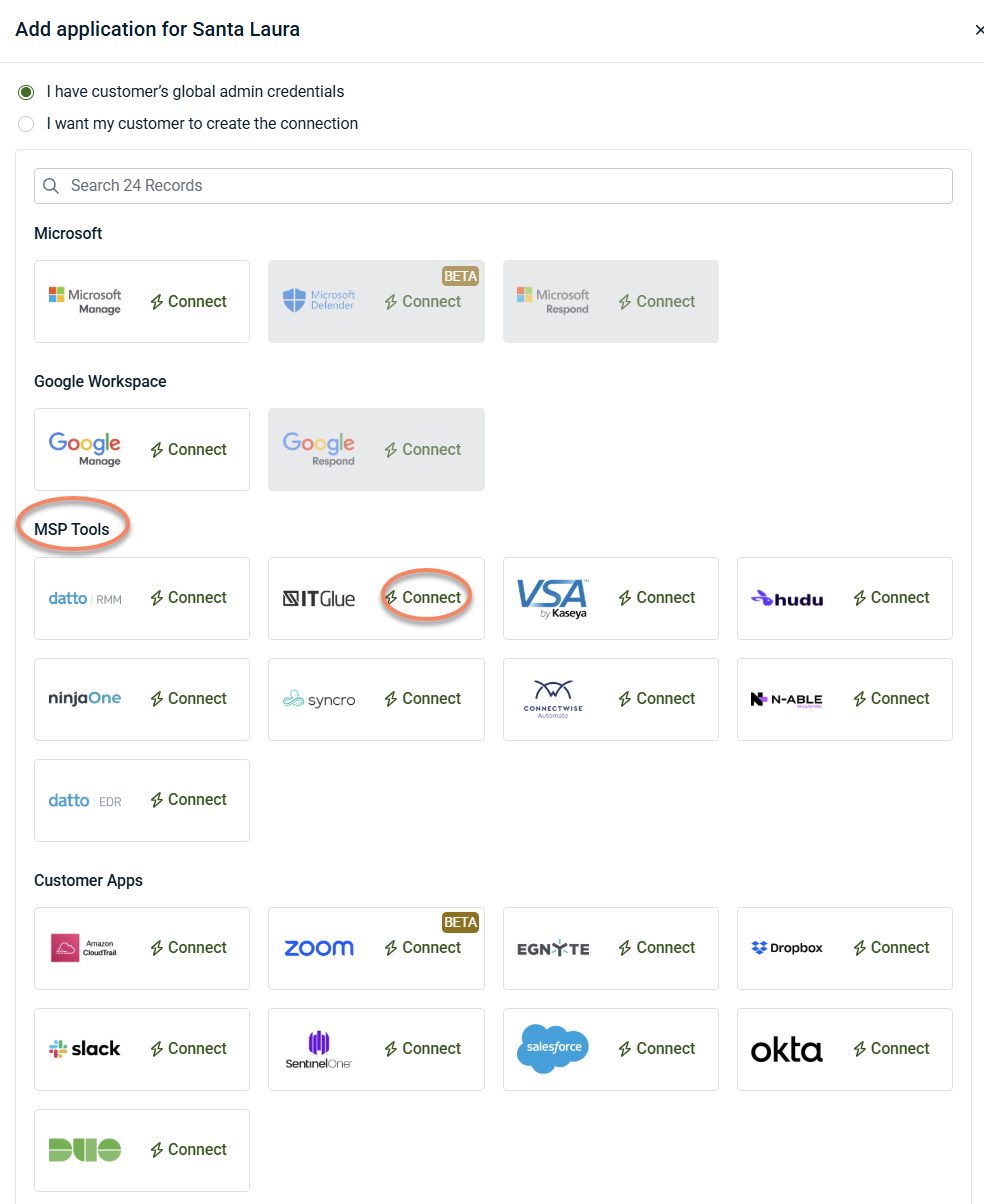
- Under MSP Tools, click Connect in the IT Glue tile.
- A window will open if an IT Glue connection exists. If you want to proceed, click Continue.
NOTE The IT Glue Integration is meant to be added to the SaaS Alert partner's customer account only.
IMPORTANT If an IT Glue instance already exists, adding the same connection to multiple customers will result in duplicate events and alerts.
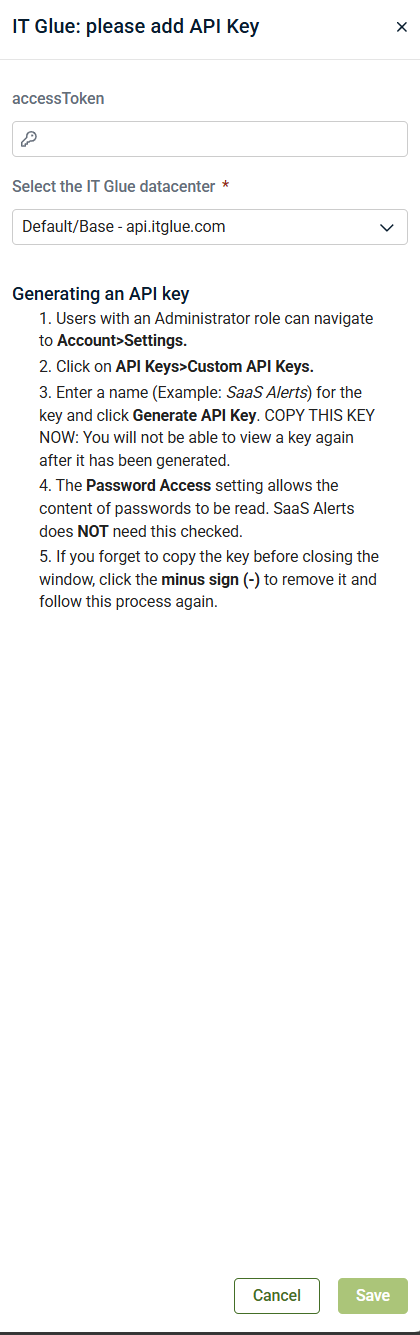
6. Enter your IT Glue API key and select the IT Glue datacenter. The access token/API key is located in IT Glue via Account > Settings > API keys > Custom API Keys.
7. Select the IT Glue endpoint you would like to connect.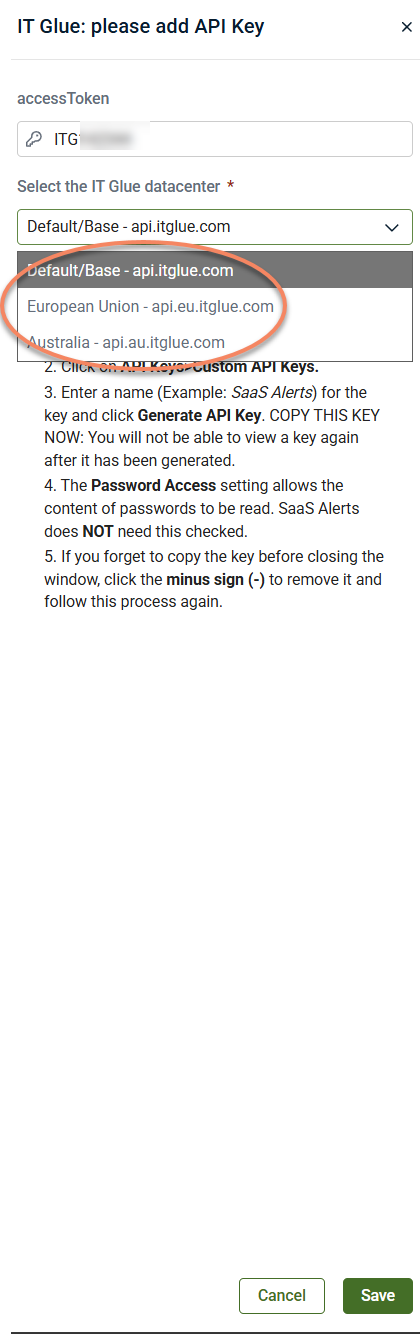
We suggest creating a new custom API key in IT Glue. Confirm the correct IT Glue key was copied. A proper API key starts with ITG and will not contain asterisks.
8. The IT Glue application will be integrated successfully.
9. Go back to see the total number of users populated for your customer on the Organizations page.


