Halo PSA Integration
This article explains how to integrate Halo PSA with SaaS Alerts, including required prerequisites, authentication setup, account mapping, service parameters, and testing.
Prerequisites
Before connecting Halo PSA to SaaS Alerts, complete the following in Halo PSA:
-
Create a dedicated API user for SaaS Alerts
-
Create an API application in Halo PSA
-
Store the required credentials (Tenant, Resource Server, Client ID, Client Secret)
Creating a user for SaaS Alerts
- Log in to Halo PSA as an administrator.
- Navigate to Configuration > Teams & Agents > Agents.
- Click New, and fill in the following details:
- Username: saasalerts_api
- Password: Set a strong, unique password.
- Use AD authentication: No
- Roles: Administrator (Access will be restricted using API permissions)
- Is an API-only Agent: Checked
- Default Team: No Default Team
- Work Hours: 24 Hours
- Can approve Purchase Orders: Cleared
- Click Save.
Adding an API application for SaaS Alerts
-
Log in to Halo PSA as an administrator.
-
Navigate to Configuration > Integrations > Halo PSA API.
-
Copy and store the Tenant value and the Resource Server value.
-
Then, click View Applications.
-
Click New, and fill in the following details:
-
Name: SaaS Alerts
-
Authentication Method: Client ID and Secret (Services)
-
Login Type: Agent
-
Agent to log in as: saasalerts_api
-
-
Copy and securely store:
-
Client ID
-
Client Secret
-
-
Click Save.
-
Open the Permissions tab and enable the following permissions:
-
Admin
-
webhooks
-
-
All
-
teams
-
-
Read/Edit:
-
Tickets
-
Customers
-
Contracts
-
Items
-
Invoices
-
-
-
Click Save.
IMPORTANT The all:teams permission is required. If this permission is not enabled, Halo PSA may return a 403 permissions error when connecting SaaS Alerts, and the integration will not proceed past the Set Credentials step to Account Mapping.
Connecting Halo PSA to SaaS Alerts
Initial connection and authentication
- Log in to SaaS Alerts as an admin.
- Navigate to Settings > PSA & Email.
- Click Add PSA and select Halo.
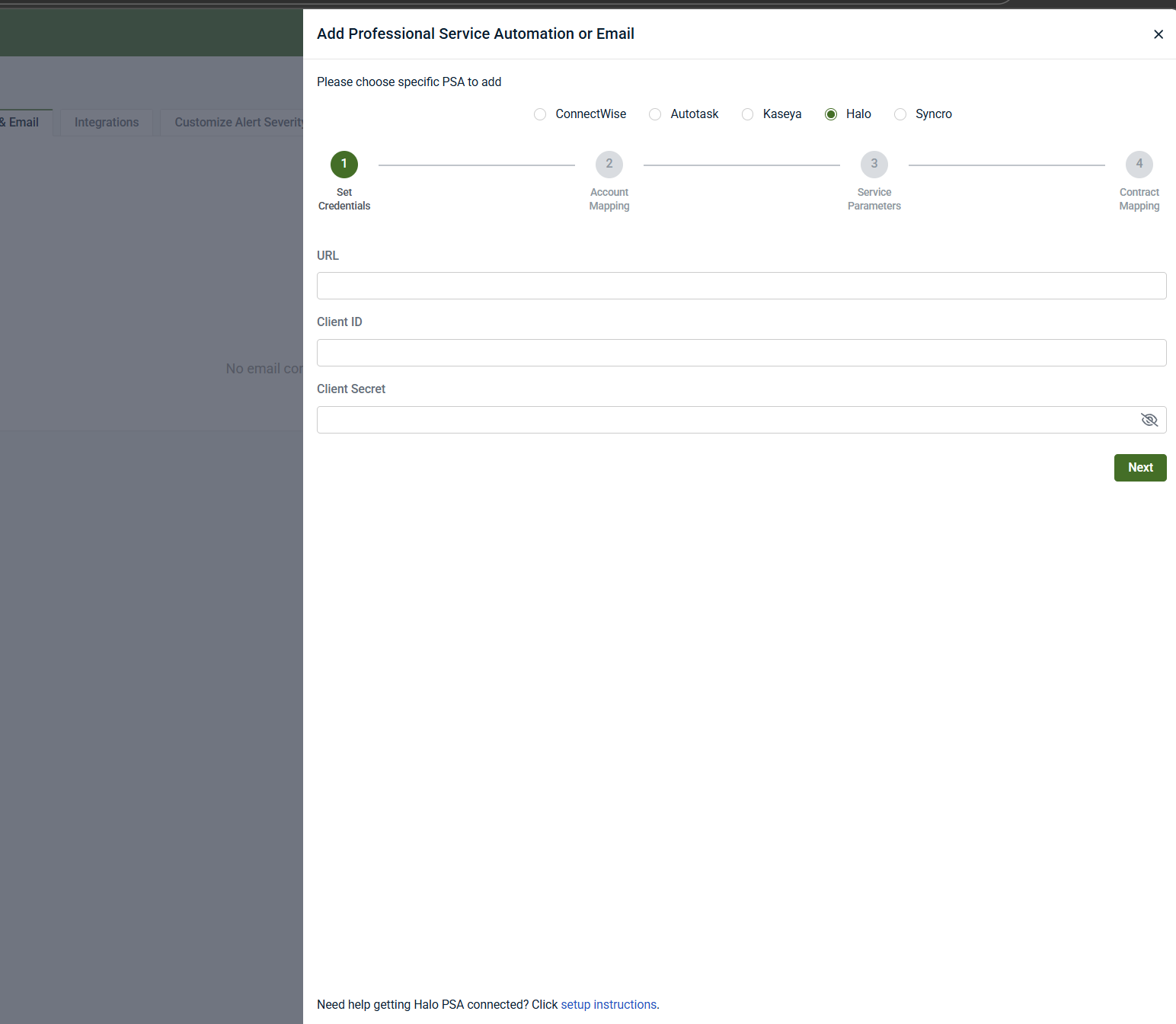
- On the Set Credentials step, enter:
-
URL
-
Client ID
-
Client Server
5. Click Next.
NOTE Do not include /api at the end of the URL field.
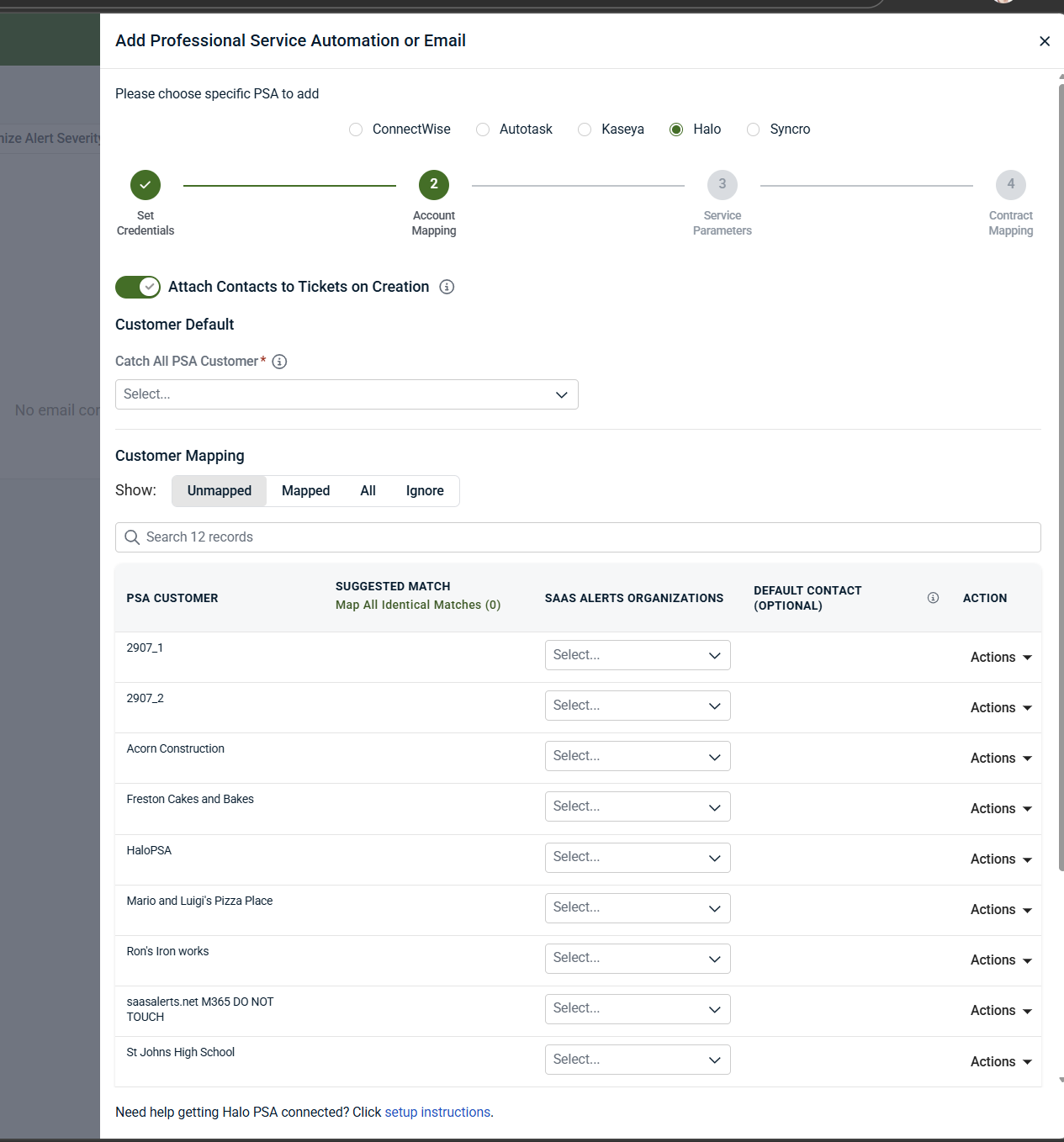
Account Mapping page
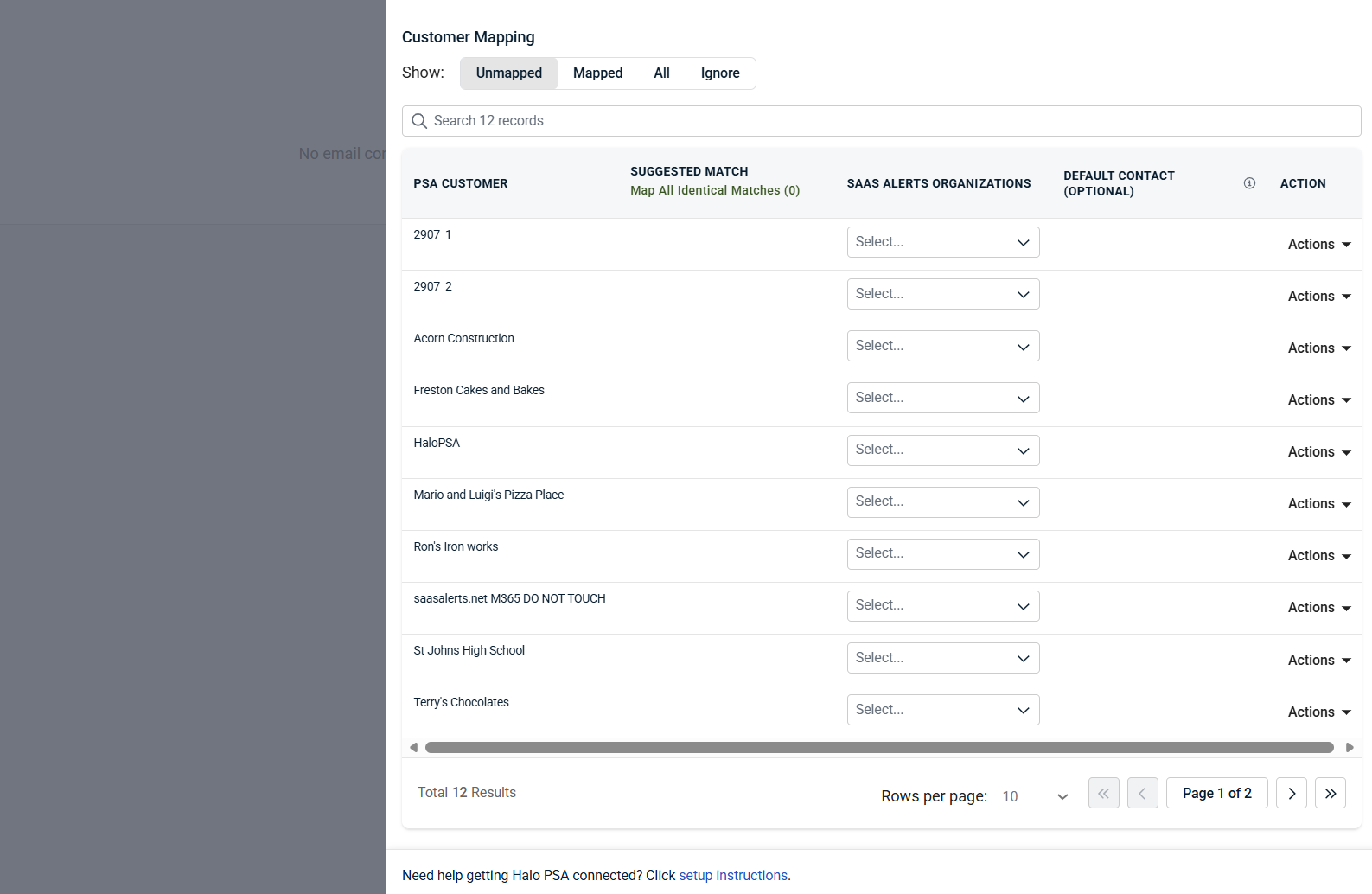
The Account Mapping page maps SaaS Alerts Organizations to Halo PSA Customers. These mappings are used for both ticket and contract creation.
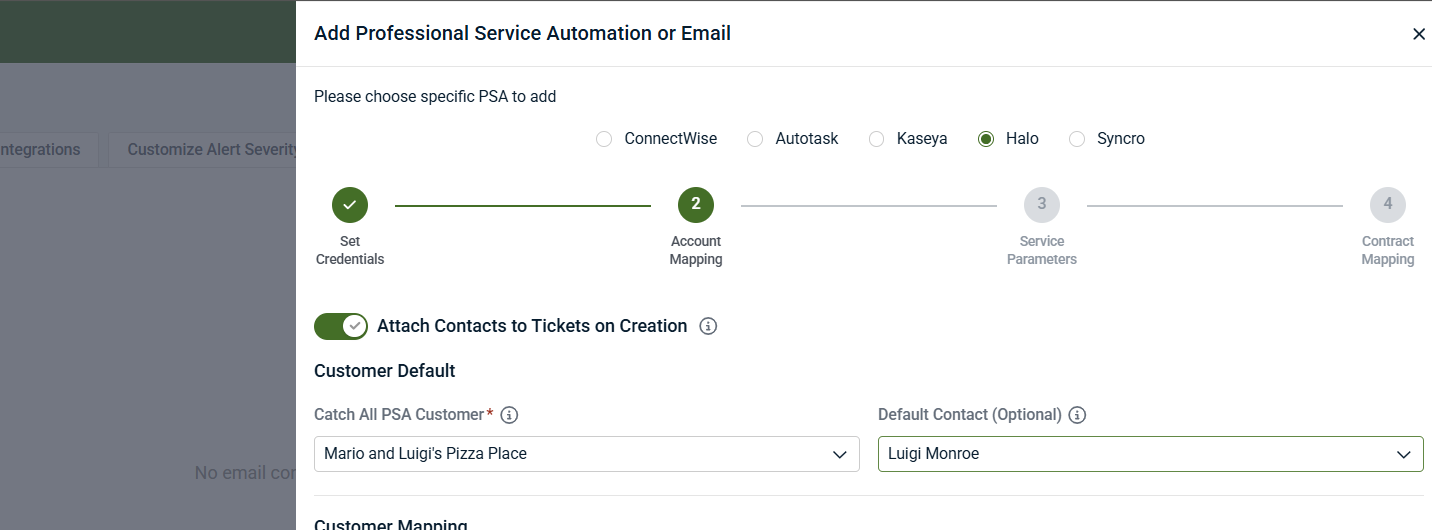
Mapping options
-
Attach Contacts to Tickets on Creation: When enabled, SaaS Alerts assigns a contact to newly created tickets instead of leaving the User field blank. Review any Halo PSA automations that notify end users on ticket creation, as this can increase notifications.
-
Customer Default
-
Catch-All PSA Customer: Used when no explicit mapping exists. Unmapped organizations create tickets against the default PSA customer, which typically assigns tickets to Unknown in Halo PSA.
-
Default Contact (Optional): If contact attachment is enabled, this field assigns a specific contact from the default customer (Rarely used.)
-
Customer Mapping tabs
The Customer Mapping section is divided into four different tabs:
-
Unmapped: PSA customers not yet mapped
-
Mapped: Successfully mapped customers
-
Ignore: PSA customers excluded from mapping (you have removed them from the Unmapped tab)
-
All: Combined view of all customers
Mapping behavior
-
Suggested mappings appear when customer and organization names are similar.
-
You can accept mappings individually or use Map All identical Matches.
-
If a match is not automatically suggested for you, choose the appropriate SaaS Alerts Organization from the drop-down menu.
-
If a PSA customer does not exist in the SaaS Alerts Organizations drop-down menu, select Create Organization from the Actions menu for that PSA Customer, and it will be created within SaaS Alerts and automatically mapped.
-
Assign a Default Contact (optional) per PSA customer to route all tickets to a specific user.
-
To remove a customer from consideration, select Ignore from the Action menu for that PSA Customer.
Once all desired mappings are complete, click Next.
Service Parameters page
The Service Parameters page defines the default behavior for tickets generated from SaaS Alerts. Required fields are marked with an asterisk.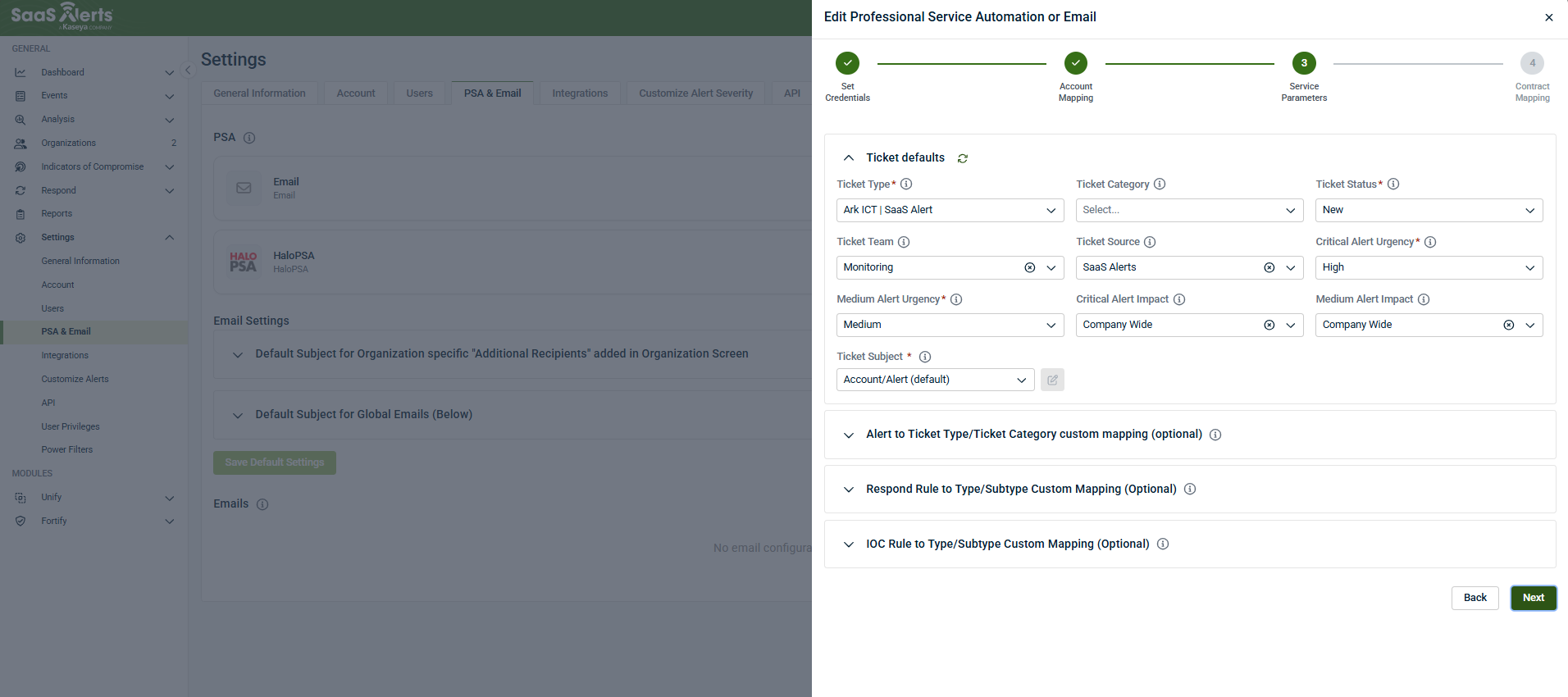
Ticket Subject
The Ticket Subject setting controls how tickets are grouped:
-
User
-
The first alert for a specific user creates a ticket in Halo PSA. All further alerts for that user are added as actions within that initial ticket until the ticket is closed.
-
Fewer tickets, but critical alerts may be buried.
-
-
User + Alert (default and recommended)
-
Creates a ticket per alert type per user.
-
Example:
-
All failed logon attempts for user “Jane” are appended to a single ticket
-
A “login outside approved location” alert creates a separate ticket for “Jane”
-
-
Alert to Ticket Type / Ticket Category Mapping (Optional)
This section allows you to map specific SaaS Alerts events to specific Ticket Types and Ticket Categories in Halo PSA.
-
You may map as many alerts as needed.
-
These mappings override the default Ticket Type and Ticket Category in the Ticket Defaults section.
-
Useful for optimizing workflows and automations by alert type.
Once configured, click Finish to complete the wizard.
Contract Mapping
The Contract Mapping step is the final step in the Halo PSA integration wizard. This step is only required if you plan to sync billable users or recurring services to contracts or agreements in Halo PSA.
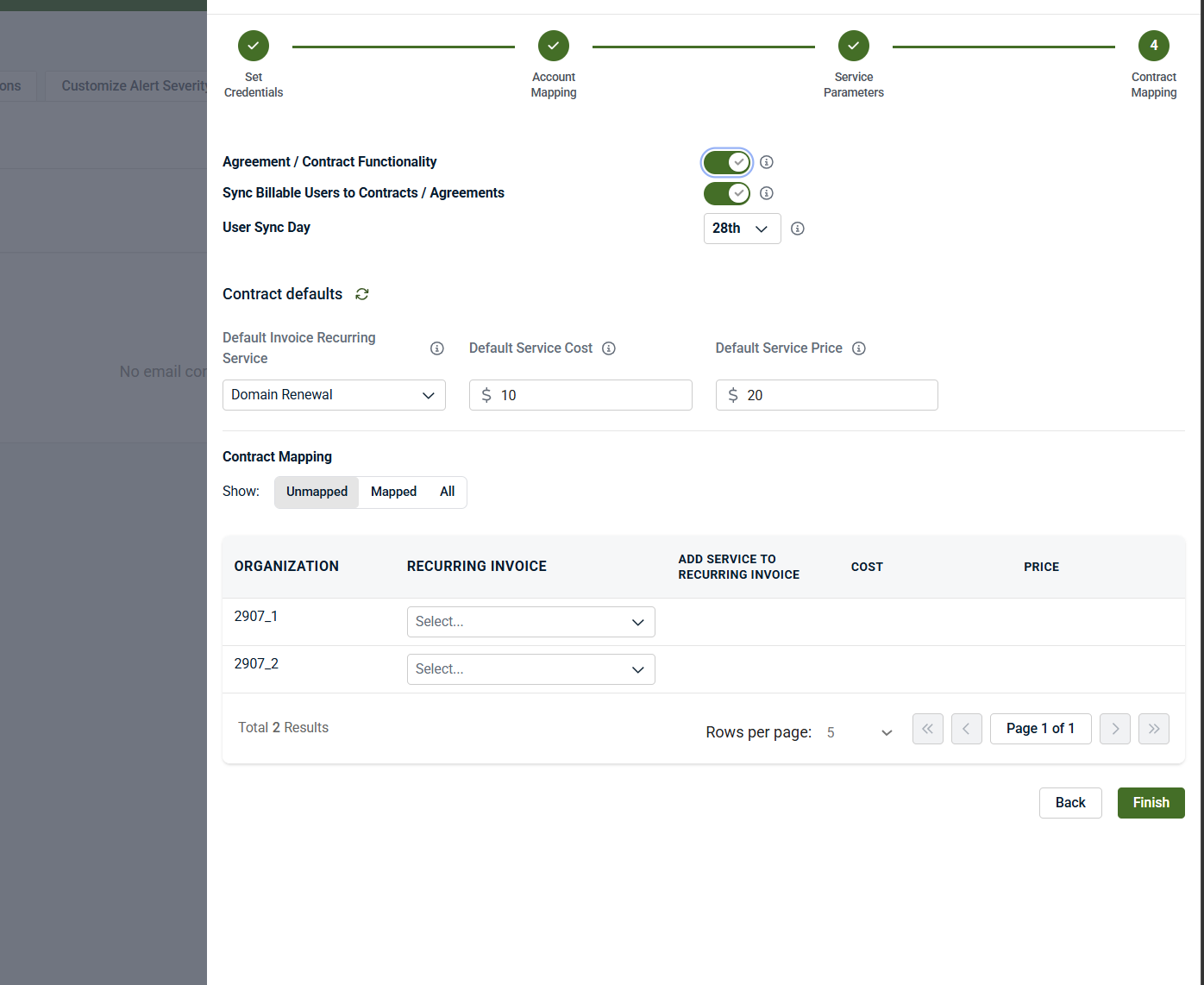
Agreement / Contract Functionality (optional)
The Agreement / Contract Functionality toggle controls whether SaaS Alerts synchronizes billable users and recurring services to contracts or agreements in Halo PSA.
-
When disabled, SaaS Alerts will continue to create and manage tickets only. No contract configuration is required.
-
When enabled, additional contract‑related settings are displayed and must be configured before completing the integration.
Available Options
-
Sync Billable Users to Contracts / Agreements: When enabled, the selected agreement or contract in Halo PSA will be updated with the billable user count from SaaS Alerts.
-
User Sync Day: Specifies the day of the month when billable users from SaaS Alerts are synchronized to your PSA.
These settings apply globally. Additional granular settings may appear when this functionality is enabled.
Contract Defaults (Required when Agreement / Contract Functionality is enabled)
If Agreement / Contract Functionality is enabled, you must configure Contract defaults before completing this step.
-
Default Invoice Recurring Service: Select the product or service that will be added to a contract or recurring invoice when billing is synchronized.
This field is required when contract functionality is enabled. You cannot finish the wizard without selecting a value.
-
Default Service Cost: The cost that will be applied to the Default Contract Service item in Halo PSA.
-
Default Service Price: The price that will be applied to the Default Contract Service item in Halo PSA.
The selected Default Invoice Recurring Service is the product that will be added to the invoice as a recurring item if Add Service to Recurring Invoice is enabled for an organization in the Contract Mapping section.
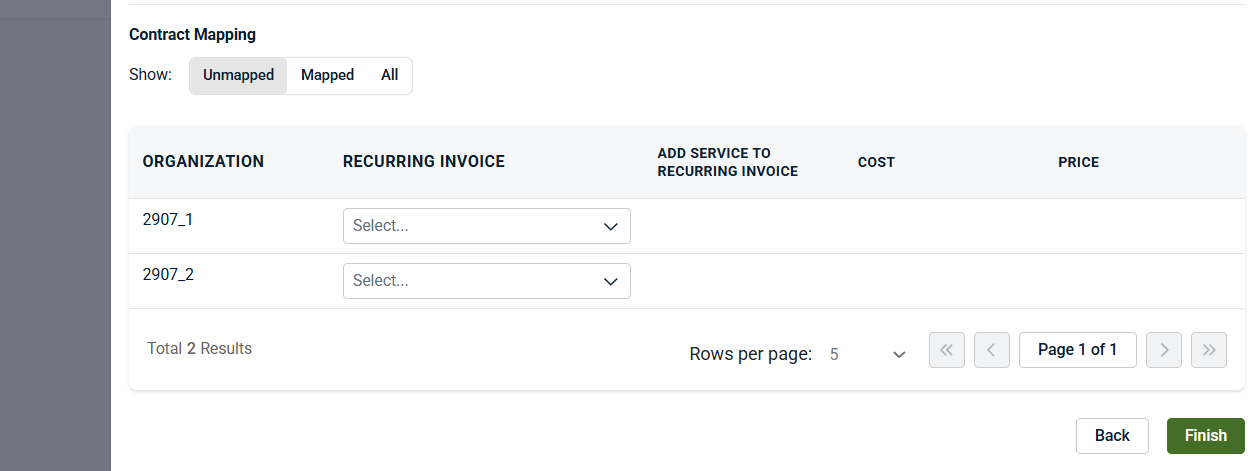
Contract Mapping
The Contract Mapping table is used to map each SaaS Alerts Organization to a Recurring Invoice or contract in Halo PSA.
-
Use the Show filter to switch between Unmapped, Mapped, or All organizations.
-
For each organization:
-
Select the appropriate Recurring Invoice.
-
Optionally enable Add Service to Recurring Invoice if you want the default service applied.
-
Cost and Price values are displayed based on the selected defaults
-
Each organization must be reviewed and mapped as needed before completing the setup.
Completing the integration
-
If Agreement / Contract Functionality is disabled, click Finish to complete the integration.
-
If Agreement / Contract Functionality is enabled:
-
A Default Invoice Recurring Service must be selected
-
Contract mappings must be reviewed
-
If any required fields are missing, an error message (for example, Service is required) is displayed and the integration cannot be completed.
Testing the Halo PSA Integration
-
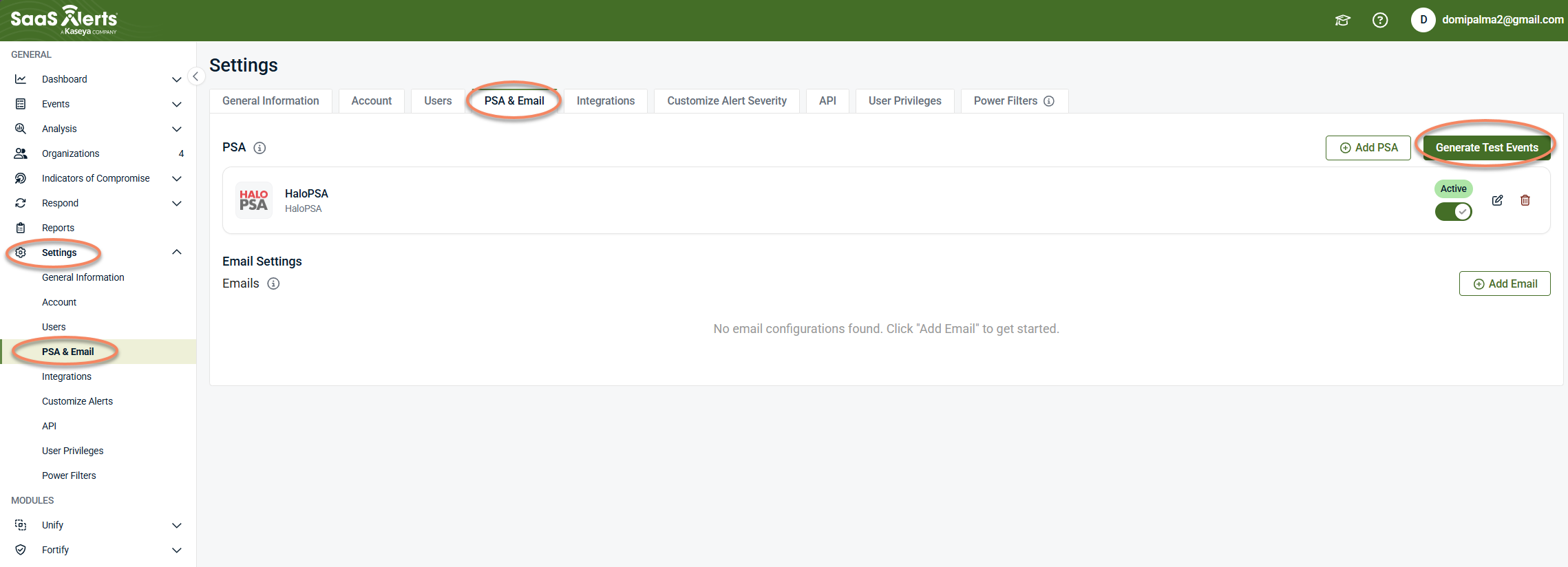
Navigate to Settings > PSA & Email.
-
Click Generate Test Events. This button will allow you to create test events to ensure that the Halo PSA integration is working as expected.
-
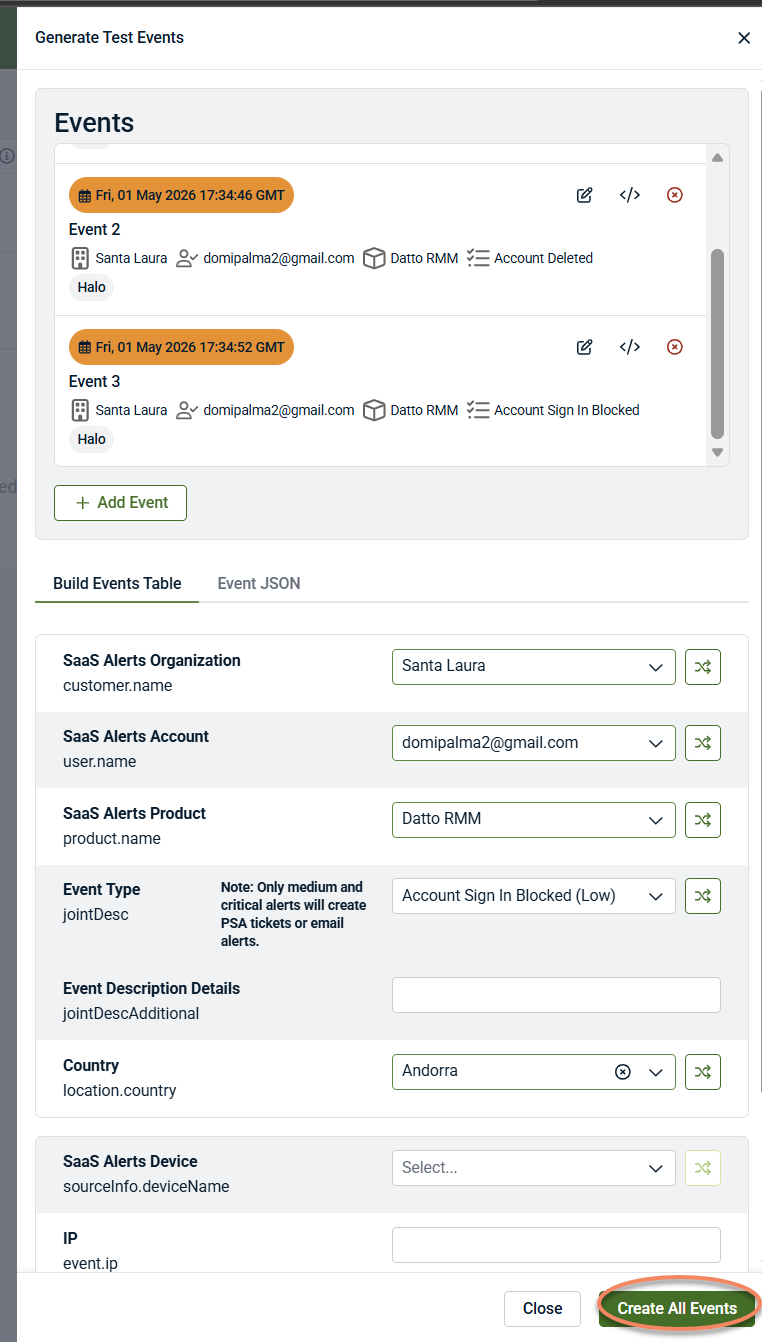
Select:
-
Organization
-
Account
-
Location for the user
-
One or more Events
-
-
Click Create All Events.
-
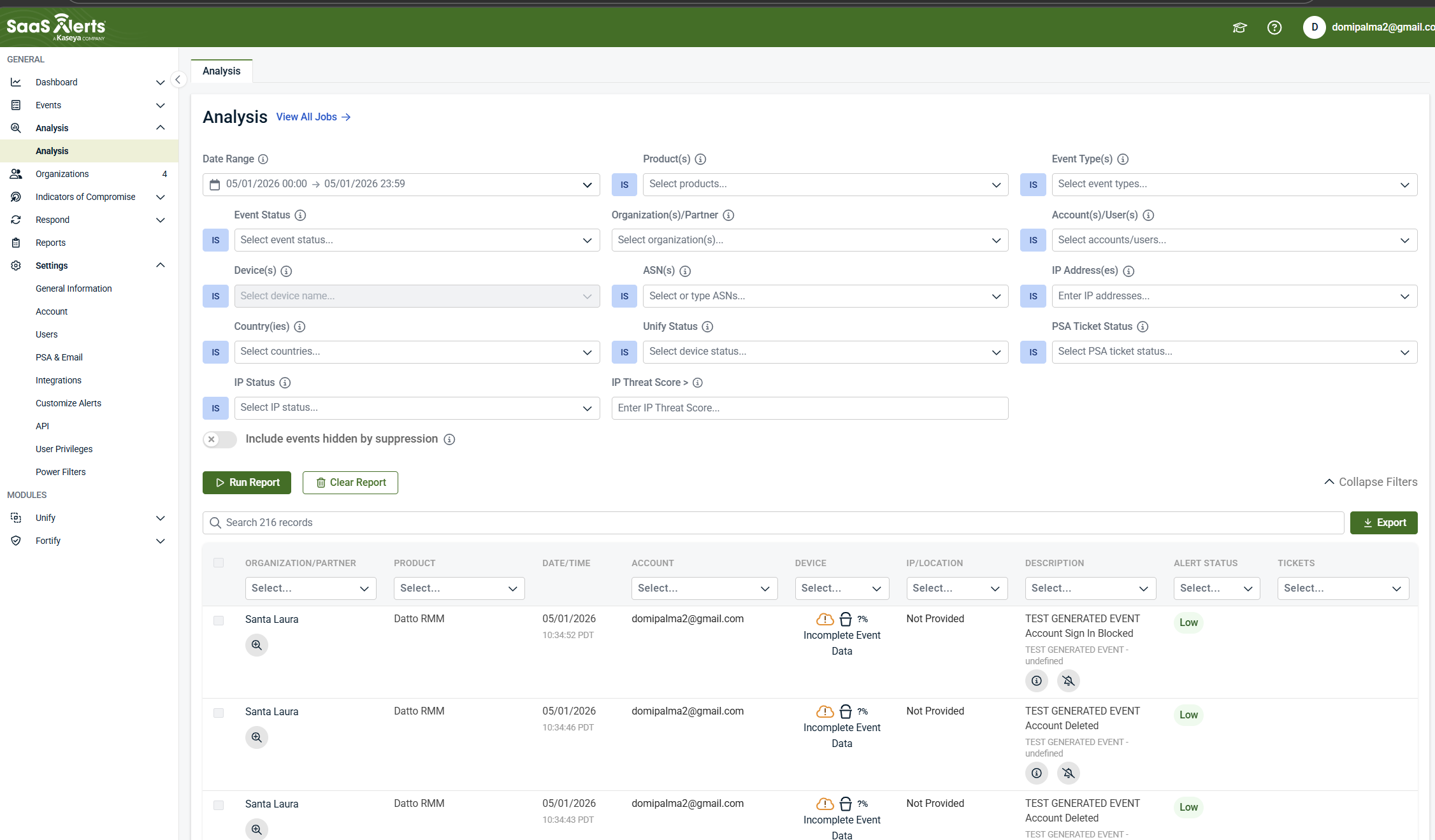
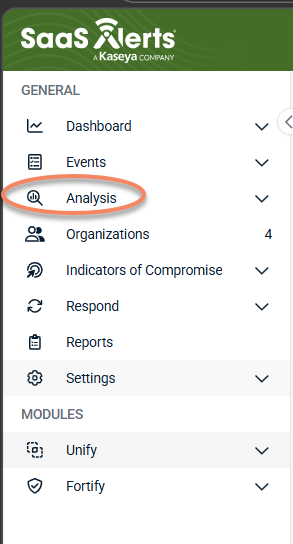
From the side navigation menu, click Analysis.
-
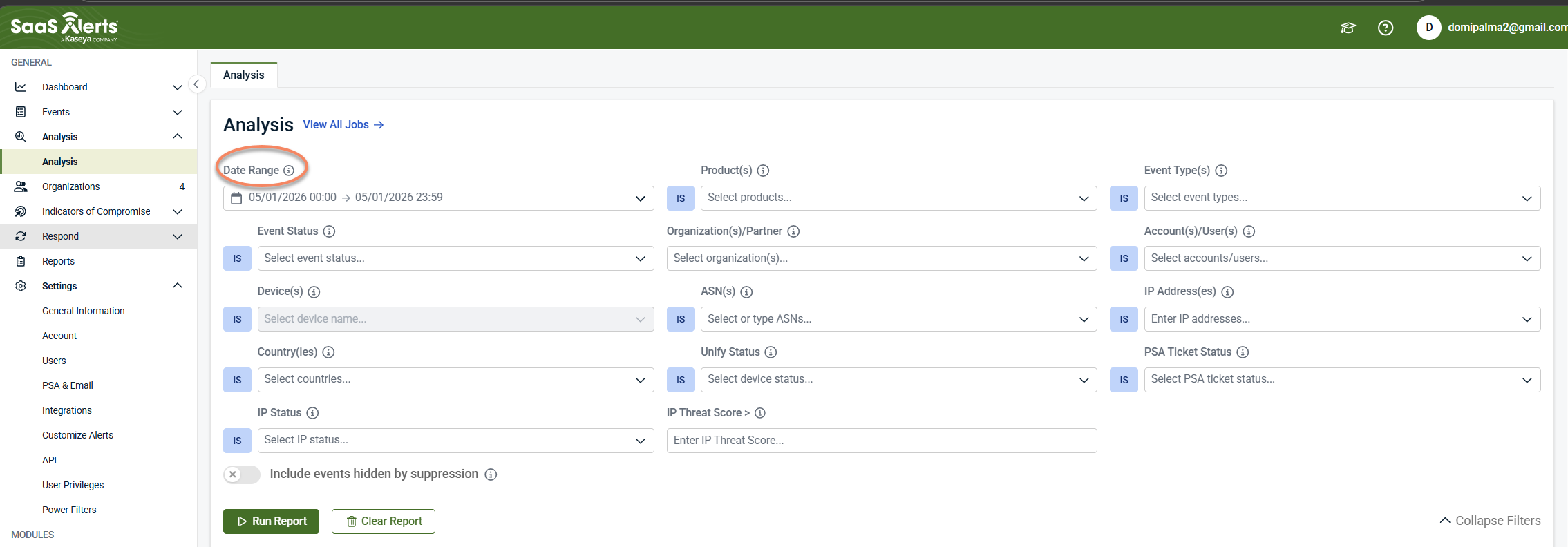
On the Analysis page, filter by date or any appropiate filter of your choice.
-
On this page, you can:
-
View the generated test events
-
Open the linked Halo PSA ticket
-
Review any errors that occurred