Notifications, PSA, and external communications
SaaS Alerts provides multiple ways to deliver alerts and communicate security activity to external systems and stakeholders.
These mechanisms control how alerts are delivered and routed, not how alerts are detected, evaluated, or generated.
Use this article when you need to configure:
-
PSA ticket creation
-
Email notifications
-
How alerts are delivered to external systems
-
How notification routing differs from alert generation, severity, and filtering behavior
Where notification settings are managed
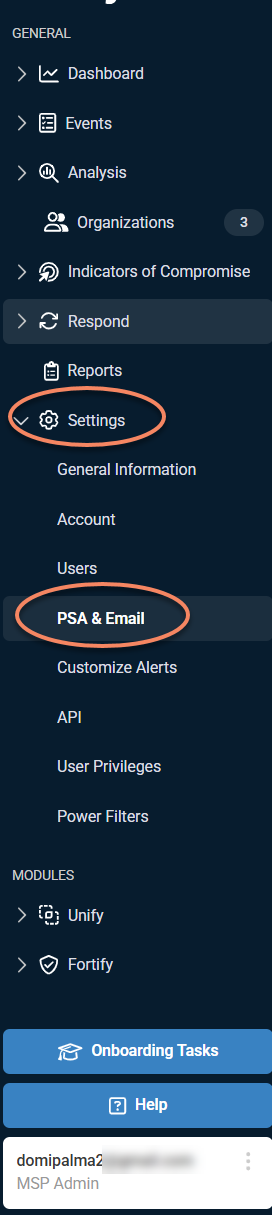
Notification and external communication settings in SaaS Alerts are managed from Settings > PSA & Email.
This area centralizes:
-
PSA integrations
-
Email recipients
-
Alert delivery and routing configuration
Administrative configuration in SaaS Alerts is centralized under Settings, where delivery behavior and external integrations are managed.
PSA integrations
SaaS Alerts can create tickets in supported Professional Services Automation (PSA) systems when alerts are generated.
From Settings > PSA & Email, you can:
-
Add a PSA integration
-
Provide authentication credentials
-
Map organizations and service parameters
-
Define how alerts are sent to the PSA
Supported PSA platforms include:
-
ConnectWise
-
Autotask
-
Kaseya BMS
-
Halo
-
Syncro
What PSA integrations do not control
PSA integrations determine where alerts are sent as tickets. They do not:
-
Change which alerts are generated
-
Modify alert severity
-
Suppress alerts or detections
-
Influence investigation logic
Adding a PSA integration
Use the steps below to connect a supported PSA so alerts can be created as tickets.
1. Open Settings > PSA & Email.
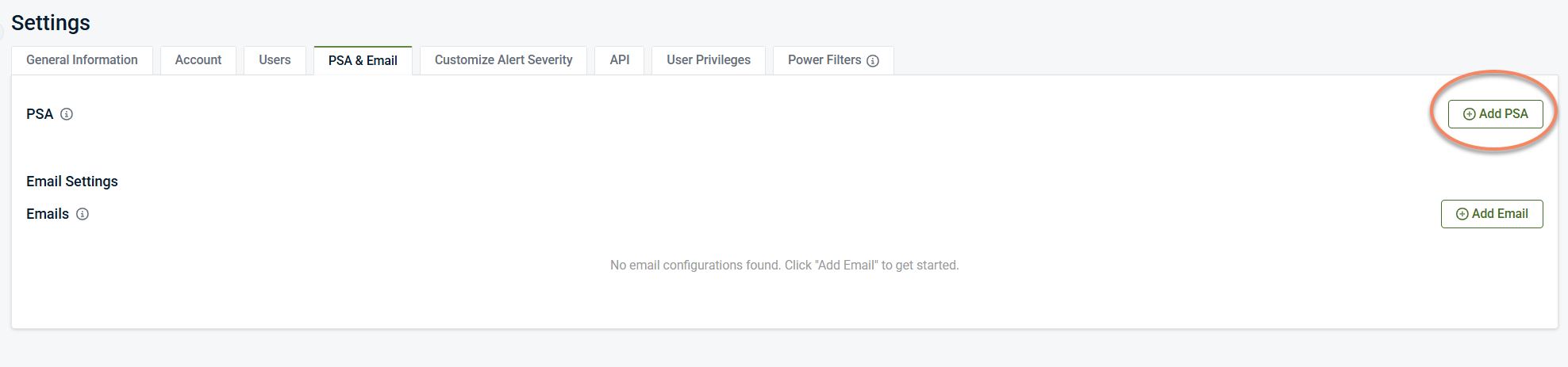
2. In the PSA section, select + Add PSA.
3. Choose the PSA you want to connect (ConnectWise, Autotask, Kaseya BMS, Halo, or Syncro).
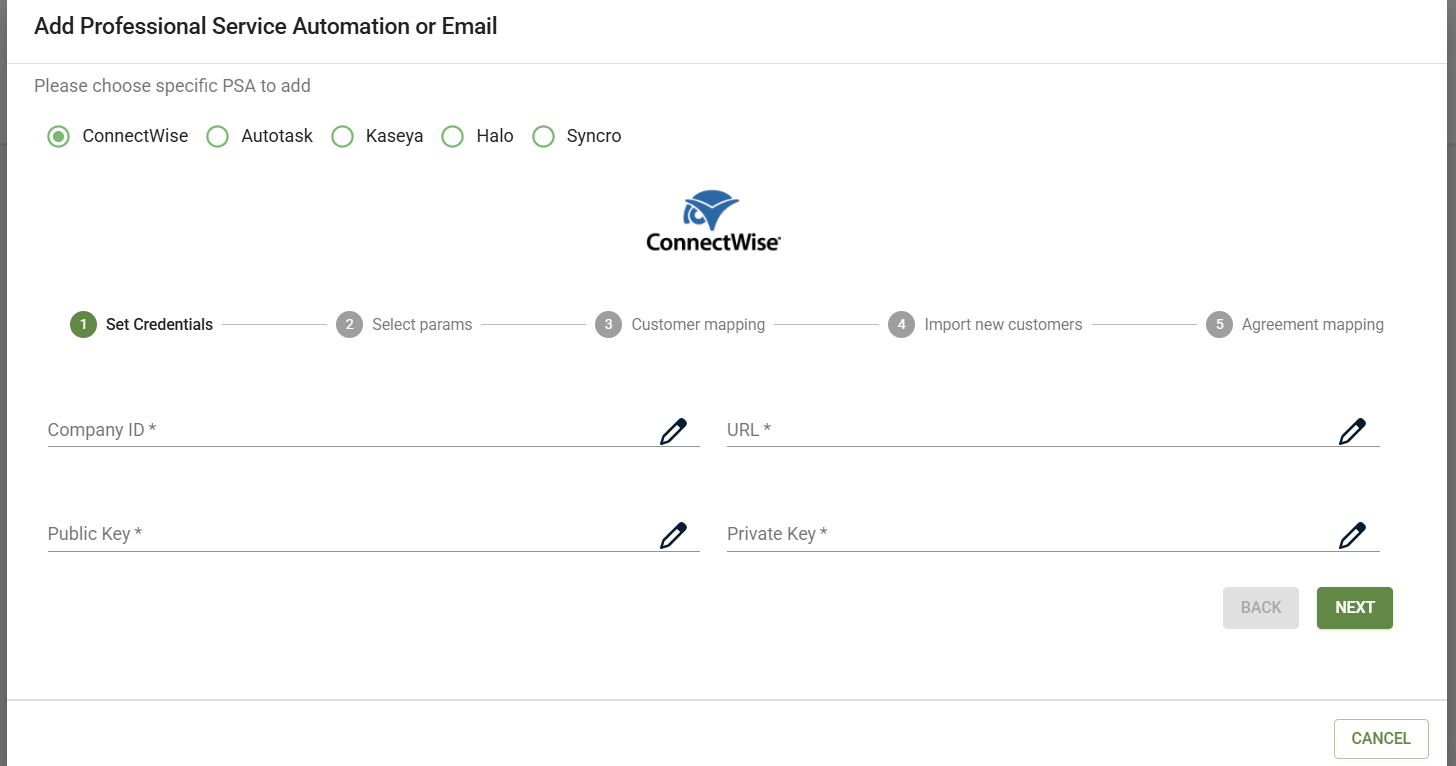
4. Enter the required authentication details for the selected PSA.
5. Complete any organization, service, or contract mapping required by that PSA.
6. Save the configuration to enable ticket creation.
Once configured, alerts generated in SaaS Alerts can be sent to the connected PSA as tickets.
NOTE Required fields and mapping options vary by PSA. For PSA‑specific configuration details, see the relevant integration documentation.
Pausing a PSA connection
You can temporarily pause a PSA integration without removing its configuration.
From Settings > PSA & Email, each configured PSA includes a Status control.
To pause a PSA connection:
-
Locate the PSA in the PSA section.
-
Change the status from Active to Paused.
-
Confirm the action when prompted.
When a PSA connection is paused:
-
New alert tickets are not created in the PSA
-
Existing PSA configuration remains intact
-
Alert generation continues normally in SaaS Alerts
Pausing a PSA connection is useful during:
-
PSA maintenance windows
-
Credential updates
-
Testing or troubleshooting ticket creation
Email notifications
Email notifications provide a simple way to send alerts to designated recipients.
From Settings > PSA & Email, you can:
-
Add one or more email addresses
-
Associate those addresses with alert delivery
-
Manage recipients centrally
Email notifications control who receives alert notifications. They do not:
-
Influence alert detection
-
Modify alert severity
-
Filter alerts
-
Replace alert processing or investigation logic
Adding email recipients
Use email notifications to send alerts directly to individuals or shared inboxes.
1. Open Settings > PSA & Email.
2. In the Email Settings section, select + Add Email.
3. Enter the email address that should receive alert notifications.
4. Select Add to save the address.
After the address is saved, a confirmation message indicates that the email was added successfully.
NOTE The confirmation message confirms that the address was saved. It does not validate email delivery or confirm that alerts have already been sent.
You can add multiple email addresses to support distribution lists or role‑based notifications.
Customizing email subjects and notification content
After adding email recipients, you can control how alerts appear in email notifications.
From Settings > PSA & Email, the Email Settings area allows you to configure:
-
Default subject formats for organization‑specific email recipients
-
Default subject formats for global email recipients
Because these scopes are independent, alerts sent to different recipients may use different subject formats even when triggered by the same alert.
Alert detail included in emails
Email notifications can include summary information only or additional underlying event details, depending on your configuration.
-
Respond Event Detail: When enabled, notification emails include the individual Respond events associated with the alert. When disabled, emails contain summary‑level alert information only.
-
IOC Event Detail: When enabled, notification emails include individual indicator‑of‑compromise (IOC) matches associated with the alert. When disabled, emails contain summary‑level information only.
These settings affect email verbosity and content only. They do not:
-
Change alert generation
-
Affect severity
-
Suppress alerts or detections
Alert delivery vs alert generation
Alert delivery mechanisms—PSA tickets and email notifications—operate after an alert has been generated.
It is important to understand the separation of responsibilities:
-
Detection logic determines whether an alert exists
-
Severity settings classify how important an alert is
-
Filtering and configuration rules determine visibility
-
Notification and PSA settings determine where alerts are sent once they exist
Because of this separation:
-
Disabling notifications does not stop alerts from being generated
-
Changing email recipients does not change alert content
-
PSA routing does not suppress alerts or detections
Common configuration misunderstandings
Expecting notifications to suppress alerts
Scenario: Disabling email notifications or PSA integration with the expectation that alerts will stop.
Why this happens: Notifications are delivery mechanisms that occur after alerts are generated.
Guidance: Use detection, filtering, or application configuration settings to manage alert generation and visibility—not notification settings.
Using PSA tickets as a filtering mechanism
Scenario: Assuming PSA ticket rules determine which alerts are generated.
Why this happens: Ticket creation is a delivery action, not a detection control.
Guidance: Configure detection and filtering separately from PSA routing.
Governance and best practices
To keep alert delivery predictable and support‑friendly:
-
Configure PSA integrations deliberately and test them after changes
-
Keep email recipient lists current and role‑appropriate
-
Treat notification settings as communication controls, not security controls
-
Document why specific routing or recipients are configured
-
Review delivery configuration periodically as workflows evolve


