Ask AI (MSFT Agent)
NAVIGATION Select the sparkle icon in the upper-right corner of the SaaS Alerts portal, next to the Help icon, to access Ask AI. Ask AI is also available in Microsoft Teams after your organization is connected, a Teams administrator makes the app available, and access is granted through the SaaS Alerts portal.
Overview
Ask AI (MSFT Agent) is a conversational AI assistant built into Kaseya SaaS Alerts for Microsoft 365 environments. Administrators can use Ask AI to ask natural-language questions, investigate issues, generate reports, and request changes related to:
-
Identity and access
-
Email and collaboration
-
Threat protection
-
Compliance
-
Cloud app security
-
Fortify posture data
Ask AI provides a conversational interface for working with connected Microsoft 365 organizations and Fortify posture information. Before making a change, Ask AI presents the proposed plan for review and approval.
Open Ask AI
You can open Ask AI in either of the following ways:
-
Select the sparkle icon in the upper-right corner of the SaaS Alerts portal. The icon appears between the Help icon and the user profile area.

-
If the New here? callout appears, select Show me or Tell me what the MSFT Agent can do.
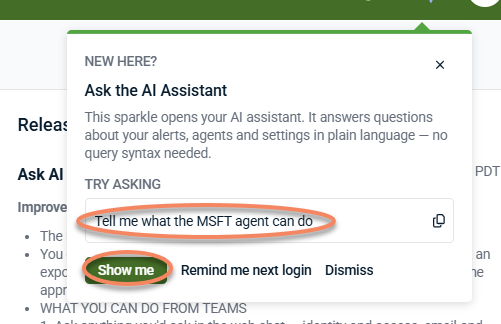
The New here? callout also provides these options:
-
Remind me next login: Closes the callout and displays it again the next time you sign in.
-
Dismiss: Closes the callout. The callout does not appear the next time you sign in.
NOTE You can still open Ask AI by selecting the sparkle icon after dismissing the callout.
Accept the AI Chat Terms of Use
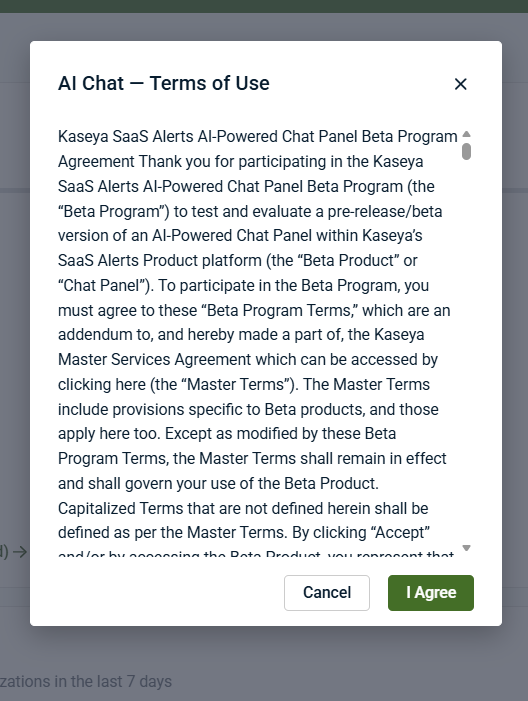
The first time you open Ask AI, selecting the sparkle icon, Show me, or Tell me what the MSFT Agent can do opens the AI Chat – Terms of Use dialog before you can access the AI Assistant panel.
To accept the terms of use:
-
Review the AI Chat – Terms of Use dialog.
-
Select I Agree to continue, or select Cancel to close the dialog without enabling the chat.
-
After you select I Agree, the AI Assistant panel opens. You can then enter a question or select a suggested prompt.
If you select Cancel, Ask AI does not open. You are prompted to review the terms again the next time you try to open Ask AI.
After you accept the terms, selecting the sparkle icon opens the AI Assistant panel directly on subsequent visits.
Explore the AI Assistant panel
Use the AI Assistant panel to enter questions and requests and review the assistant’s responses.
When the panel opens, it displays suggested prompts to help you get started. For example, you can:
-
Request a summary of critical alerts
-
Check your Microsoft Secure Score
-
Find users who do not have multifactor authentication enabled
-
Ask what Microsoft 365 tenant configurations the assistant can perform
When you ask what Ask AI can do, the assistant provides a walkthrough organized by product area.
Responses may include:
-
Plain-text answers
-
Numbered options that you can select by replying with the corresponding number
-
Suggested-reply buttons
-
An organization picker when a request could apply to more than one connected Microsoft 365 organization
-
Progress updates for long-running requests
Depending on your request, Ask AI may provide an answer, ask you to identify an organization, run a read-only investigation, prepare a report or export, or present a proposed change for your review and approval.
Ask AI is also available in Microsoft Teams after your organization is connected, a Teams administrator makes the app available, and access is granted through the SaaS Alerts portal. For more information, see Connect Ask AI to Microsoft Teams.
Main panel options
| Option | Description |
|---|---|
| Message box | Enter a question or request in plain language, such as asking about a user’s sign-ins or requesting a permission grant. |
|
Suggested reply buttons |
Select a suggested response to send it to the assistant. |
|
Organization picker |
Select the connected Microsoft 365 organization to which your question or request applies. This option appears when the assistant needs additional organization information. |
|
Feedback control |
Rate a response, select a reason for the rating, and provide an optional comment. |
Examples of what you can ask
Depending on the connected services, available permissions, and applicable licenses, you can ask Ask AI to:
-
Investigate why a user cannot sign in or why a policy is not taking effect
-
Review recent sign-ins or audit and activity information
-
Run KQL hunting queries against Microsoft Defender
-
Identify who has access to a SharePoint site, including the individual members of SharePoint groups
-
Investigate whether mailbox access came from the mailbox owner, a user with delegated access, or an application with ongoing permission
-
List, create, update, or delete Microsoft Defender for Cloud Apps policies
-
Request Send As or Full Access permission grants
-
Review Microsoft 365 license assignments and measured service activity
-
Review Fortify posture information across connected organizations
-
Generate a report or export
For conceptual Microsoft questions that are not specific to your environment, Ask AI can search and read official Microsoft documentation.
Proposed changes are presented through the preview-and-approve flow before Ask AI makes the change. Some actions depend on the organization’s available permissions and licenses.
Approval card
When a request would make a change in Microsoft 365, Ask AI displays an approval card that previews the proposed plan. The card lists the steps in the plan, the organization it targets, and whether each step creates, updates, or deletes something.
When one detail remains unresolved and Ask AI can use a clearly safer choice, Ask AI identifies that choice on the approval card.
Ask AI does not make the proposed change until you approve the plan. In Microsoft Teams, typing yes does not authorize a change. You must use the buttons on the approval card.
| Field | Description |
|---|---|
| Step list | Lists the actions that the proposed plan will perform, in order, including actions required to support a later step. For example, a plan can create an app registration before creating its service principal. |
|
Organization label |
Identifies the Microsoft 365 organization against which the plan will run. |
|
Color coding |
Indicates whether a step creates, updates, or deletes an object. |
|
Approve and Decline buttons |
Approve runs the plan. Decline discards it. In Microsoft Teams, these buttons are the only way to authorize or decline the proposed change. |
Export
When you explicitly request a complete report or dataset, Ask AI does not intentionally shorten the results. If the information is too large for one file, Ask AI can provide it in CSV format or split it across multiple files, such as one file for each organization.
In Microsoft Teams, an export is saved to your OneDrive. Ask AI provides a card that you can use to open or download the file.
If you decline a Teams export, the file is not saved to OneDrive, but the contents remain available in the chat.
Prerequisites and limitations
Review the following prerequisites and limitations before using Ask AI:
-
The first time you open Ask AI, you must review and accept the AI Chat Terms of Use, also referred to as the SaaS Alerts AI-Powered Chat Panel Beta Program Agreement, before you can send a message.
-
Using Ask AI in Microsoft Teams requires your organization to be connected to Microsoft Teams, a Teams administrator to make the Fortify Agent app available in the Teams admin center, and access to be granted through the SaaS Alerts portal. Publishing the app to the Teams catalog alone does not make it available for installation. Availability changes can take up to 24 hours to take effect.
-
Root-cause investigations are read-only. Ask AI cannot make changes during an investigation, and each investigation is limited to the Microsoft 365 organization named in the request.
-
Some Fortify actions depend on the available license. If an action is not covered by the license, Ask AI reports the licensing requirement instead of attempting a workaround.
-
The Microsoft 365 activity report used for license-usage questions measures activity in Exchange, OneDrive, SharePoint, Teams, Skype for Business, and Yammer. Services such as Intune, Microsoft Entra ID P1 or P2, Microsoft Defender, Microsoft Purview, Power Platform, Project, and Visio are reported as unmeasured instead of unused.
-
If Ask AI identifies a required Microsoft permission that the connection does not have, Ask AI can provide a Microsoft consent link. After consent is completed, the conversation resumes without requiring you to start over.
How to
 Connect Ask AI to Microsoft Teams (Fortify Agent)
Ask AI connects to your own Microsoft 365 tenant, which is the tenant your technicians use to sign in to Microsoft Teams. It does not connect to a customer organization that you monitor in SaaS Alerts.
In the Microsoft Teams app catalog, Ask AI appears as Fortify Agent. Use that name when searching in the Teams admin center.
To connect Ask AI to Microsoft Teams:
-
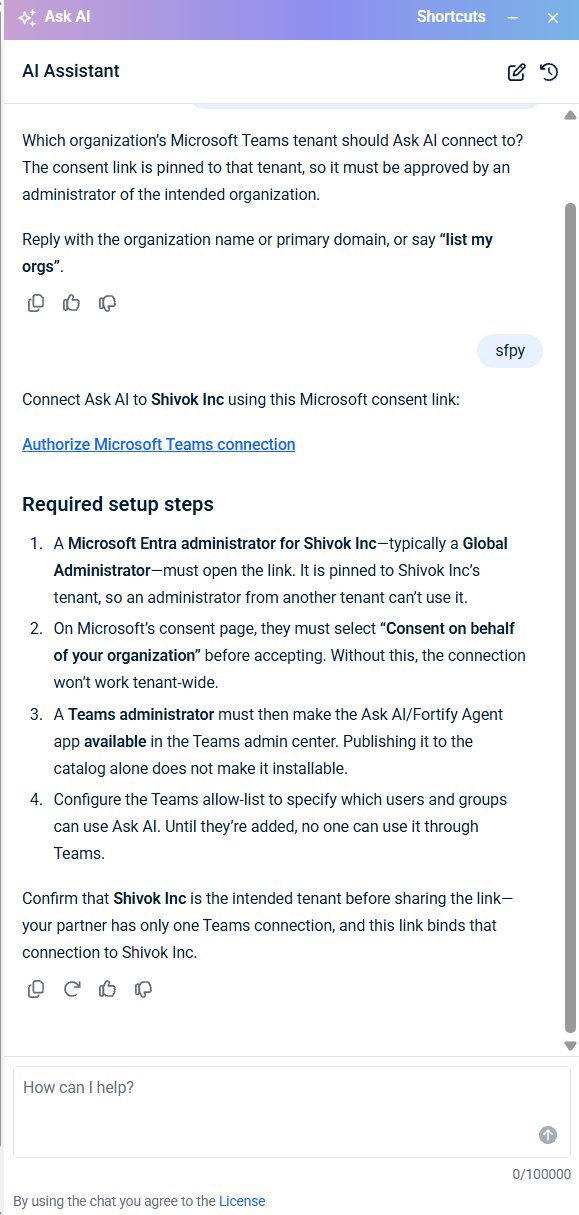
In the SaaS Alerts portal, open Ask AI and ask for the Microsoft Teams connection link. For example: How do I connect Ask AI to Microsoft Teams? Ask AI returns the connection link and identifies who must open it. If you have more than one connected organization, Ask AI asks which organization to connect. Select your own organization.
-
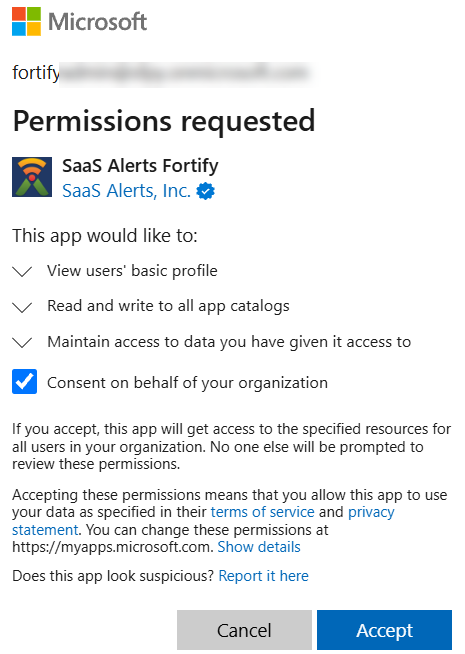
Send the connection link to a Microsoft Entra administrator in your organization. The administrator must:
-
Open the link and sign in.
-
Select Consent on behalf of your organization before accepting.
-
Select Accept.
-
-
Ask a Teams administrator to make the app available: Teams admin center > Teams apps > Manage apps > Fortify Agent > Users and groups > Edit availability
Select everyone or select the specific users and groups who will use Ask AI.
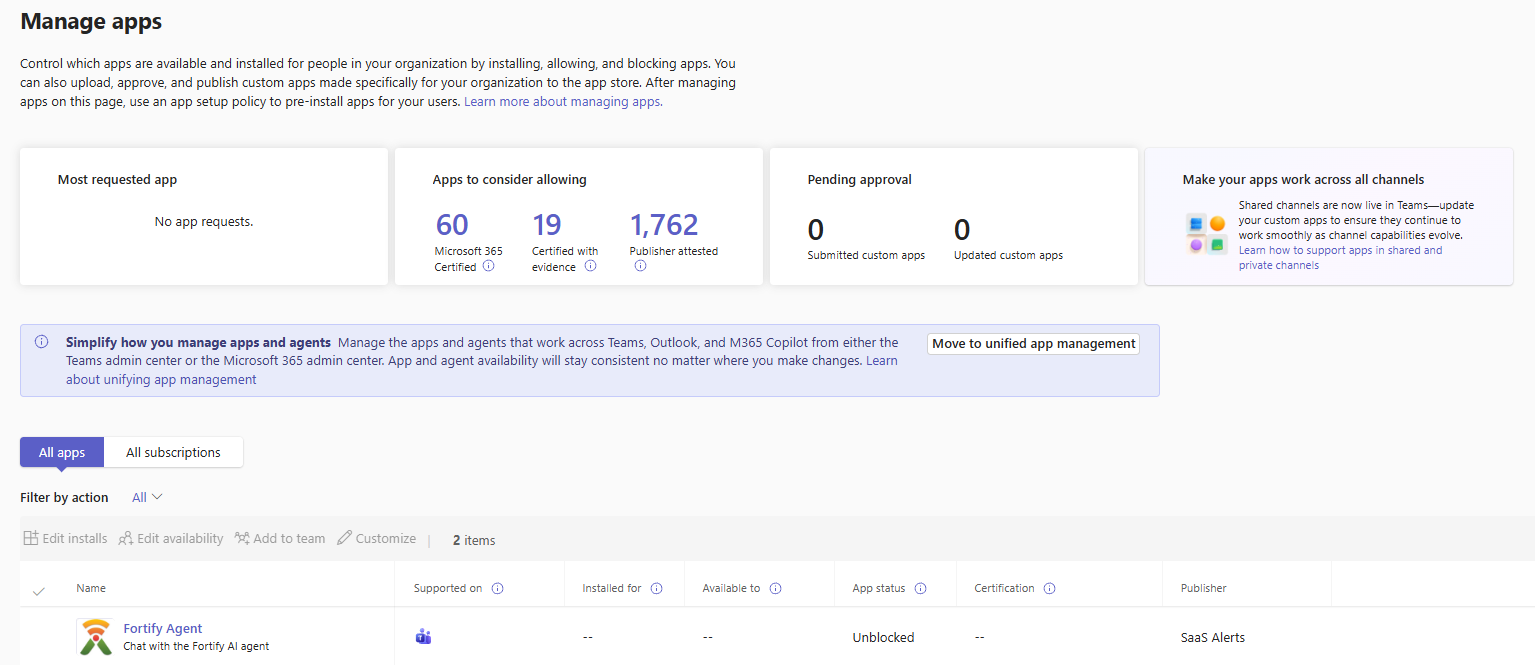
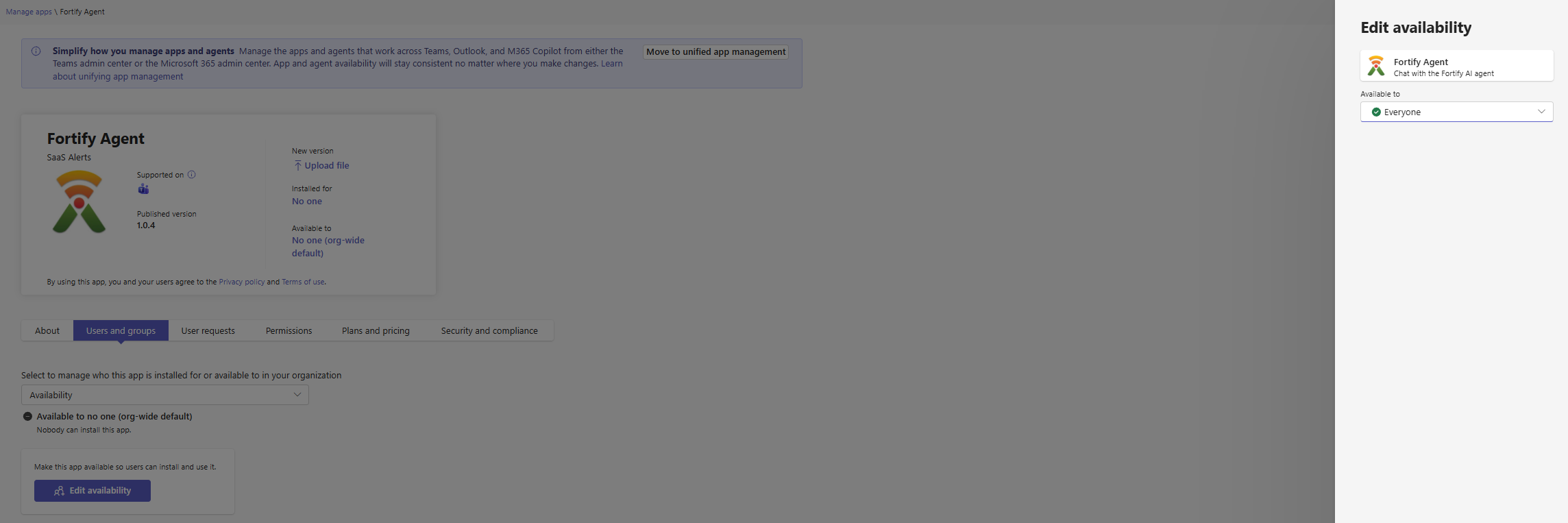
IMPORTANT Publishing the app to the Teams catalog does not make it available. Until availability is granted, every installation fails, and the error message may incorrectly indicate an app permission policy issue.
NOTE The Unblocked status on the Manage apps page is separate from app availability. An app can be unblocked and still be unavailable to all users.
If your tenant has not migrated to unified app management, the administrator must also enable: Teams apps > App setup policies > Global > Upload custom apps.
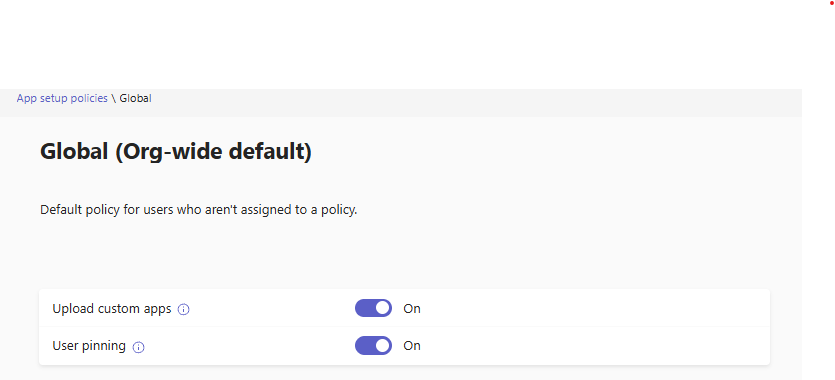
In that scenario, both settings are required.
-
Allow up to 24 hours for the availability change to take effect. In many environments, the change takes effect much sooner. You can continue with the next step while waiting.
-
In the SaaS Alerts portal, use Ask AI to grant access. For example: Give jane@example.com access to Ask AI in Microsoft Teams.
Review the approval card and select Approve.
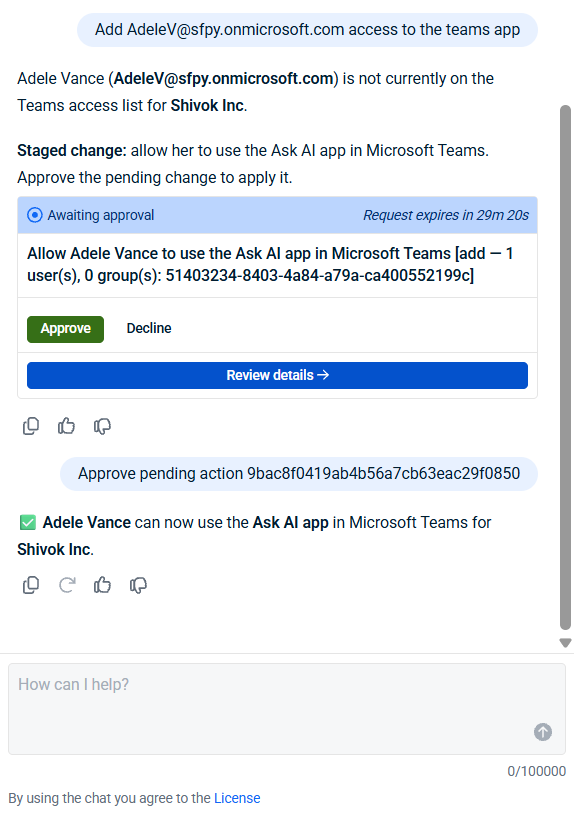
NOTE Access can only be granted from the SaaS Alerts portal. You cannot manage Ask AI access from within Microsoft Teams.
-
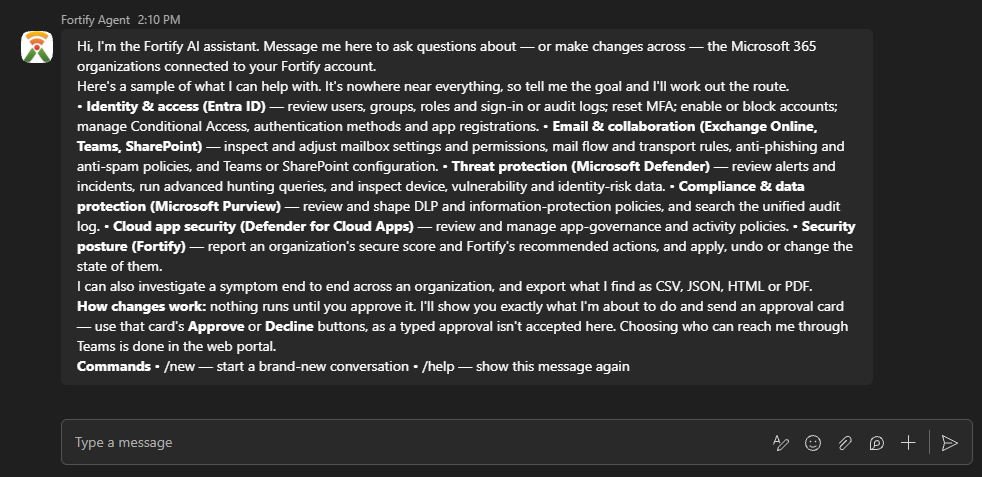
Confirm the connection. When the app becomes available, Ask AI automatically installs it for each person who was granted access and sends an introductory Microsoft Teams message.
Users can find the app under Chat or by selecting Apps and searching for Fortify Agent. Enter /help in the chat for an overview of Ask AI capabilities.
Availability and access are different
-
Availability (Step 3) determines who can see and install the app. A Teams administrator configures availability.
-
Access (Step 5) determines who can use Ask AI. Access is managed from the SaaS Alerts portal.
Making the app available to everyone does not automatically grant access to Ask AI.
If the app does not appear
If access was granted in Step 5 before the availability change from Step 3 took effect, the installation does not complete and no error is displayed. After availability takes effect, grant access to those users again.
If the app still does not appear, ask Ask AI for assistance. Ask AI checks your Teams app settings and identifies the setting that must be changed, including the applicable admin center and navigation path.
Keeping the app up to date
When a new version of the app is released, an administrator must open the connection link again and provide consent again by selecting Consent on behalf of your organization.
Ask Ask AI for the connection link to verify whether the currently published version is up to date.
Ask a question
To ask the assistant a question:
-
Open Ask AI in the SaaS Alerts portal or, after it is connected, in Microsoft Teams.
-
Enter your question in plain language. You can ask about identity and access, email and collaboration, threat protection, compliance, cloud app security, or Fortify posture data.
-
If more than one connected organization could apply, select an organization from the options provided by Ask AI.
You can also name the organization in your request. When you identify a user by email address, Ask AI can use the email domain to determine the applicable organization.
Ask AI answers tenant-specific questions using information from the selected environment. For conceptual Microsoft questions, Ask AI can search official Microsoft documentation.
Approve or decline a proposed change
To review a change proposed by Ask AI:
-
Submit a request that requires a change to Microsoft 365, such as blocking an IP address or granting a permission.
-
Review the approval card, including:
-
Every step in the plan
-
The organization targeted by the plan
-
The create, update, and delete color coding
-
-
Select Approve to run the plan, or select Decline to discard it.
In Microsoft Teams, you must use the buttons on the approval card. Typing yes does not authorize the change.
After you approve the plan, Ask AI runs each approved step and reports the outcome.
Run an investigation
To investigate an issue:
-
Describe the problem, such as a user who cannot sign in or a policy that is not taking effect.
-
If needed, indicate how thorough the investigation should be. For example:
-
Enter give me a quick first pass for a lighter investigation.
-
Enter do a deep dive or be thorough for a more extensive investigation.
-
-
If you do not specify a preference, Ask AI uses the balanced default.
-
Review the findings and likely cause reported by Ask AI.
Investigations are read-only. Ask AI cannot make changes while performing an investigation, and the investigation is limited to the organization named in the request.
Check and reclaim unused license seats
To review license assignments and measured activity:
-
Ask a fleet-wide licensing question, or select Check actual license usage when Ask AI offers the option.
-
Review the results. Ask AI distinguishes license assignment from service activity and identifies services that are not measured by the Microsoft 365 activity report.
-
Ask Ask AI to stage the reclamation of the applicable licenses.
-
Review the proposed change and select Approve or Decline.
Ask AI uses the Microsoft 365 activity report to identify assigned seats with no measured service activity during the period examined. License reclamation follows the standard preview-and-approve flow.
Get a report or export
To request a report or complete dataset:
-
Ask for the report you need.
-
If you do not identify an organization, select whether to list your organizations or run the report across all connected organizations.
-
If you need the complete dataset instead of a summary, state this explicitly. For example, include all of them in your request.
-
Follow the options provided by Ask AI to access the results.
Large datasets can be delivered in CSV format or split across multiple files instead of being shortened.
In Microsoft Teams, Ask AI saves an accepted export to your OneDrive and provides a card for opening or downloading the file. If you decline the export, the file is not saved to OneDrive, but the contents remain available in the chat.
FAQ
Does typing “yes” in Microsoft Teams approve a change?
No. Only the Approve and Decline buttons on the approval card authorize or discard a proposed change. Typing yes in the Microsoft Teams conversation does not authorize the change.
Why does Ask AI report a service as “unmeasured” instead of “unused”?
The Microsoft 365 activity report used by Ask AI measures activity in Exchange, OneDrive, SharePoint, Teams, Skype for Business, and Yammer.
If a license provides access to a service outside that list, such as Intune or Microsoft Defender, the activity report does not provide activity information for that service. Ask AI therefore reports the service as unmeasured instead of assuming that it is unused.
Why can’t people in my organization see the app in Microsoft Teams?
Confirm that all of the following steps are complete:
-
A Microsoft administrator opened the connection link and selected Consent on behalf of your organization.
-
A Teams administrator made the app available in the Teams admin center.
-
The appropriate people or groups were granted access from the SaaS Alerts portal.
Publishing the app to the Teams catalog alone does not make it available for installation. Changes to app availability can take up to 24 hours to take effect.
If the app still does not appear, ask Ask AI why. Ask AI can check the organization’s Teams app settings and identify the setting to change, the applicable admin center, and the path to the setting.
Can Ask AI make changes without my approval?
No. Before creating, updating, or deleting something in Microsoft 365, Ask AI presents the proposed plan on an approval card.
Read-only actions, such as answering questions and conducting root-cause investigations, do not require approval because they do not make changes.
What happens if Ask AI needs an additional Microsoft permission?
Ask AI can provide a Microsoft consent link when a requested action requires a permission that the connection does not have. After the required consent is completed, the conversation resumes without requiring you to start over.


