Respond module: Fixing a broken connection
When a rule is triggered in the Respond module but the remediation fails, partners will receive an alert notification in SaaS Alerts Manage referring to a remediation has failed for a specific organization because an application connection is broken. 
Complete the following steps to fix the broken connection:
- From the left navigation menu, navigate to Respond.
- On the Rules page, you should be able to see the It looks like some organizations are not connected to take response actions banner.

- Click Connect Organizations to open the Fix Connections window.
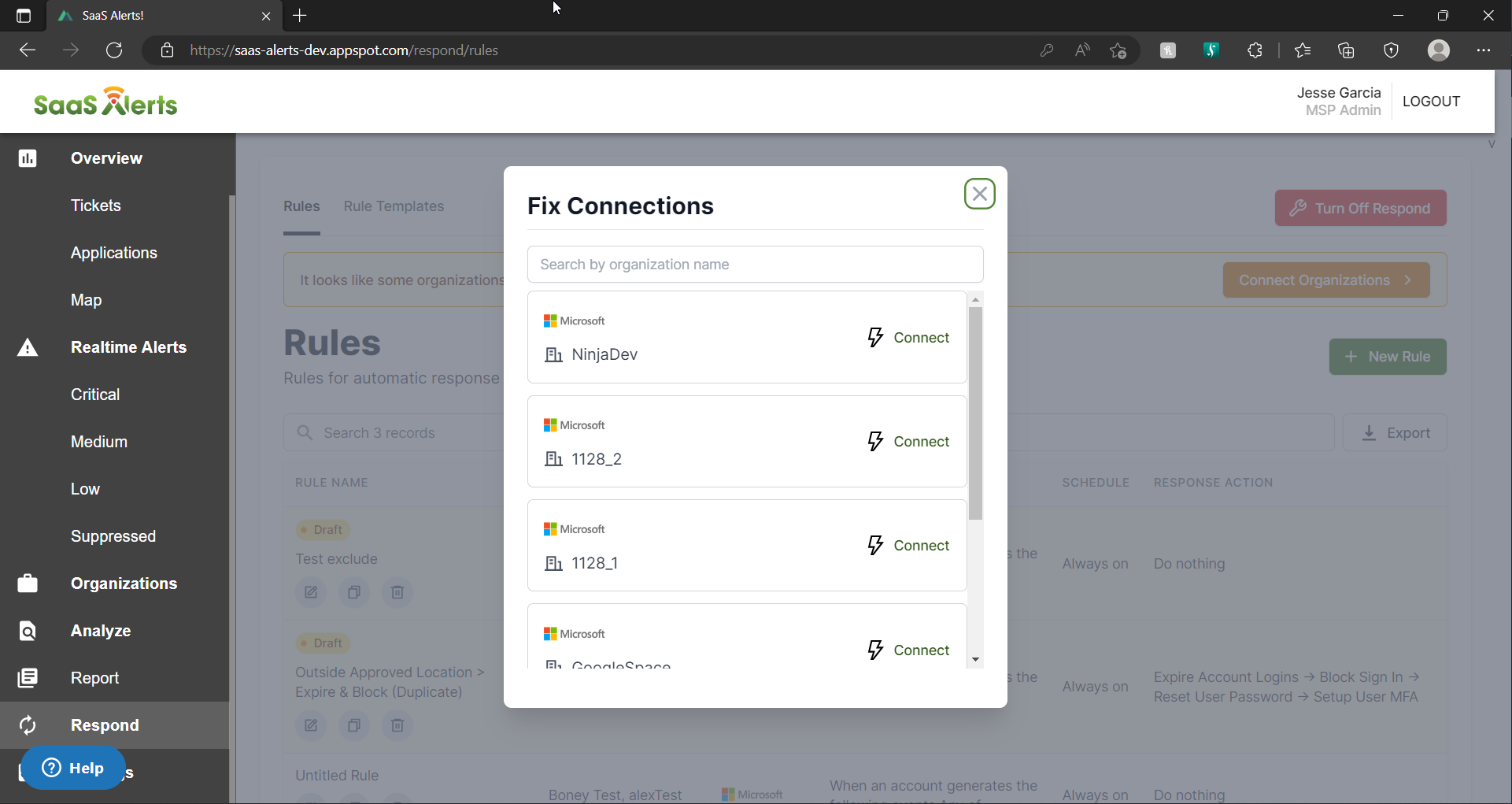
- Click Connect to authenticate using an account with global admin privileges.
NOTE Allow the required permissions by authenticating with a global admin account for the specific organization. If the wrong account is used, it will result in a broken connection when the rule is triggered.
IMPORTANT If the global admin account used to create a Respond connection has its permissions diminished or sign-in blocked, the Respond connection will break and have to be reestablished once the account is restored to global admin and sign-in is unblocked for that account.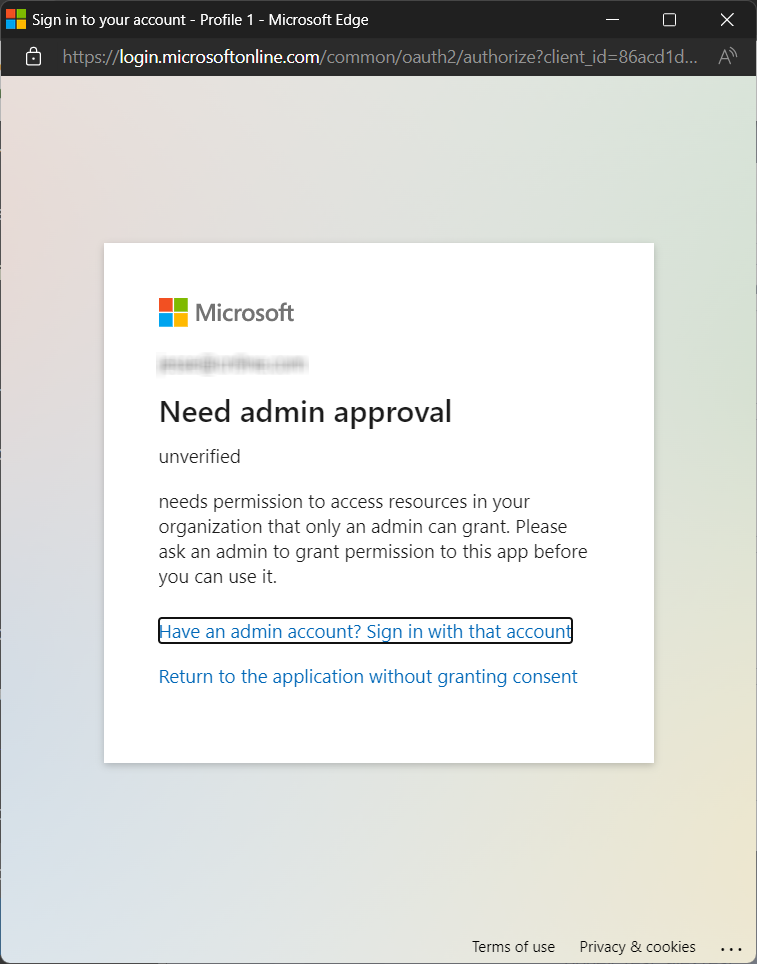
NOTE Consider selecting the Always allow pop-ups in your browser since it's required to allow pop-ups to be on for the permission approval process for each account.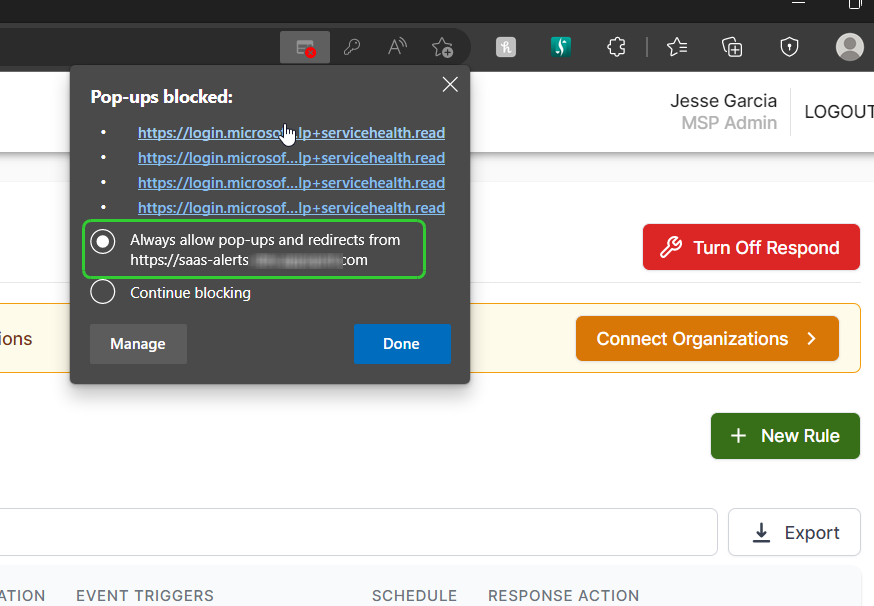
Now that the connection has been restored, your customers will be monitored by your active Rules in the Respond module and it will remediate any future events previously set in the Rule.


