Fortify snapshots
Overview
Capturing and deploying a snapshot across multiple Azure tenants is essential for maintaining a robust, consistent, and efficient security posture. This approach also helps reduce manual effort and minimize potential errors.
Taking a snapshot of your configured policies from a "golden image" tenant provides several significant benefits:
-
Consistency across tenants: Ensuring all your Azure tenants maintain the same security posture by applying a uniform set of policies minimizes gaps or discrepancies that could lead to vulnerabilities.
-
Simplified onboarding and management: When adding new tenants or reconfiguring existing ones, you can quickly apply your pre-approved configuration instead of starting from scratch. This approach reduces administrative overhead and accelerates deployment.
-
Reduced risk of misconfiguration: Utilizing a standardized snapshot decreases the risk of human error during manual policy configuration, which can inadvertently weaken your security stance.
-
Improved compliance: A golden image enforces a consistent policy framework across all environments, which is essential for meeting regulatory and audit requirements. This makes it easier to demonstrate that your security measures are consistently applied.
-
Streamlined disaster recovery: In case of a configuration error or compromise, having a snapshot allows you to quickly restore your tenant’s conditional access policies to a known secure state, supporting business continuity.
-
Efficient policy testing and rollbacks: When policies require updates or testing, a baseline configuration simplifies the rollback process if something doesn't work as expected, ensuring that your security controls remain effective.
Preparation before creating a snapshot
Before creating a snapshot, consider the following pre-requisites:
-
The organization you plan to use for creating the snapshot must be connected to Fortify.
-
Only snapshots that are set to enabled or report-only will be imported. Snapshots that are disabled will be ignored. If there are policies you do not want to include in the snapshot, please set their status to disabled.
-
If any policies specify included or excluded users, these settings will be removed during the import. Included users will default to All users. If you want to configure included or excluded users for a policy, you can do so using parameters when assigning the snapshot to an organization.
-
The policy must have user assignments set to one of the following options: none, all users, or select users and groups. All options for users and groups are supported, with the exception of individual user accounts.
-
If the policy has a custom control grant selected, you will encounter an error during the import process, as these are no longer supported. We recommend switching to the suggested external authentication methods. Support for snapshotting custom external authentication methods will be provided in the future.
Creating a snapshot
To create a snapshot, follow these steps:
-
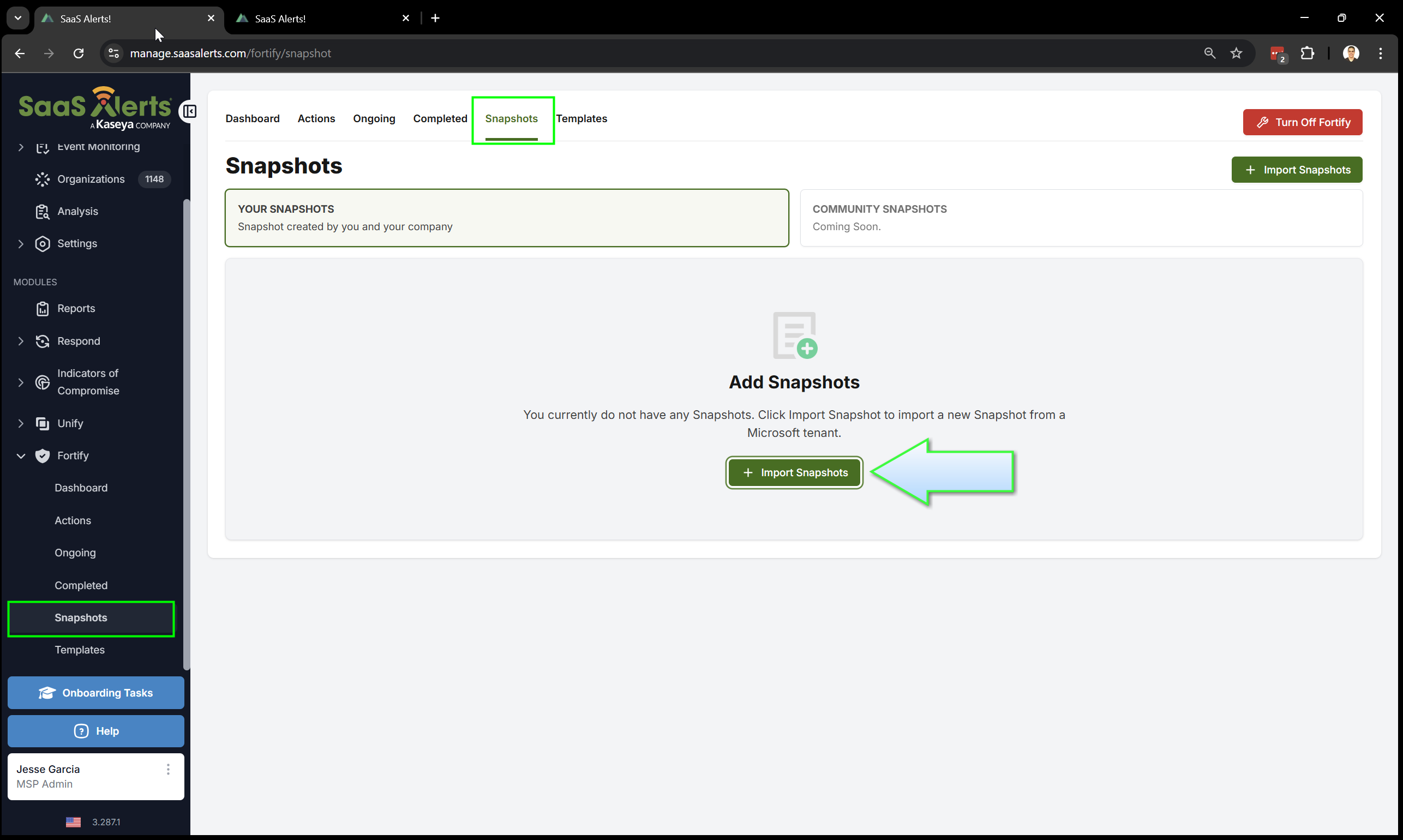
Click Fortify in the left pane.
-
Next, click Snapshots.
Click Import Snapshots.
-
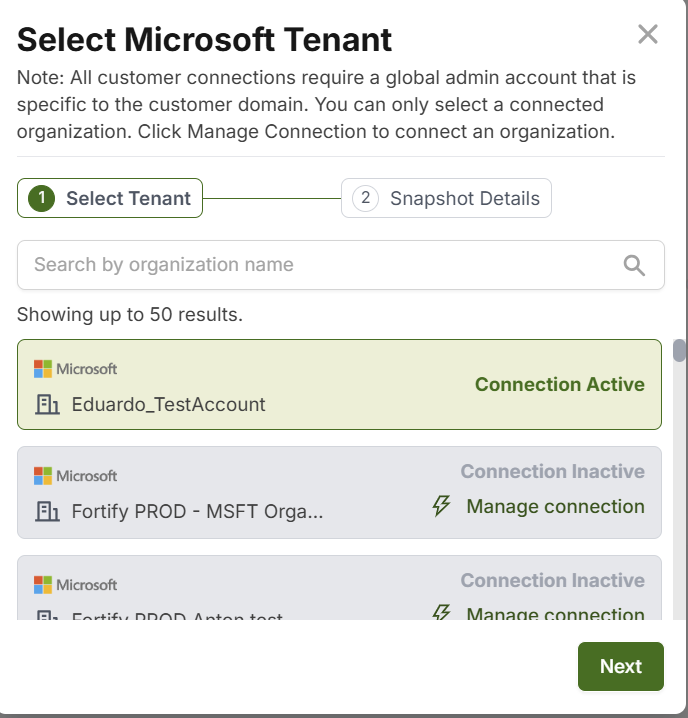
Select a Microsoft tenant to import that is connected to your organization via the Fortify module. Then, click Next.
-
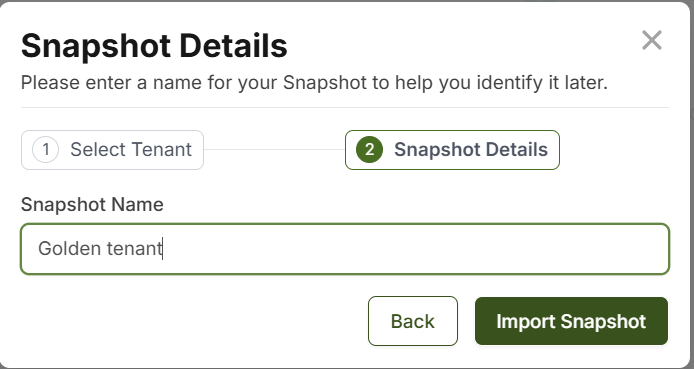
Please enter a name for the snapshot and then click Import Snapshot.
-
The policies screen will open, allowing you to add or remove your custom policies.
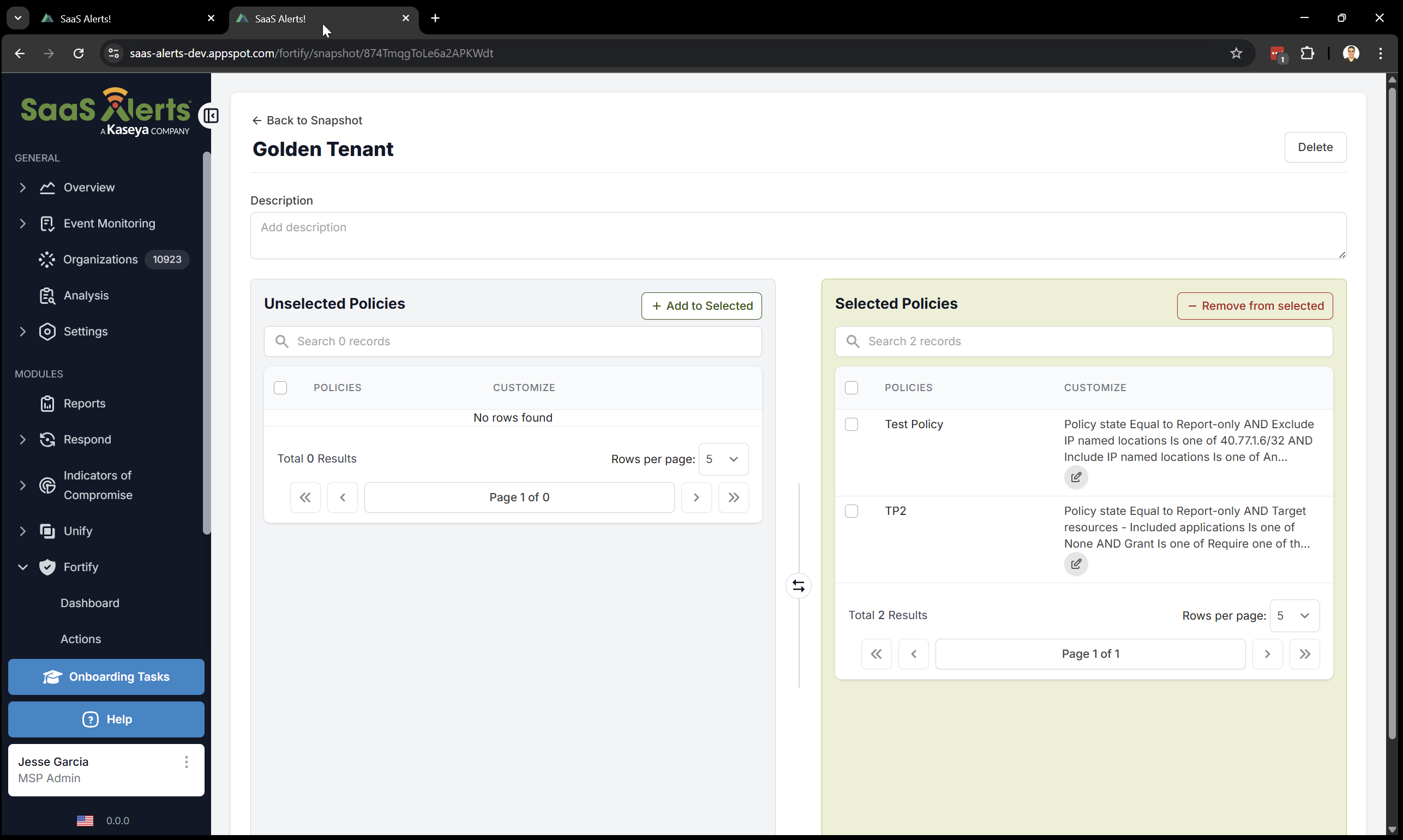
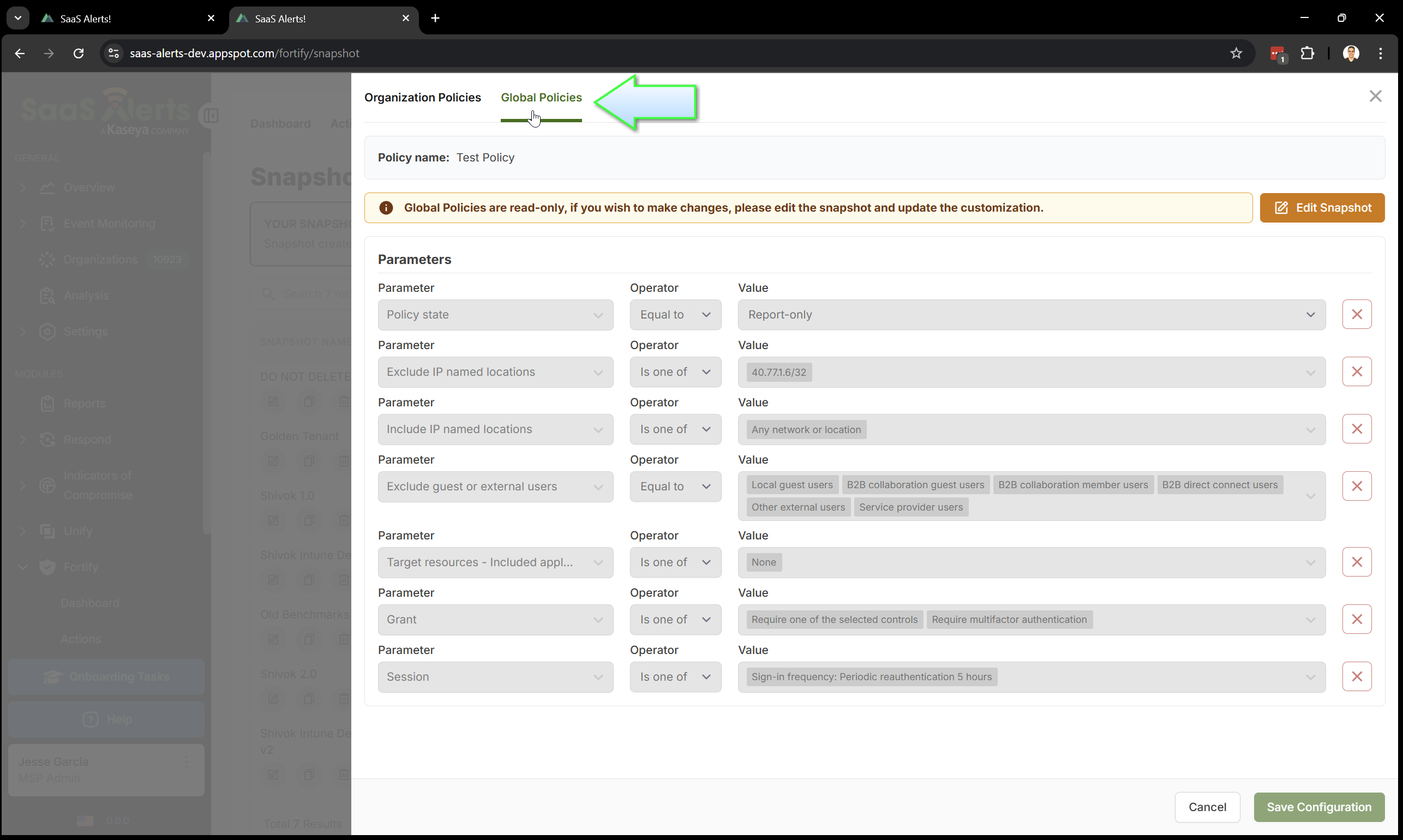
Once you have created the snapshot of the conditional access policy, all the configured options for that policy will appear as global parameters. You can customize these parameters by clicking on the edit icon.
Please note that not all parameters are configurable; some are displayed only to show the options that were detected after the import.
-
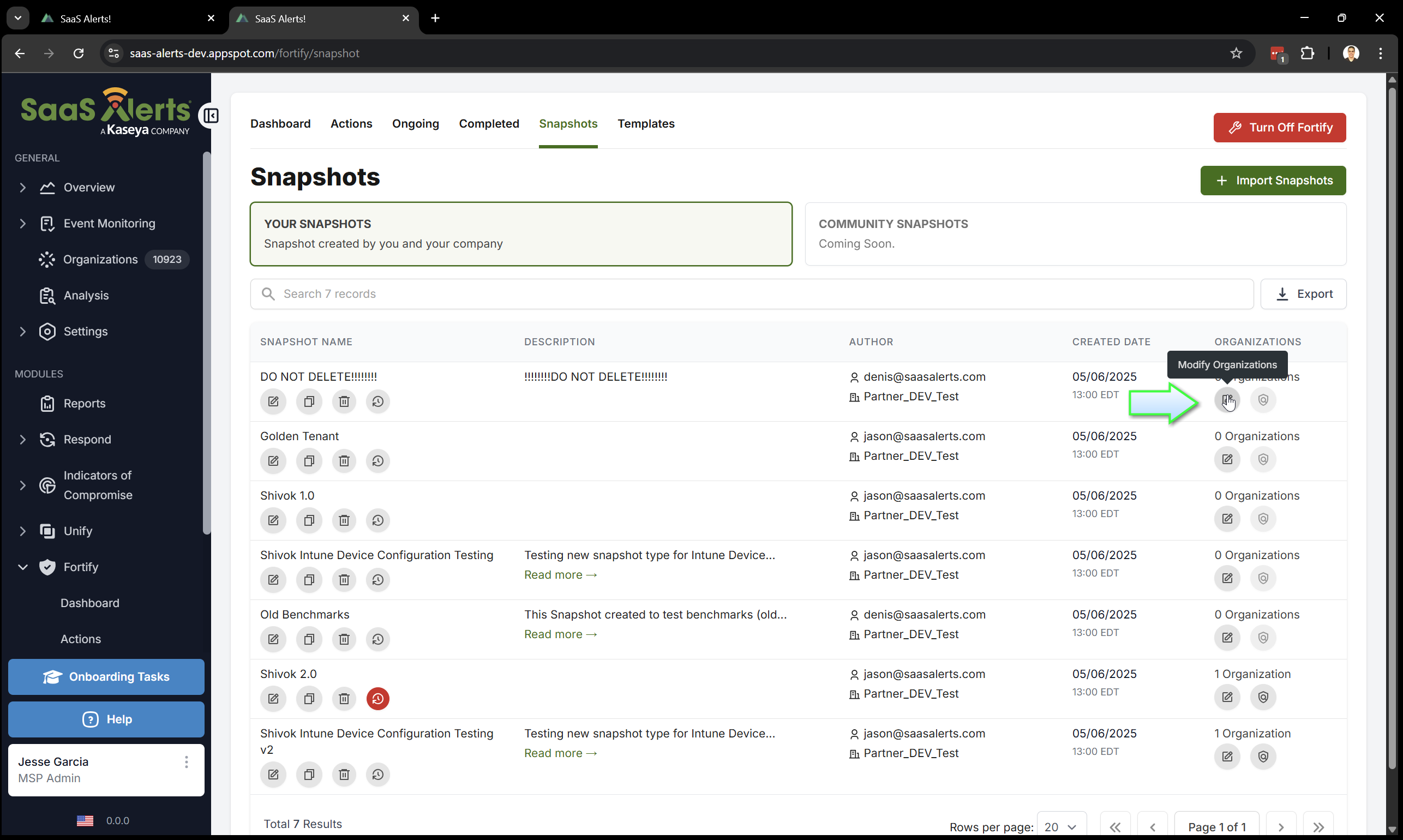
Partners can now add organizations to the Snapshot template from the imported Microsoft tenant by clicking the Modify Organizations icon under the Snapshots tab.
Customizing your Snapshot policies by adding parameters
To customize your Snapshot policies by adding parameters, follow these steps:
-
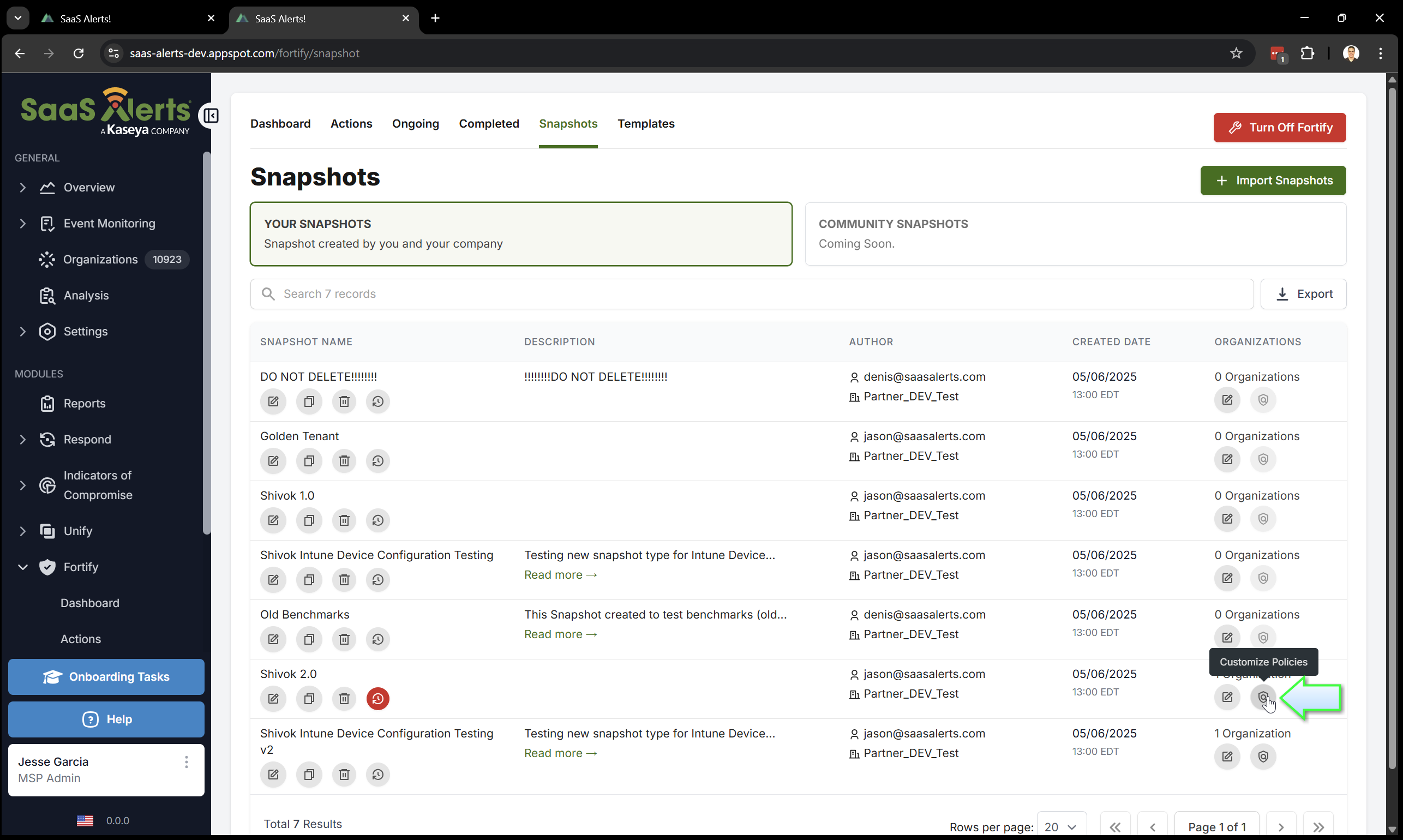
To change your Snapshot policies, just click the Customize Policies icon.
-
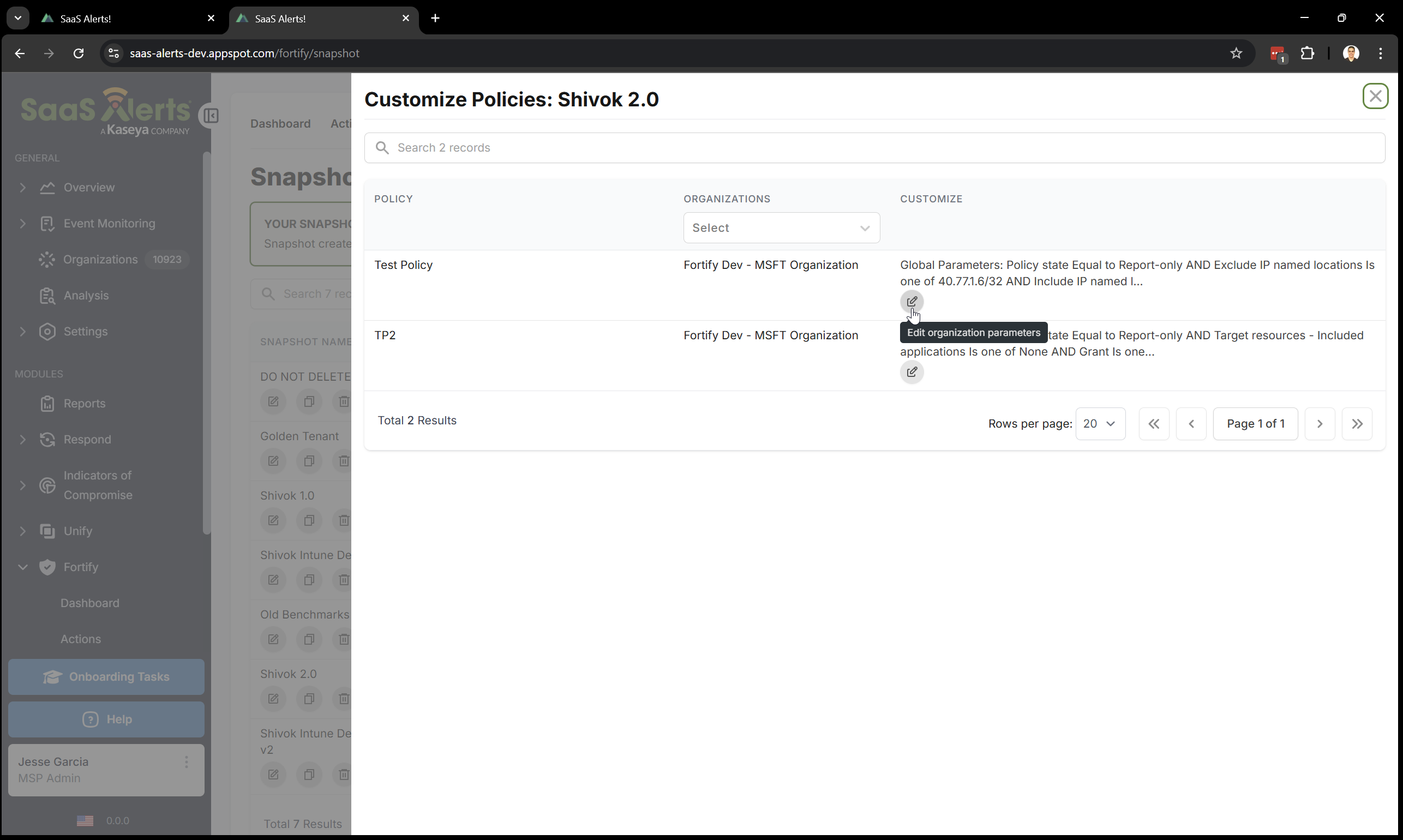
Parameters can be added or modified by clicking the Edit organization parameters icon.
-
You can also review your global parameters. Note that not all parameters are configurable; some are visible only to show the detected options after import.
If your policy includes or excludes targeted groups, these groups will be imported and stored as a global parameter using their display names. When applying the snapshot to an organization, groups in the target organization will be matched based on their display names. If a group exists, it will be included; if not, it will be ignored. This feature is beneficial if you maintain similar naming conventions for groups across multiple organizations.
If a custom authentication context is configured as a target resource, it will also be imported. If the custom authentication context does not exist in the target organization, it will be created.
Custom authentication strength, if configured as an access control grant, will be imported as well. If the custom authentication strength does not exist in the target organization, it will be created. Make sure to use a unique name for custom authentication strengths to prevent the policy from using an existing strength in the target organization that has the same name.
When networks or locations are configured in the policy to be included or excluded, the associated IP ranges and countries will be included as parameters in the policy. When the policy is applied to an organization, any IP or country named location will be created in that organization’s named locations using the policy's name.
To avoid issues when creating policies for assigned organizations, ensure that the policy name is unique before importing it, or enable the parameter that allows the policy to be created if a policy with the same name already exists.
Policies within the snapshot can be enabled or disabled. Only the policies that are enabled will be applied to the assigned organizations.
Managing snapshot assignments
Organizations can only be assigned to one snapshot at a time. To assign an organization to a different snapshot of the same type (i.e., swap from one conditional access policy snapshot to another conditional access policy snapshot), you must first remove it from the current assignment.
Additionally, organizations must have a Microsoft Entra ID P1 license or a higher tier to be assigned.
To add an organization to the snapshot template from the imported Microsoft tenant, click the Modify Organizations icon under the Snapshots tab.
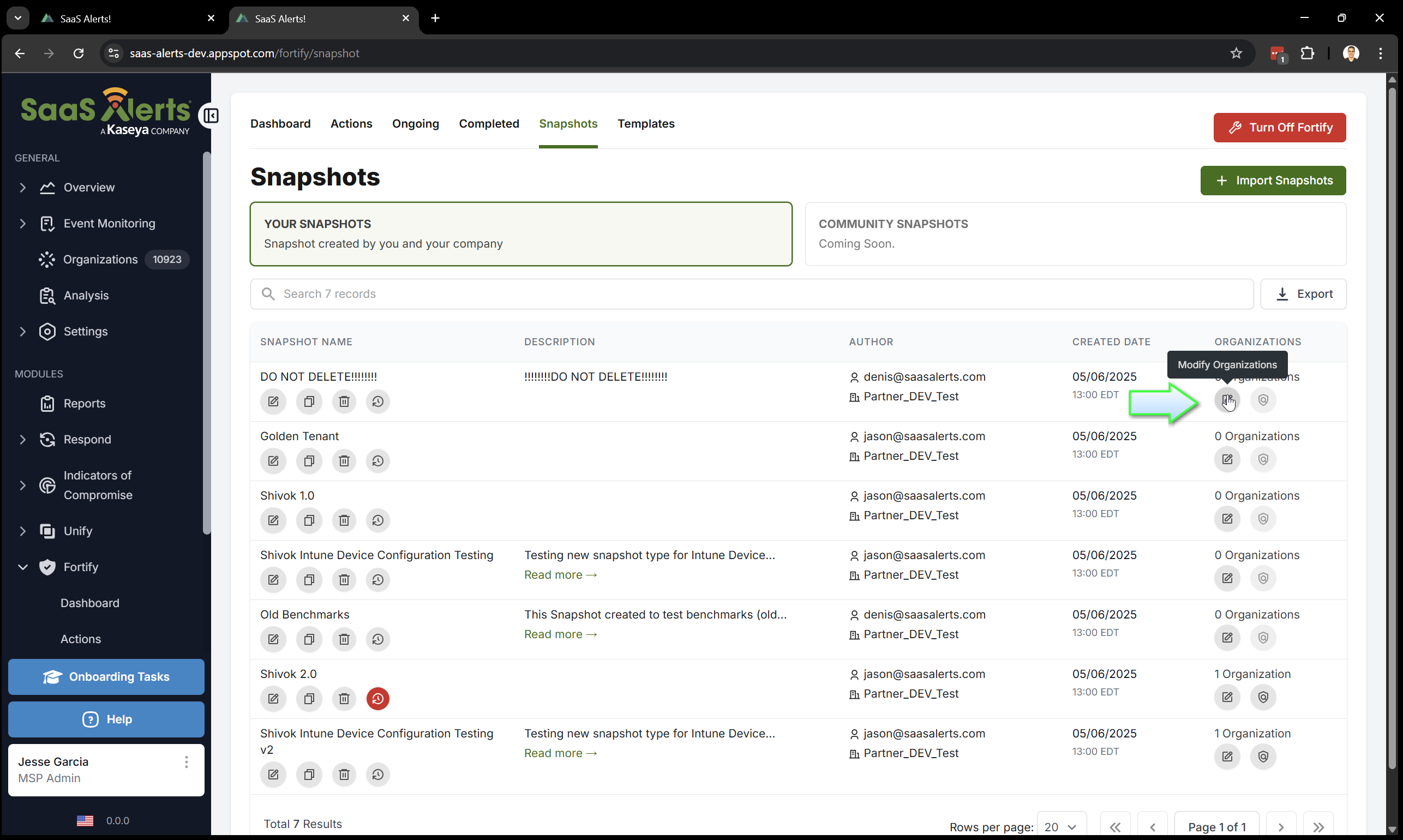
Organizations assigned to a snapshot will have that snapshot applied to them immediately. A synchronization process will occur every 24 hours for all organizations linked to the snapshot. The following actions will take place:
-
Policy creation: The system will check if the policy exists. If it is missing, the policy will be created. This action will be logged, indicating that the original snapshot policy was removed and recreated.
-
Policy updates: The system will verify if the policy has been modified externally. If any settings have been changed manually, the policy will be updated to align with the snapshot policy. This will also be logged, noting that the policy was modified and subsequently updated.
-
Parameter changes: If the global or organization parameters for the policy snapshot have been altered and no longer match the parameters configured in the organization’s policy, the policy will be adjusted accordingly. This change will be logged, documenting that the parameters were modified and the policy was updated.
-
Policy removal: If the policy is unselected from the snapshot, the policy will be removed.
The results of each snapshot synchronization will be available for auditing purposes, including all operations performed for each organization and policy.
When removing an assigned organization from a snapshot, you will have the option to retain the policies applied by the snapshot or to remove those policies. If you choose to remove the policies, please be aware that this could potentially leave the organization vulnerable.
Duplicating a snapshot
To duplicate your Snapshot policies, simply click the Duplicate icon.
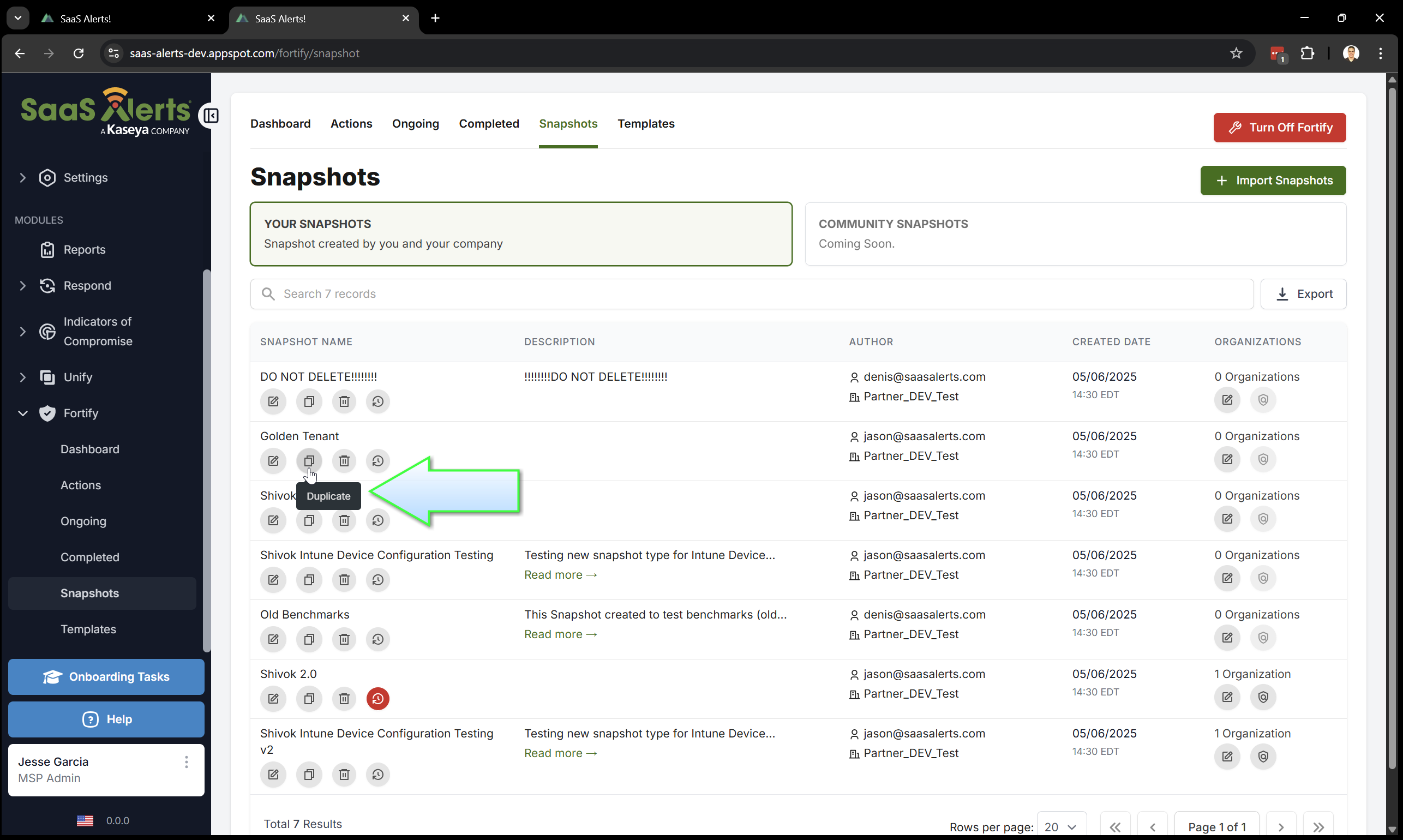
Duplicating a snapshot enables you to keep the original while creating an exact copy of all the policies and parameters. This feature is particularly useful if you want to modify the enabled policies or parameters in the snapshot and test those changes before applying them to your organizations.
Please note that any assigned organizations will not be included in the duplicate snapshot. Before assigning an organization to the new snapshot, ensure that it is not already assigned to an existing snapshot of the same stype.
Deleting a snapshot
To delete your Snapshot policies, simply click the Delete snapshot icon.
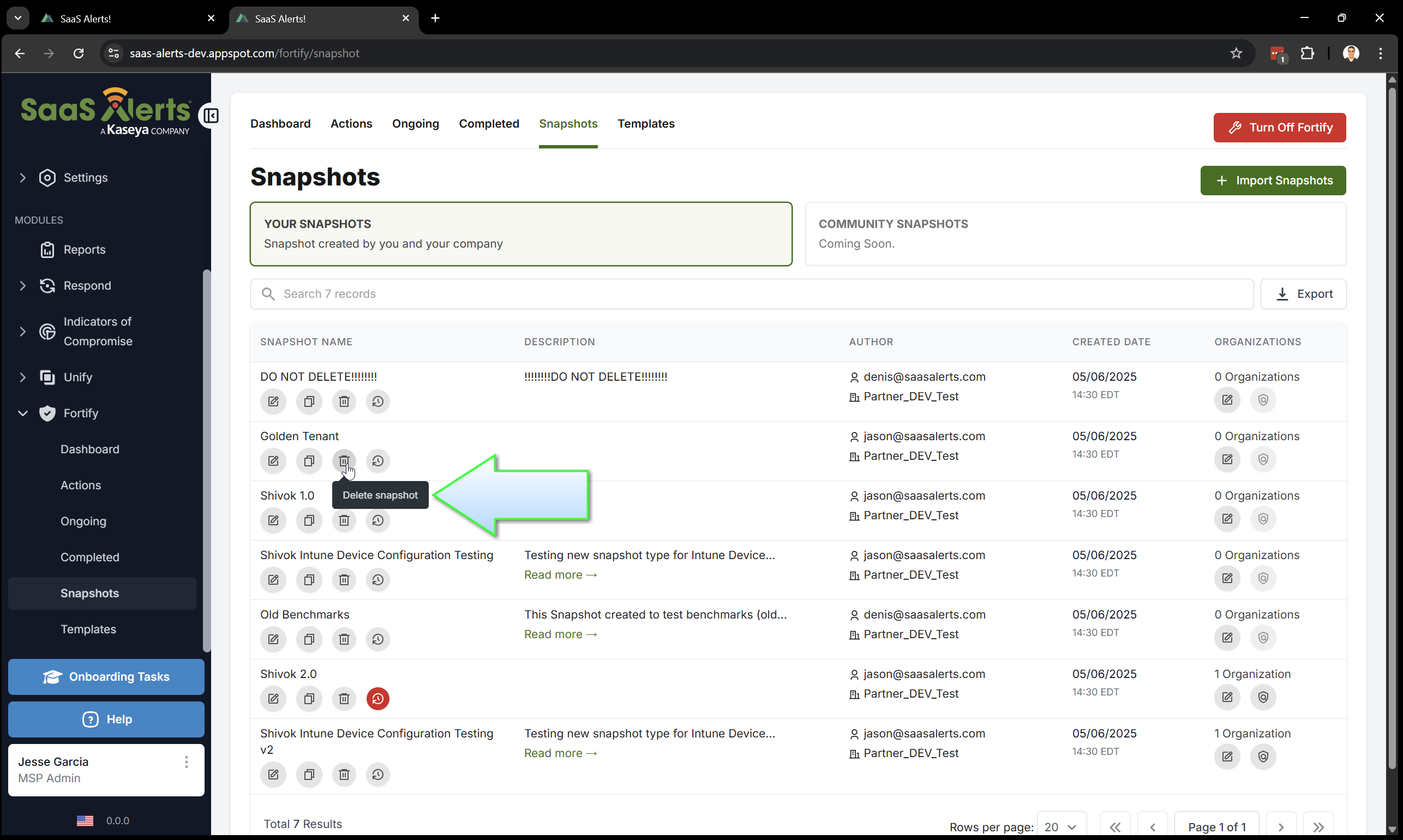
Deleting a snapshot will remove the snapshot itself and provide an option to also remove it from the currently assigned organizations. If you choose to remove the snapshot from the assigned organizations, all policies created from that snapshot will be deleted in each organization. Please be aware that this action could potentially leave the organization vulnerable.
For audit purposes, the sync history of deleted snapshots will be retained and can be viewed in the dashboard.


