Demoting or deleting an MSP Admin user within SaaS Alerts
You must be logged in as an MSP Admin user to make these changes.
To delete an admin account, the user must first be demoted to an MSP User.
Within the SaaS Alerts UI, navigate to Settings > Users, access the row of the user you wish to modify, and click the Edit user pencil icon  .
.
Clear the check box next to MSP Admin and click Save.
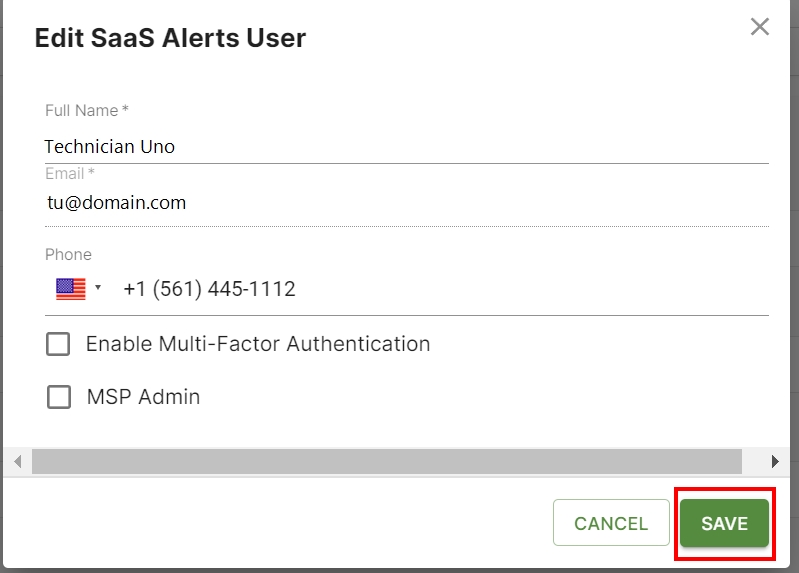
The preceding steps may also be used to promote an MSP User to an MSP Admin.
Now that the user is no longer an MSP Admin, the delete icon  to the right of their name on the user row will allow them to be deleted.



