Tenant does not exist (MS_AUDIT_OFF)
In some cases, when connecting a customer Microsoft tenant and requesting log events, Microsoft provides the response tenant does not exist.
This error is related to permissions, the status of the Microsoft audit log, and auditing not being enabled.
Step 1: Check permissions
In your customer's Active Directory portal, navigate to Enterprise Applications > All applications > SaaS Alerts.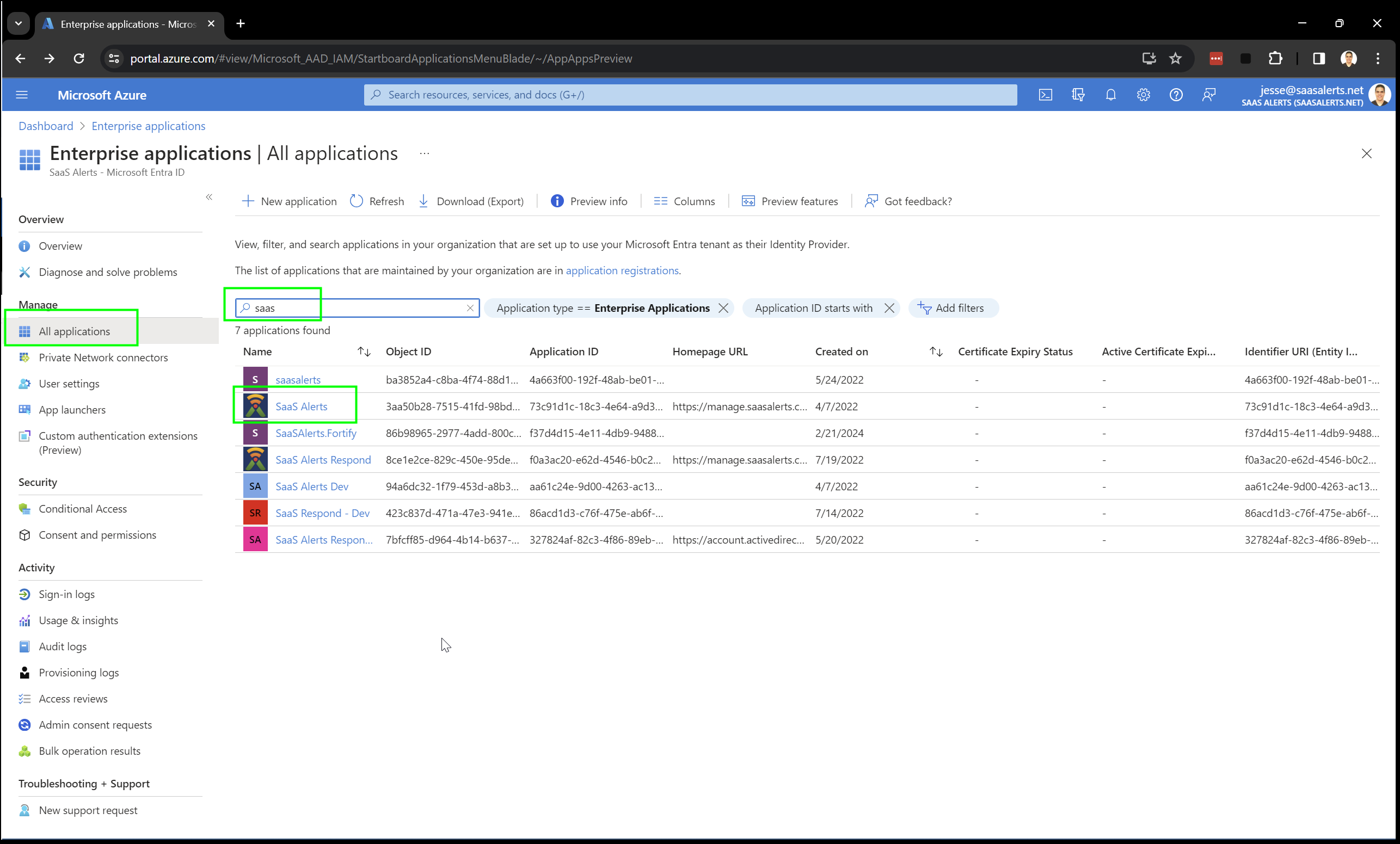
In the Microsoft Graph table, confirm the Read audit log data permission appears as shown in the following screenshot. If the permission is not present, enable this permission for the admin user employed for the SaaS Alerts tenant integration.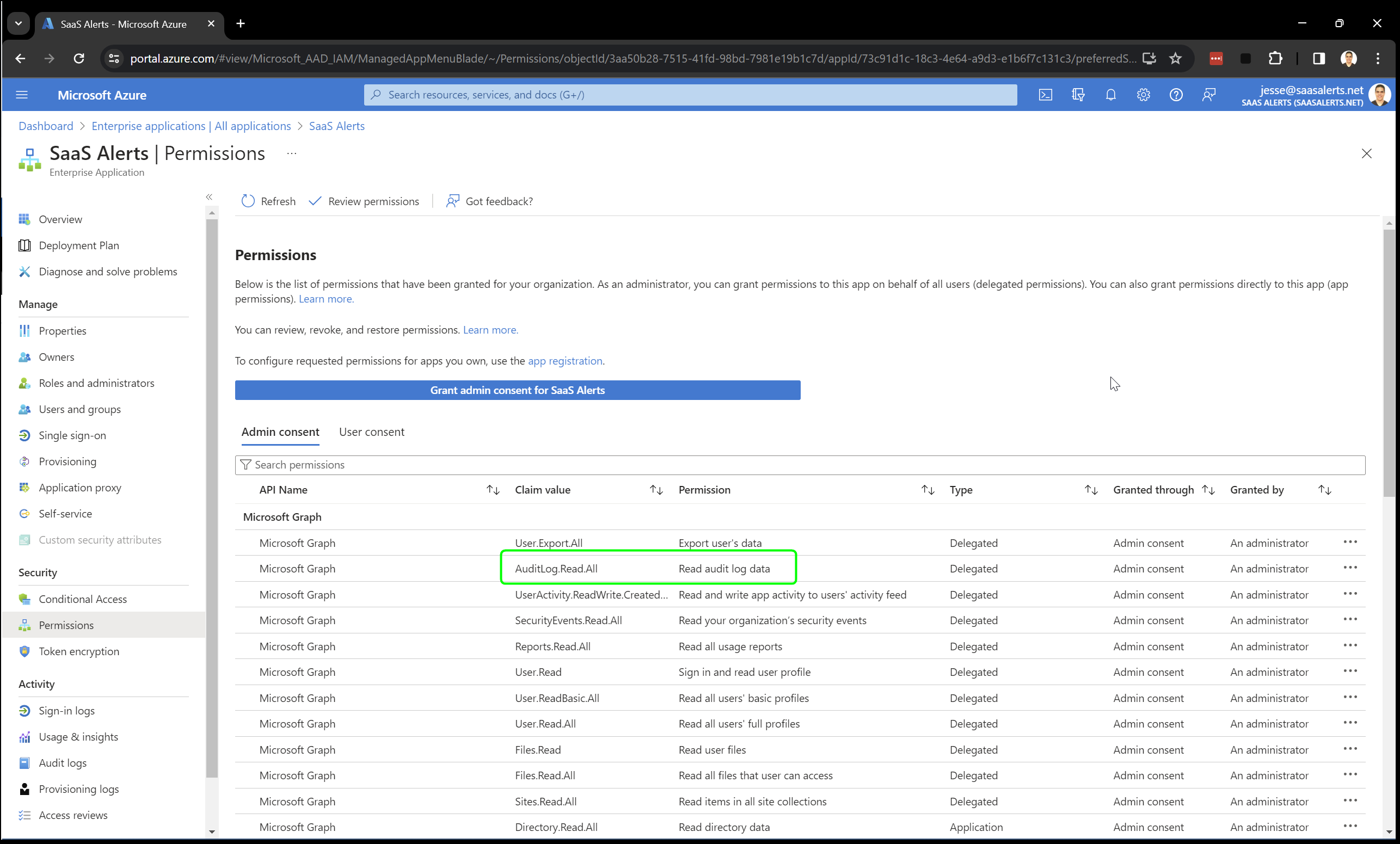
Step 2: Enable auditing
The other reason this error may be occurring is that auditing is not enabled.
The following instructions are provided by Microsoft in this article:
-
Sign in to purview.microsoft.com.
IMPORTANT Ensure you are signing in to the correct Microsoft 365 tenant. Using the preceding link in a browser with an actively signed-in Microsoft 365 session will access the incorrect tenant.
-
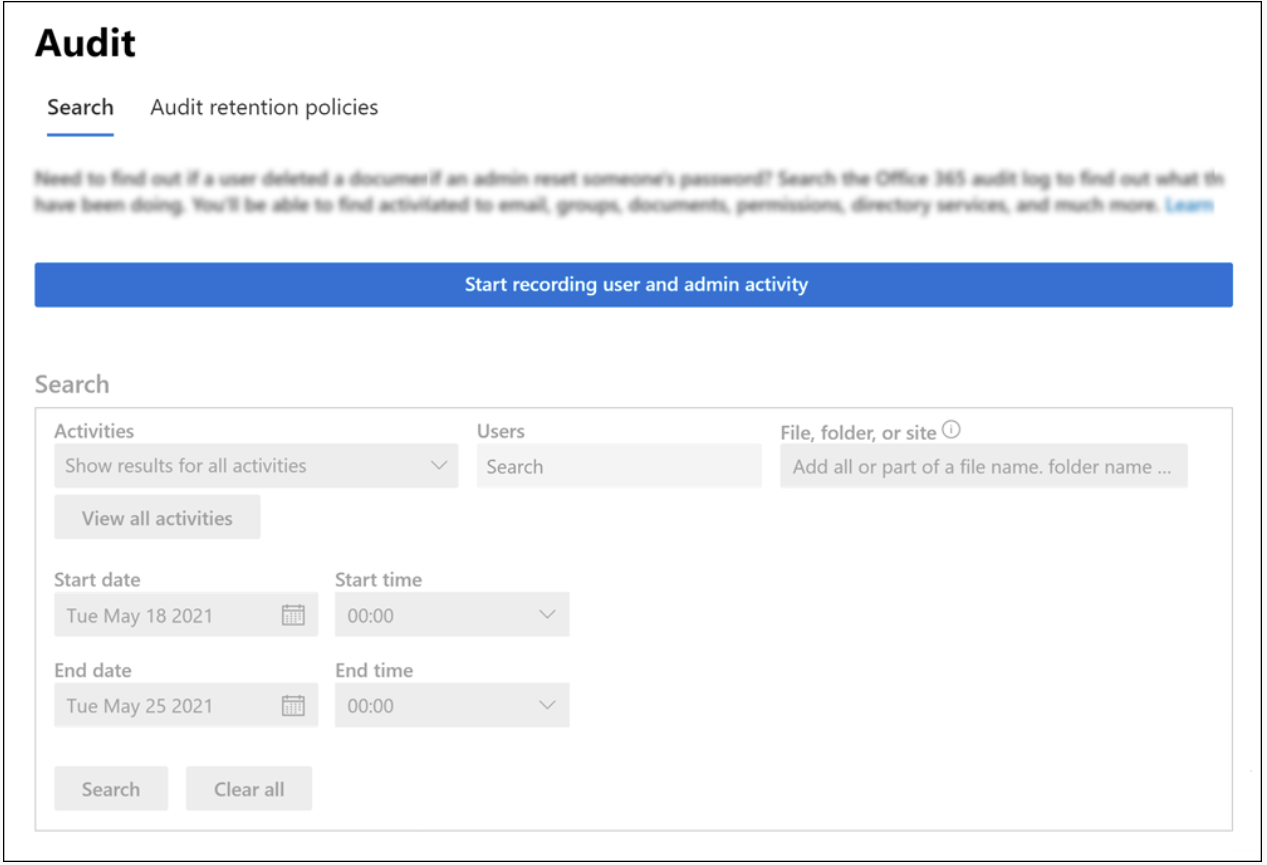
From the left navigation menu, click Audit.
If auditing is not turned on for your organization, a banner is displayed prompting you to start recording user and admin activity.
-
Click the Start recording user and admin activity banner. It may take from 60 minutes up to 24 hours for the change to take effect.
- Once auditing is available, it is suggested to test if it is working by generating an audit search and confirming it generates results.
- After the 60 minutes, access the customer that auditing has been enabled for, click the pencil icon, then click Play to reconnect the customer. If it fails, try again after 24 hours.
If unable to turn on auditing (pop-up message stating enabling auditing failed), wait for 12 to 24 hours, try again, and return to step 4.
Additional options for turning on auditing are presented in the Microsoft article.
Step 3: Remove and then reconnect the Microsoft connection
The last step is to create a new connection between your Microsoft tenant and SaaS Alerts. This step is important, as it refreshes the connection and will allow the API connection to acknowledge the new auditing status.
Because Microsoft may require 60 minutes up to 24 hours for the changes to take effect, it makes sense to wait at least an hour.
In SaaS Alerts, delete the existing Microsoft connection.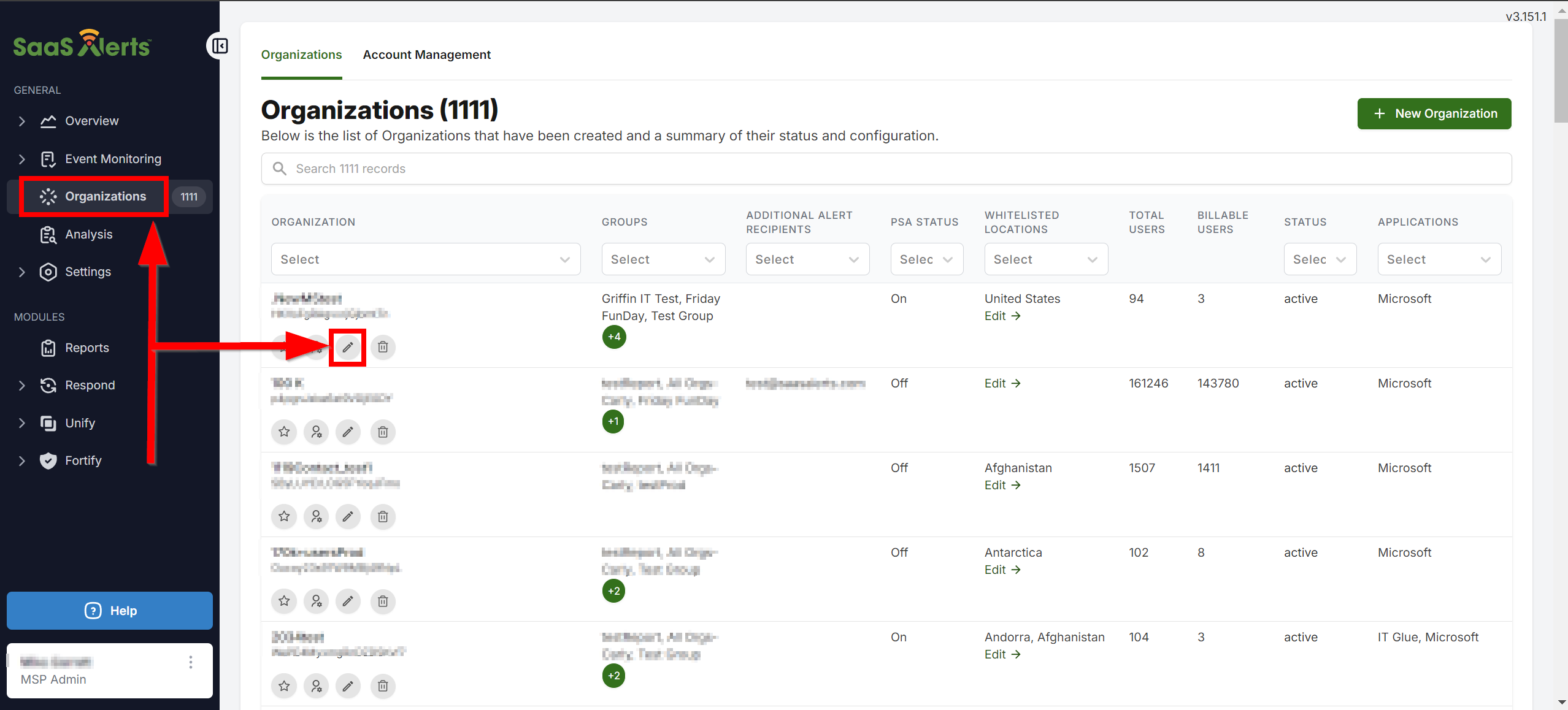
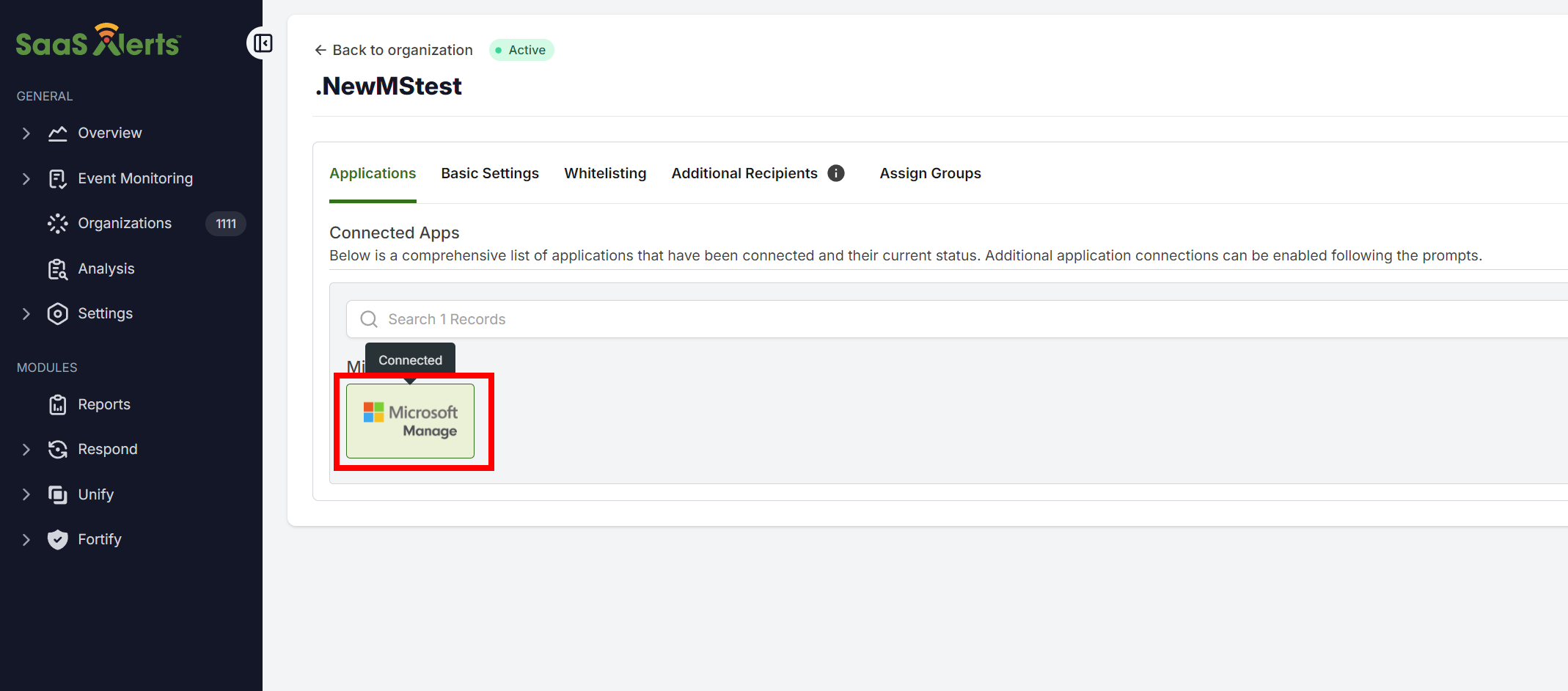
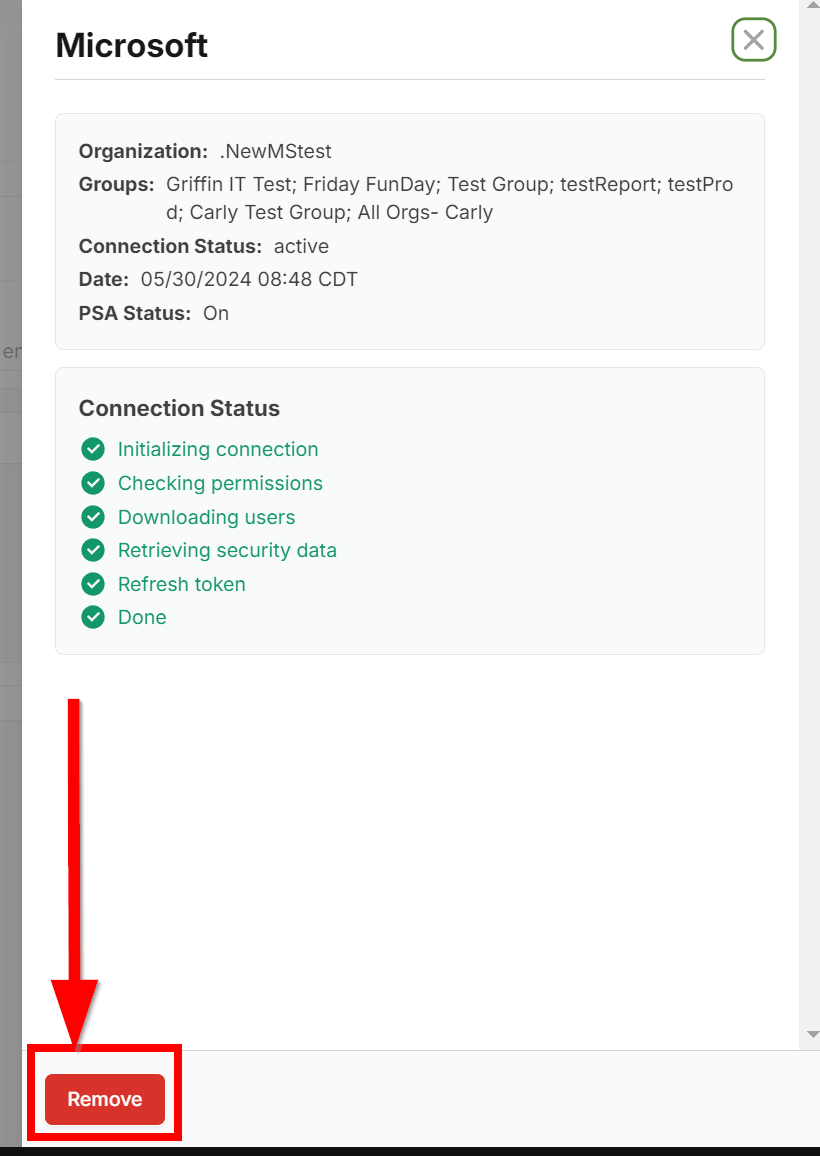
Next, add a new connection to your customer's Microsoft tenant for the organization you just removed it from.
Checking if the new connection is working
Microsoft may require 60 minutes up to 24 hours for auditing to propagate.
To verify the connection is working as intended in SaaS Alerts/Customers, verify the following:
- Customer status is active
- Active user count > 0
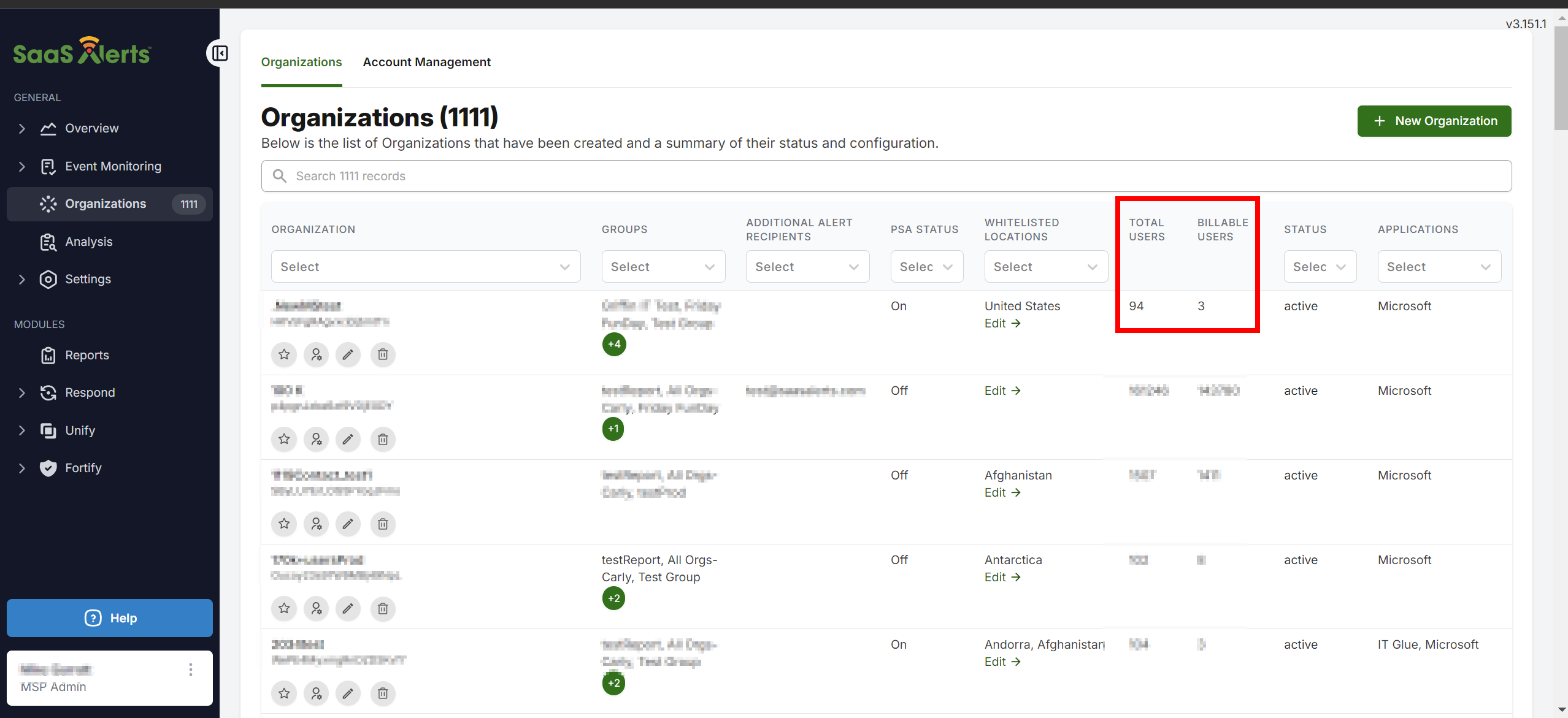
Next, go to the Analysis page, where you should be able to filter for your newly re-added customer and view their events.
If auditing enablement fails
Option 1
If unable to turn on auditing (pop-up message stating enabling auditing failed), wait for 12 to 24 hours, and try again.
Option 2: PowerShell
- Connect to Exchange Online PowerShell.
- Once connected, use the following command:
Enable-OrganizationCustomization - Next, use the command to enable auditing:
Set-AdminAuditLogConfig -UnifiedAuditLogIngestionEnabled $true
Refer to the Microsoft article for more details.
Confirming Microsoft 365 tenant being accessed
Signing in to Microsoft 365 when using multiple browsers can cause some confusing access issues. In most cases, you may already be accessing a Microsoft 365 tenant in your current browser session.
To confirm if you are already signed in, open a new browser tab and go to the URL admin.microsoft.com.
Either the Microsoft 365 admin center or a sign-in page will open.
Microsoft 365 admin center
Here, you can confirm the account you are signed into by clicking the user icon in the upper-right corner of the page.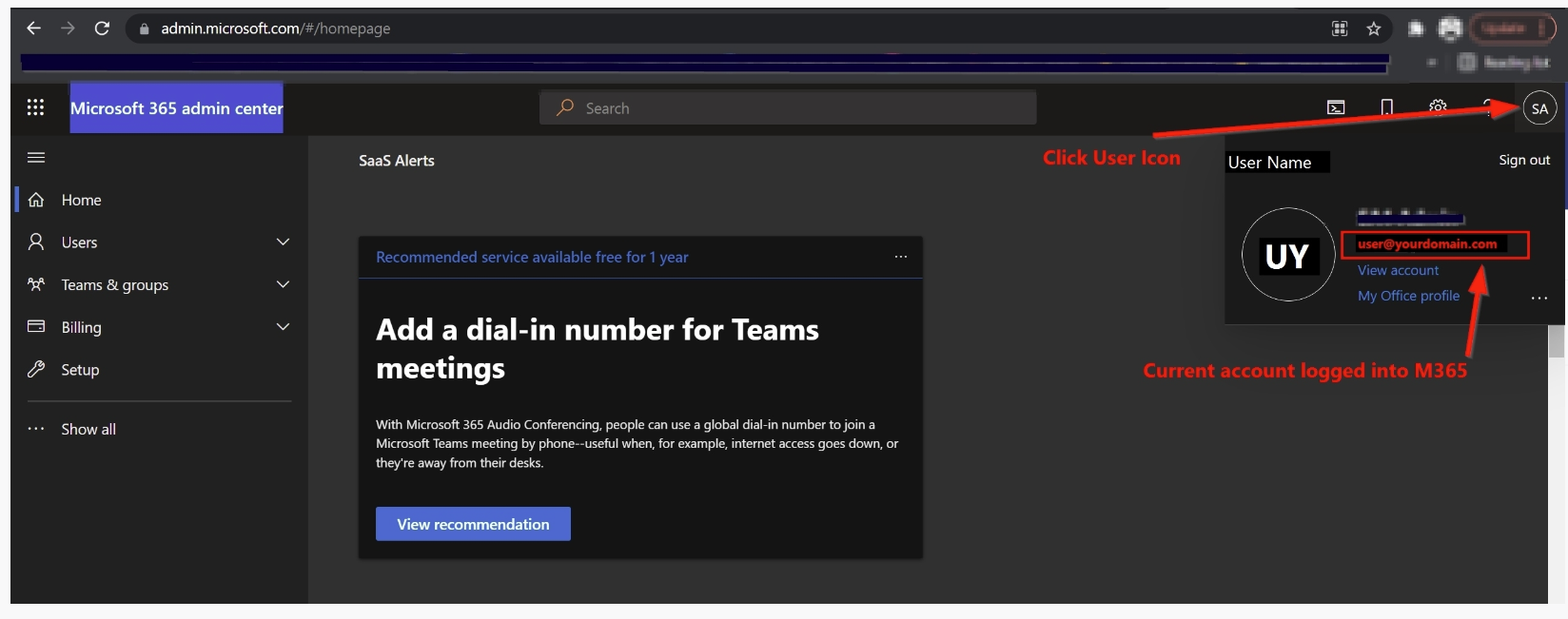
Sign-in page
The sign-in page displays available user accounts (if previously signed in) or a prompt for credentials.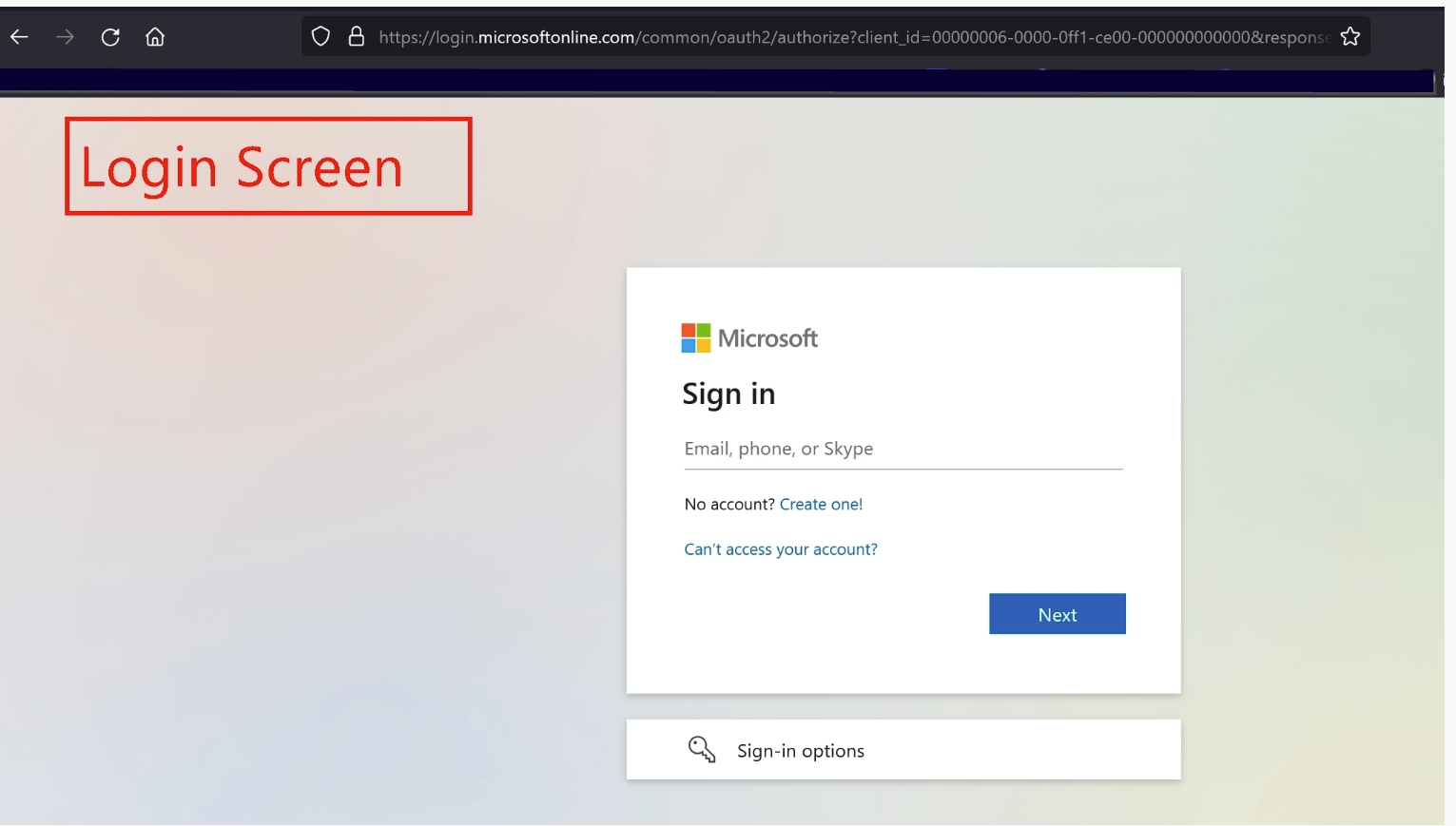
If you are currently signed in with an admin account
Option 1
Sign out of Microsoft and close all browser tabs and windows. Open a new session and sign in with the global admin credentials for the Microsoft 365 tenant you are enabling auditing for.
Option 2
Use a different browser (or browser mode such as incognito) and test admin.microsoft.com to ensure no accounts are signed in, and then sign in with the Microsoft 365 global admin credentials for the tenant you are attempting to enable (confirm) auditing is enabled for.
If you are not signed in with an admin account
Sign in as the global admin for the Microsoft 365 tenant you are working on to enable or confirm auditing on and navigate to compliance.microsoft.com. Click the Audit option, which will load the Audit page and provide you the option to enable or search, depending on the status of the service.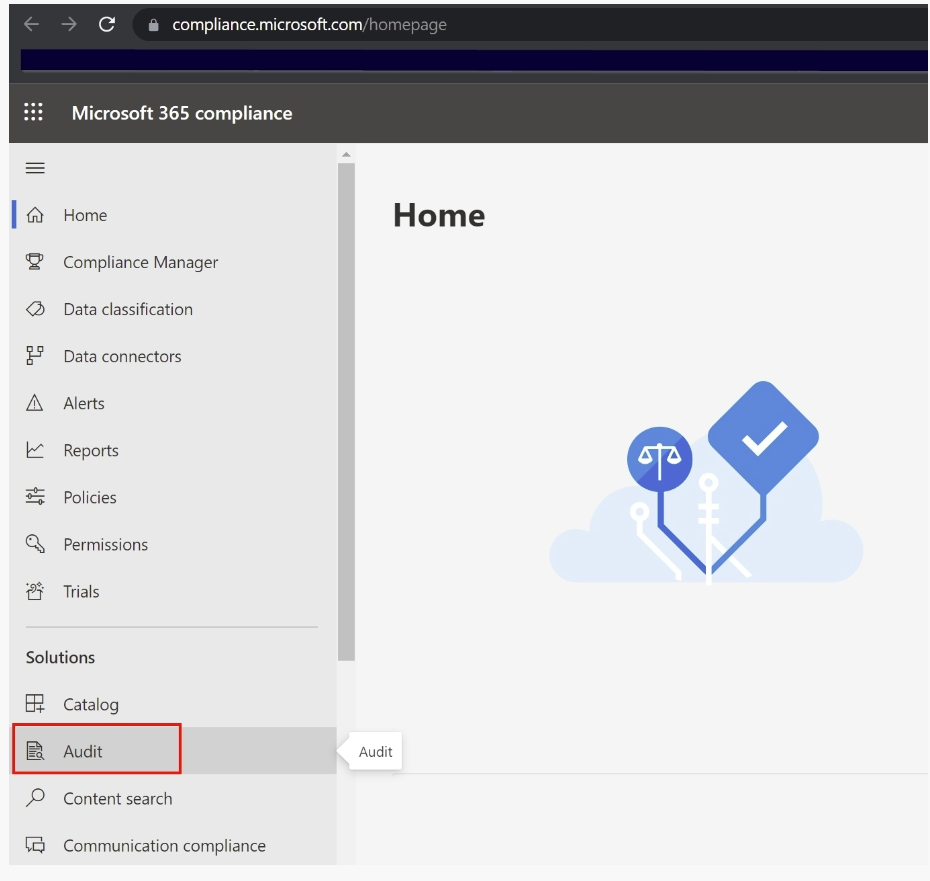
Should auditing fail to enable or not become functional after these steps, we suggest contacting Microsoft support to have them review your tenant. Another option is outlined in Microsoft 365: Auditing fails to enable or appears active but is not functional.


